Best Keyboard Apps for MacBook Pro (2026)
I've had six keyboard apps running on this MacBook Pro at once: one for remapping, one for launching, one for windows, one for macros, one for text expansion, one for clipboard history. Each earned its spot by doing one narrow job faster than the trackpad. None of them touch the sentence already on the screen, which is what my hands are on this keyboard to do most of the day.
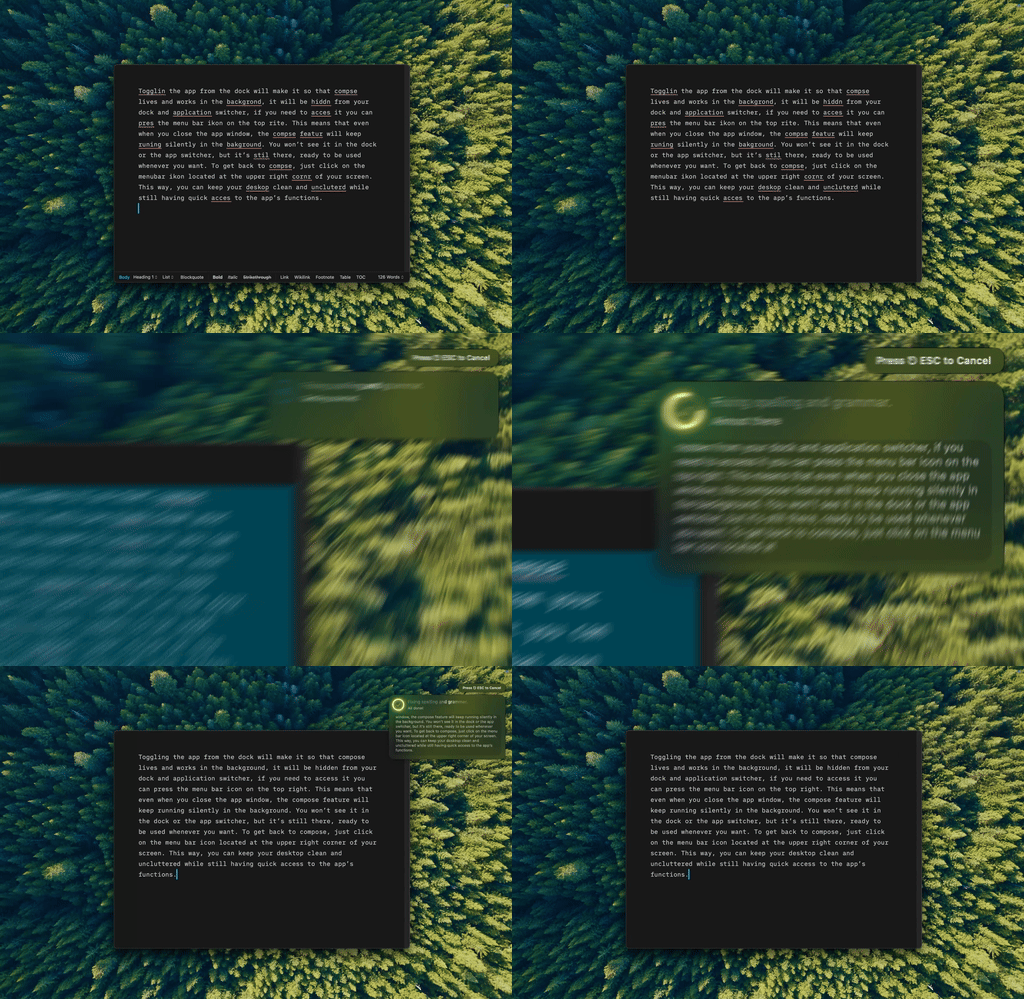
Type Mac: I select the paragraph, hit the shortcut, and the grammar fix lands without a tab switch.
The quick answer
| App | Category | Price |
|---|---|---|
| Type Mac | Fixes and rewrites selected text, in any app | Subscription or lifetime |
| Karabiner-Elements | Key remapping | Free, open source |
| Raycast | App launcher, snippets, clipboard | Free tier |
| Rectangle | Window snapping | Free, open source |
| Keyboard Maestro | Macros and automation | One-time purchase |
| Espanso | Text expansion | Free, open source |
| Maccy | Clipboard history | Free, open source |
Everything on that list earned a permanent slot on my Mac. The sections below explain why, category by category, and where the free option is genuinely enough.
Remapping: Karabiner-Elements is still the standard answer
Karabiner-Elements is free, open source, and the app everyone eventually points you to for remapping on macOS. The single best change most people never make: turn Caps Lock into a Hyper key, a stacked ⌃⌥⇧⌘ press that nothing in macOS or any app already claims. Once Caps Lock is a Hyper key, every launcher and window manager below gets its own shortcut namespace that never collides with a system default.
If Karabiner's rule editor is more configuration than you want to open, Hyperkey does that one job, Caps Lock to Hyper, without the rest of Karabiner's rule engine.
Launchers: Raycast, Alfred, or the Spotlight you already have
Spotlight ships free on every Mac. ⌘Space, type a few letters, launch an app. It's the floor, not the ceiling.
Raycast's free tier covers app launching, clipboard history, snippets, and window management extensions, which is most of what a launcher needs to do. Alfred asks for a one-time Powerpack purchase and goes deeper into scripted workflows once you're comfortable writing them.
Window control: Rectangle or Moom
Rectangle is free and open source, and its shortcuts (⌃⌥→ for the right half, ⌃⌥Return to maximize) cover halves, thirds, and quarters, which is most of what window snapping needs to do. Moom is a one-time purchase and adds custom grids and saved layouts for anyone whose windows don't fit neatly into halves. Rectangle and Karabiner together cover most of a keyboard-first window and remapping setup; this deeper rundown of keyboard-driven productivity walks through building the full habit from the Caps Lock remap on up.
Macros: Keyboard Maestro, BetterTouchTool, or Shortcuts
Keyboard Maestro is a one-time purchase and the deepest macro engine on Mac: multi-step sequences, conditional logic, triggers off almost anything. BetterTouchTool is also a one-time purchase and layers trackpad and gesture triggers on top of its own macro engine. macOS Shortcuts is free and built in, more limited than either, but nothing to install for a basic multi-step action.
Text expansion: Espanso, Rocket Typist, or Text Replacement
Espanso is free and open source: type ;email and your address appears, anywhere text can be typed. Rocket Typist is a one-time purchase built specifically for Mac, with richer fill-in fields. macOS's own Text Replacement (System Settings → Keyboard → Text Input) is free and built in, fine for short static snippets, with no dynamic fields. All three retype something you've already written once; if typing speed itself is the bottleneck rather than repetition, this list of typing apps for MacBook covers that separately.
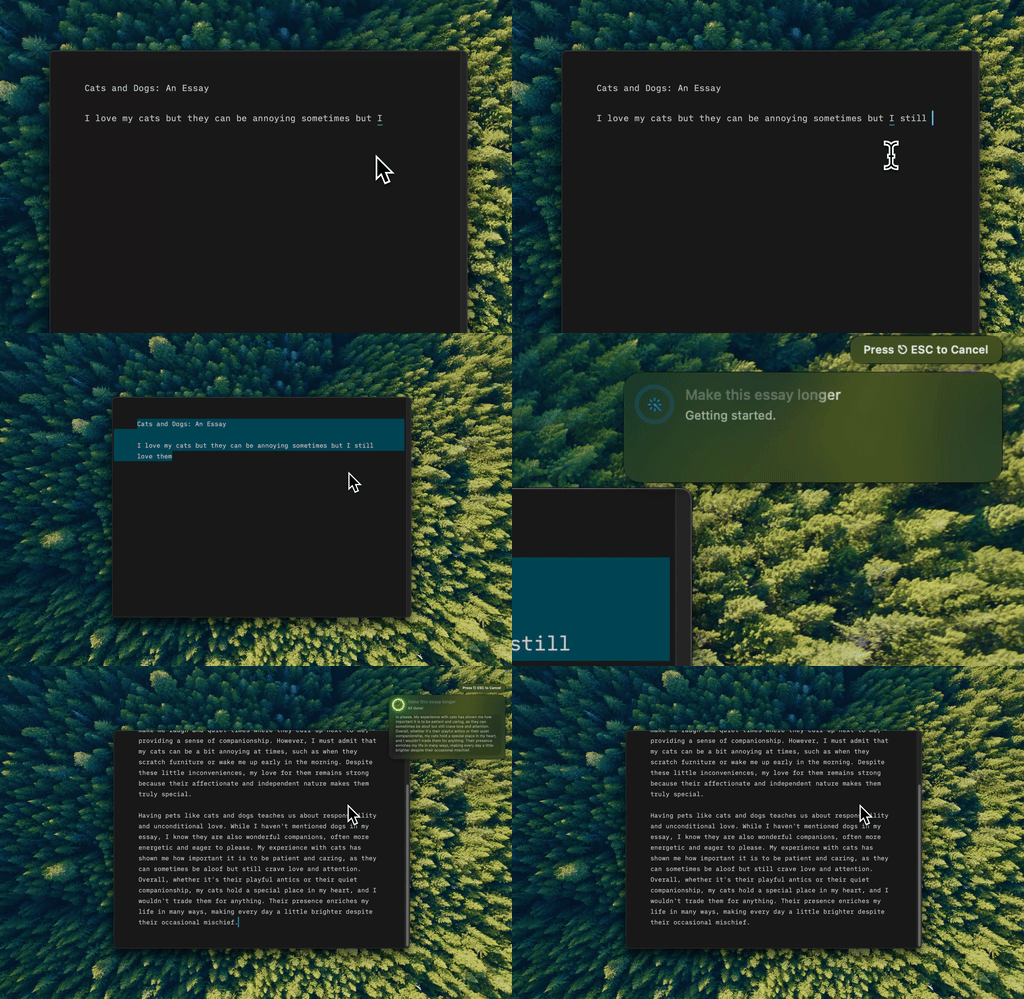
Type Mac: three bullet points became a paragraph, one shortcut, no snippet written ahead of time.
Clipboard history: Maccy or Paste
Maccy is free, open source, and fast: press a shortcut, search, paste. Paste is a subscription that adds iCloud sync across Mac and iPhone, pinned clips, and image previews, worth it once clips need to follow you between devices rather than stay stuck in one session.
The gap none of these close
Every app above moves you around a screen faster or retypes something you've already typed once. Karabiner gets your hands to the right key. Raycast gets you to the right app. Rectangle gets a window to the right spot. Espanso and Maccy hand a string back without retyping it. None of them look at the sentence on the screen and decide whether it's the sentence you meant to write. macOS covers part of that for free, and these built-in proofreading shortcuts are worth learning regardless, but spell check alone still misses grammar, tone, and phrasing a red underline doesn't parse.
The last shortcut I added
The keyboard app still running after all the others got swapped out is Type Mac. Select any text, in any app, press one shortcut, and it's fixed or rewritten in place. A few reasons it kept the spot the rest of this list was competing for:
- Same keyboard-first habit as Karabiner and Rectangle: hands stay on the keys, nothing routes through a popup or a browser tab.
- One shortcut covers grammar, one covers a rewrite, one covers a shorter version, so there's no separate app to open per kind of edit.
- It works in whatever has focus, Slack, Mail, Xcode comments, a Google Doc, the same way a remap or a window shortcut does.
- Bring-your-own-key means the model is a choice, not a bundled markup on top of the API cost.
The honest limitation: like Karabiner and Rectangle before it, this one takes about a week of missed keystrokes before the shortcut is automatic. The rest of the stack on this page had the same learning curve; this one is no faster to adopt, only worth adopting.
Filling out a keyboard-first MacBook Pro setup? Type Mac is the one entry on this list that edits what you typed instead of where you typed it.