Best Typing Apps for MacBook (2026)
I searched "best typing apps for MacBook" expecting one answer and found three different products hiding under the same five words. Typing tutors, text expanders, and AI rewriting tools all get lumped into the same listicle, ranked against each other like they solve the same problem. They don't. I spent a few weeks with each category to find out which one actually earns a place on a MacBook that's already used for real work.
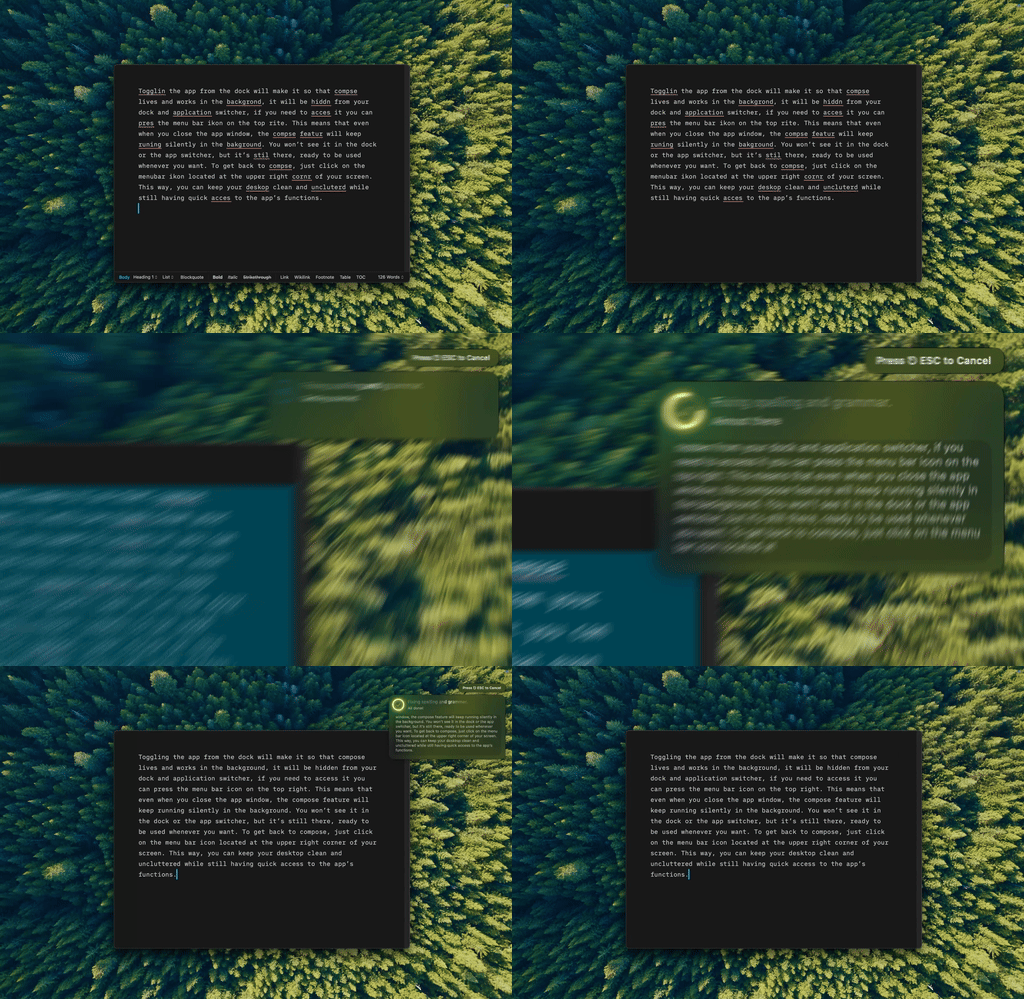
Type Mac: this is the shortcut I reach for most. Select the sloppy sentence, hit one key, it's clean.
"Best typing apps" means three different things
Type "typing apps for MacBook" into search and you'll get results for:
- Typing practice: drills that make you faster at hitting keys
- Typing less: snippets and expansion that cut how much you type at all
- Typing better: fixing what you typed after it's already on the screen
Most people searching that phrase are only thinking about one of these. Here's how to tell which one you need, and what to install for each.
Typing practice: thin on native Mac apps, thin on payoff past intermediate speed
The names here are the same ones you've seen for a decade: Typing.com, Keybr, TypingClub, Monkeytype. All of them are browser tools, not Mac apps. You'll be typing inside Safari or Chrome, not in anything that lives in your Dock. Typing.com and TypingClub are free with an optional paid tier for extras; Keybr and Monkeytype are free, and Monkeytype is open source. There isn't a native Mac typing tutor worth recommending. That's the state of the category.
Here's the part most "best typing apps for MacBook" roundups skip: if you already type 70–80 words per minute, another drill barely moves the number. Speed gains flatten out fast once you're past beginner level, and the bottleneck for most people who write on a Mac all day isn't how fast they hit keys. It's the rewrite pass: going back over what you wrote to fix the sentence that didn't land. A typing tutor doesn't touch that at all.
Typing less: text expansion cuts the retyping, not the rewriting
The second category swaps effort for setup: define a short trigger once, type it anywhere, get the full text back out.
| App | Price | Notes |
|---|---|---|
| Espanso | Free, open source | Cross-platform, trigger by typing :shortcut |
| macOS Text Replacement | Free, built-in | System Settings → Keyboard → Text Input → Text Replacements |
| Raycast Snippets | Free | Included in Raycast's free tier |
| Alfred Snippets | One-time purchase | Needs the paid Powerpack to enable |
| Rocket Typist | One-time purchase | Mac-only, older but still maintained |
If you already have Raycast or Alfred installed for launching apps, their snippet tools cost nothing extra to turn on. If not, Espanso is free, open source, and works outside the browser the way none of the typing tutors do. macOS's own Text Replacement is the lowest-effort option: no install, and it's already sitting in System Settings.
Snippets are genuinely useful for anything you type identically every time: your email, a mailing address, a canned response. They stop helping the moment the text needs to change based on what you're replying to, which is most writing.
Typing better: fixing what's already on the screen
This is the category the listicles skip, and it's the one that matters most if speed was never your problem. The idea: write badly and fast, then fix it in place instead of rewriting it in your head before you've even typed it.
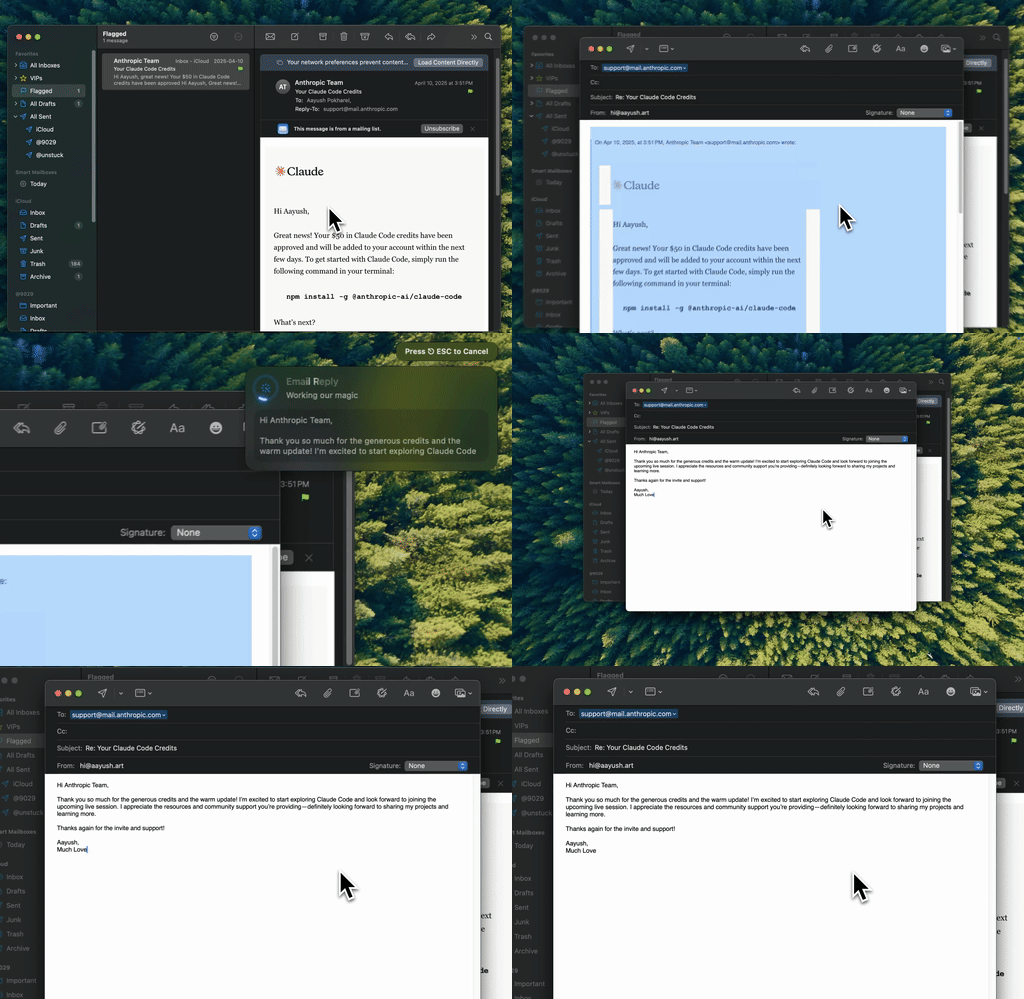
Type Mac: I wrote this one fast and messy, selected it, and cleaned it up without opening a separate window.
Type Mac does this by sitting in the menu bar and watching for a keyboard shortcut. Select text in Mail, Slack, Notes, Notion, Xcode, Safari, or Discord, press the shortcut, and the selection gets replaced in place: grammar fixed, tone adjusted, expanded, condensed, or translated, depending on which shortcut you pressed. No copying into a separate chat window, no per-app setup. You can bring your own API key from OpenAI, Anthropic, Google, or Groq if you already pay for one, or use the built-in model with nothing to configure.
It pairs naturally with the system shortcuts most people already half-know. The same proofreading shortcuts worth building into muscle memory work alongside it, one for catching typos, one for everything past spelling. And it works the same way system-wide grammar checking should work on Mac: reading and replacing selected text through macOS's own Accessibility APIs, not a browser extension bolted onto one site.
If what you actually want is keyboard remapping and app-launching shortcuts rather than anything about writing, that's a different list: the keyboard-first app roundup covers Karabiner, Raycast, and window management instead.
Which one you actually need
- Beginner, still hunting for keys: a typing tutor. Any of the four above works; Monkeytype if you want something that doesn't feel like a classroom.
- You retype the same things daily: a snippet tool. Start with macOS's built-in Text Replacement before installing anything.
- You type fine but your first draft needs work: this is the category most people searching "best typing apps for MacBook" are actually in, whether they knew it or not.
The typing app that changed the most
Type Mac is what's still running on my Mac after trying all three categories. A few reasons:
- It fixes the actual bottleneck (the rewrite pass) instead of shaving milliseconds off keystrokes I was already fast at
- It works in every app I write in, unlike a browser tab or a single document format
- One shortcut replaces switching to a separate AI tab, pasting text in, copying the answer back, and losing my place
The honest limitation: it edits text you already wrote rather than ghostwriting something from nothing. If you're looking for an app to generate a first draft for you, this isn't that. It's for the moment after you've typed the messy version and want it clean.
If your bottleneck is the rewrite, not the keystrokes, Type Mac is worth the week it takes to build the shortcut habit.