
ChatGPT in Apple Mail: 4 Ways to Use AI in Mac Mail
To use ChatGPT in Apple Mail, turn on the ChatGPT extension for Apple Intelligence, then open Writing Tools in a draft and click Compose. OpenAI makes no plugin for Mail itself, so every other method works on the text in your draft from outside the app.
You have four ways to get AI help in Mac Mail. Two are built into macOS and need a Mac with Apple Intelligence. One is the ChatGPT app with copy and paste. The fourth is a shortcut: write a rough reply, select it, and press one key combination to replace it with a clean version.
4 ways to use ChatGPT in Apple Mail
| Method | What it does | What you need |
|---|---|---|
| ChatGPT extension in Writing Tools | Writes a new draft from your prompt | Apple Intelligence Mac, ChatGPT available in your region |
| Writing Tools and Smart Reply | Proofreads, rewrites, suggests replies | Apple Intelligence Mac |
| ChatGPT app | Chat answers that you paste into Mail | Any Mac, ChatGPT account |
| Type Mac shortcut | Fixes or rewrites the selected draft in place | Any Mac, Type Mac plan |
Apple Intelligence runs on a Mac with M1 or later and on MacBook Neo. Your device language and Siri language must be the same supported language.
How to use ChatGPT with Apple Mail through Apple Intelligence
First, turn on the extension:
- Open System Settings and click Siri in the sidebar.
- Click ChatGPT, click Set Up, then follow the onscreen steps.
- If you use Siri AI (beta) on macOS 27, click Set Up Extensions, click ChatGPT, then turn on Use Extension.
- Choose if you want to sign in with a ChatGPT account. Sign in only if you want your requests saved in your ChatGPT history.
Then write with it in Mail:
- In a new message, Control-click the message field and choose Show Writing Tools.
- Click Compose.
- Describe the email that you want, choose Include All Text or Selected Text, then press Return.
- Read the draft. You can rewrite it, add the suggestions, or go back to your original text.
Apple sends your request, any attachments, and limited data such as time zone, country, and language to ChatGPT. The extension works only where the ChatGPT app and service are available.
If you turned on Siri AI (beta), select the text and click Write with Siri when it appears. You can ask Siri to proofread, rewrite, or give feedback on the draft.
Apple Mail AI reply: use Smart Reply
Smart Reply drafts a reply from the email that you received. It is free on an Apple Intelligence Mac and does not use ChatGPT.
- Click an email, then click the Reply button.
- Click the message field, then choose a suggested reply.
- To change the result, select it and open Writing Tools. Choose Proofread, Rewrite, or a tone: Friendly, Professional, or Concise.
In macOS 27, Apple lists Personalized Smart Reply in Mail and Suggestions in Mail (English only) among the new Apple Intelligence features.
Is there a ChatGPT plugin or extension for Apple Mail?
Mail has an Extensions pane in Mail > Settings, where you manage the Mail extensions that you install. OpenAI does not publish one. The Work with Apps feature in the ChatGPT Mac app reads content from Apple Notes, Notion, TextEdit, Quip, code editors, and terminals. Apple Mail is not on that list.
With the ChatGPT app, the flow is copy, paste, ask, copy, and paste back. Press Option-Space to open the ChatGPT chat bar, paste your draft, and ask for a rewrite. It works, but each email takes five steps and a window switch.
The shortest method: select the draft, press a shortcut
Type Mac is a menu bar app that works on selected text in any Mac app, Mail included. It is not a Mail plugin. You write the reply in your own words, and Type Mac replaces it with a clear version where it is.
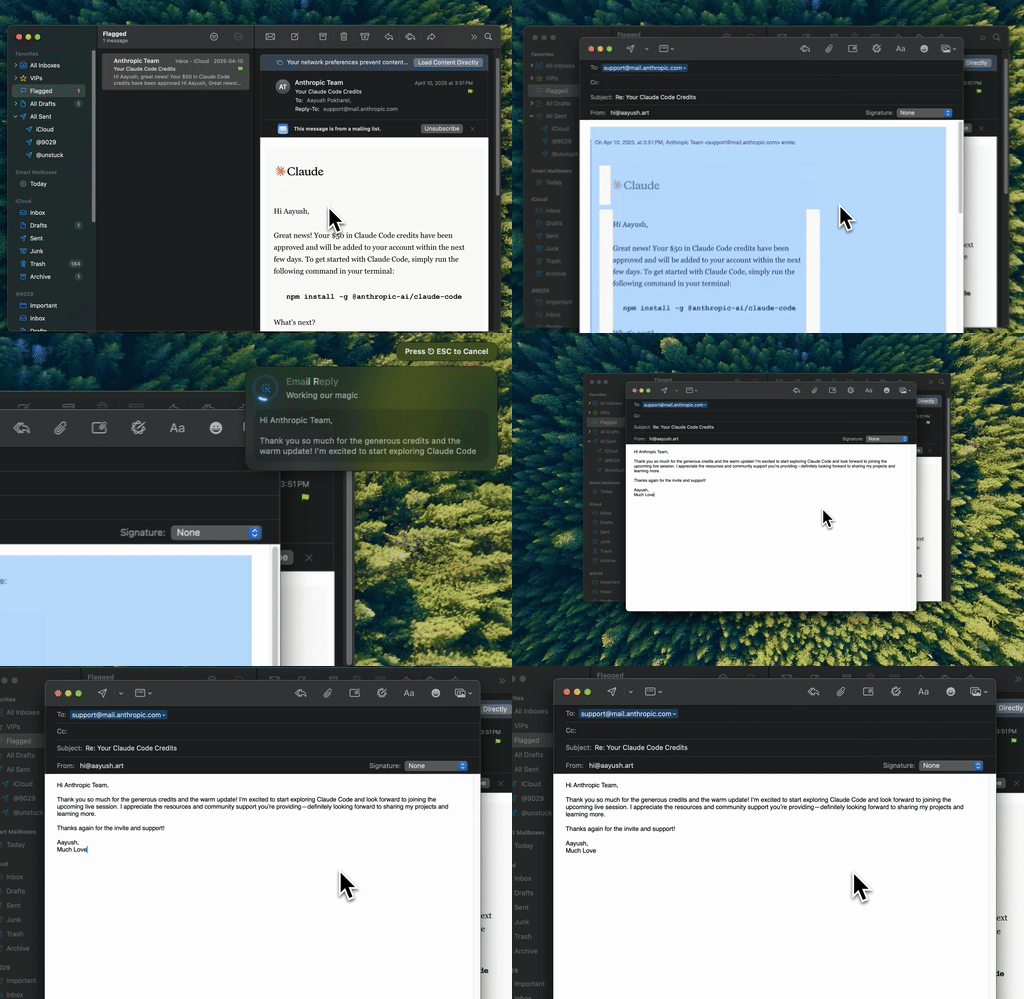
Type Mac: write a rough reply in Mail, select it, press the shortcut, and send.
- Write a rough reply in Mail. Short notes are fine.
- Click in the message body and press Command-A to select the draft.
- Press Command-Shift-Return to fix grammar and spelling, or press one of your own shortcuts, such as "Reply in a professional tone."
- Read the new text and click Send.
What you get:
- Your choice of model. Every plan includes the built-in model. To use a ChatGPT model, add your own OpenAI API key. Anthropic, Gemini, Groq, and OpenRouter keys work too.
- Custom shortcuts. Make one for each job: a polite decline, a shorter version, a reply in Spanish.
- No Apple Intelligence needed. Type Mac runs on Intel Macs and on Macs where Apple Intelligence is off.
- The same habit in every app. The shortcut works in Outlook, Gmail in a browser, Slack, and Notes.
With your own API key, the selected text goes from your Mac to the provider that you choose. Plans cost $4.99 a month, or $49.99 a year with a 7-day free trial. See how the email rewriter for Mac works.
For prompts that turn notes into full emails, read how to write professional emails faster with AI. For mail in another language, see how to translate an email in Apple Mail.
What is the best AI for Apple Mail?
The best choice depends on your Mac and on the job:
- You have an Apple Intelligence Mac and want free help: use Writing Tools to proofread and Smart Reply for short replies.
- You want ChatGPT to write a draft from a prompt: use the ChatGPT extension with Compose. The setup has more detail in Apple Intelligence ChatGPT on Mac.
- You want to pick the model, keep your own tone, or use an Intel Mac: use a shortcut tool such as Type Mac.
For a wider list of email tools, see the best email writing tools for 2026.
FAQ
Can ChatGPT read my Apple Mail inbox?
The ChatGPT extension gets only what you send with a request: your prompt, the text you include, and attachments, plus limited data such as time zone and language. Apple asks you before it shares information with ChatGPT.
Do I need a ChatGPT account to use ChatGPT in Apple Mail?
No. You can use the extension without an account. Sign in only if you want to save your requests in your ChatGPT history.
Does ChatGPT in Apple Mail work on an Intel Mac?
No. The ChatGPT extension is part of Apple Intelligence, which needs a Mac with M1 or later or a MacBook Neo. On an Intel Mac, use the ChatGPT app with copy and paste, or a shortcut tool such as Type Mac.
Why can't I find Compose in Writing Tools?
Check that Apple Intelligence is on, that the ChatGPT extension is set up in System Settings > Siri, and that ChatGPT is available in your region. With Siri AI (beta), use Write with Siri instead.
Sources
- Use Writing Tools to write, improve, and summarize content on Mac (Apple Support)
- Turn on ChatGPT on Mac (Apple Support)
- Read and respond to emails in Mail on Mac (Apple Support)
- Get started with the next generation of Apple Intelligence (Apple Support)
- Siri AI: Write with Siri on Mac (Apple Support)
- Work with Apps on macOS (OpenAI Help Center)
Write the reply your way, then let one shortcut clean it up. Try Type Mac in Apple Mail.