Grammarly Keyboard Shortcuts You're Not Using
I spent years clicking through Grammarly's suggestions one at a time before I found its keyboard shortcuts. Learning them cut my editing time by a lot, until I noticed the shortcuts stop working the moment I leave the browser.
The core shortcuts: Tab, Esc, and three Mac-only combos
| Shortcut | Action |
|---|---|
| Tab | Accept the current suggestion |
| Esc | Dismiss it |
| Arrow keys | Move between suggestions |
| ⌘⇧G | Open Grammarly globally (Mac) |
| ⌘⇧; | Jump to the next error (Mac) |
| ⌘; | Jump to the previous error (Mac) |
Tab and Esc from the top of a document: 3 to 4 times faster than clicking, no mouse needed.
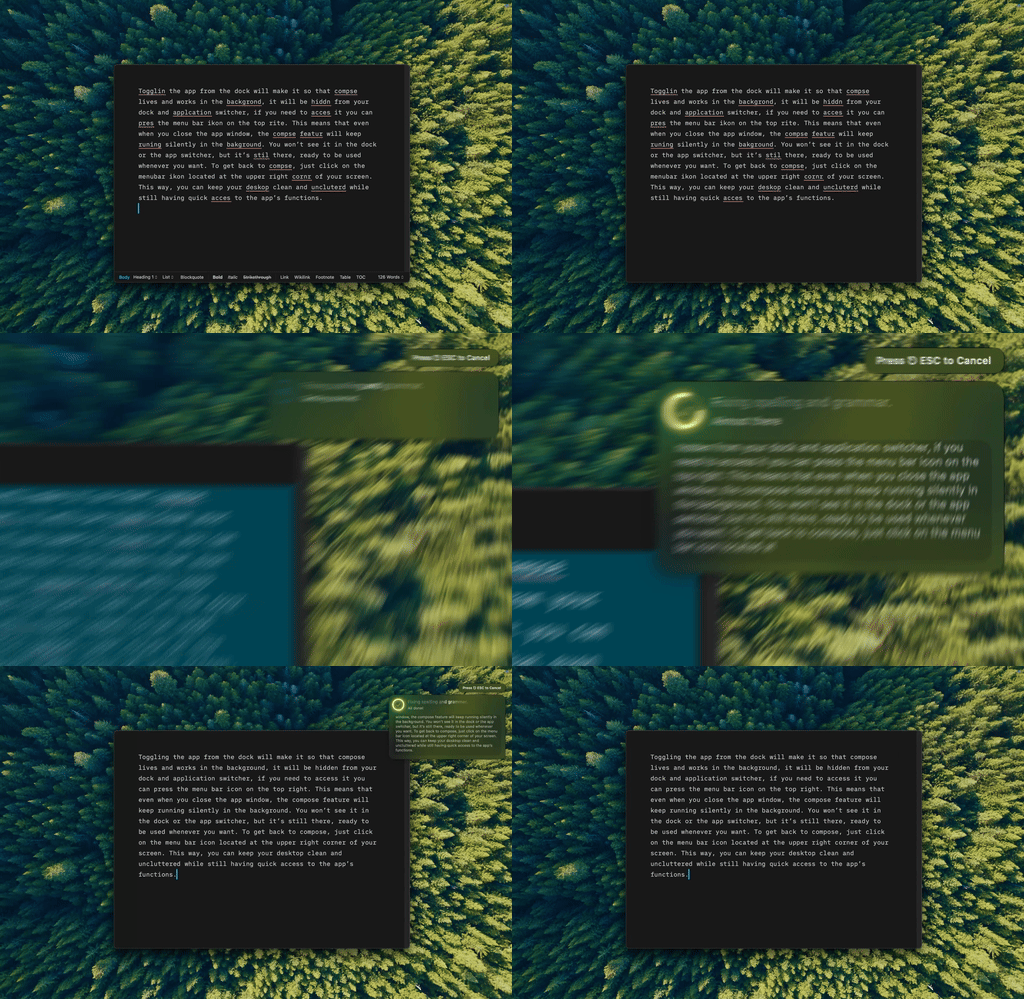
One shortcut, ⌘⌥G, and Type Mac fixes the selected text. No suggestion list to Tab through.
Write first, edit in one pass
Write the entire draft without looking at Grammarly's suggestions, then do a single pass: Tab through the obvious acceptances, Esc past the ones you disagree with, ⌘Z to undo anything accepted too fast.
Double-click for synonyms, check the tone indicator
Double-clicking any word brings up synonym suggestions, the same job Wordtune alternatives covers in more depth. The tone indicator shows how the writing reads, formal versus informal, worth a check before sending anything important.
The Goals feature tunes suggestions to your audience
Buried in the editor sidebar: set the audience, formality level, domain, and intent. Grammarly adjusts its suggestions to match. Skip it and the suggestions stay generic.
Teach it your vocabulary
Add names, company names, and industry jargon to the personal dictionary so Grammarly stops flagging them. Disable rules that consistently bother you in account settings, rather than dismissing them every time.
Outside the browser, the shortcuts stop working
Grammarly's shortcuts are solid in the browser and desktop app, weak everywhere else. In Mail and Notes, the overlay either doesn't show up or shows up late, the same browser-bound wall I ran into researching Hemingway Editor alternatives.
The shortcut that replaced all of them
Learning six Grammarly shortcuts was worth it, and I still use Tab and Esc in the browser. The same "one tool, six things to remember" math showed up comparing QuillBot against Grammarly for paraphrasing. But one shortcut, used everywhere else, is what I reach for first now:
- One combo, not six, and it works the same in Mail, Slack, Xcode, and every other app instead of only the ones Grammarly reaches.
- BYOK means the fix comes from whichever model I've got a key for, not a fixed rule engine.
- No suggestion list to Tab through. Select the sentence, press the shortcut, it's already fixed.
The honest limitation: it needs Accessibility permission the first time you launch it, since that's how it reads and replaces selected text system-wide, a one-time prompt Grammarly's browser extension never asks for.
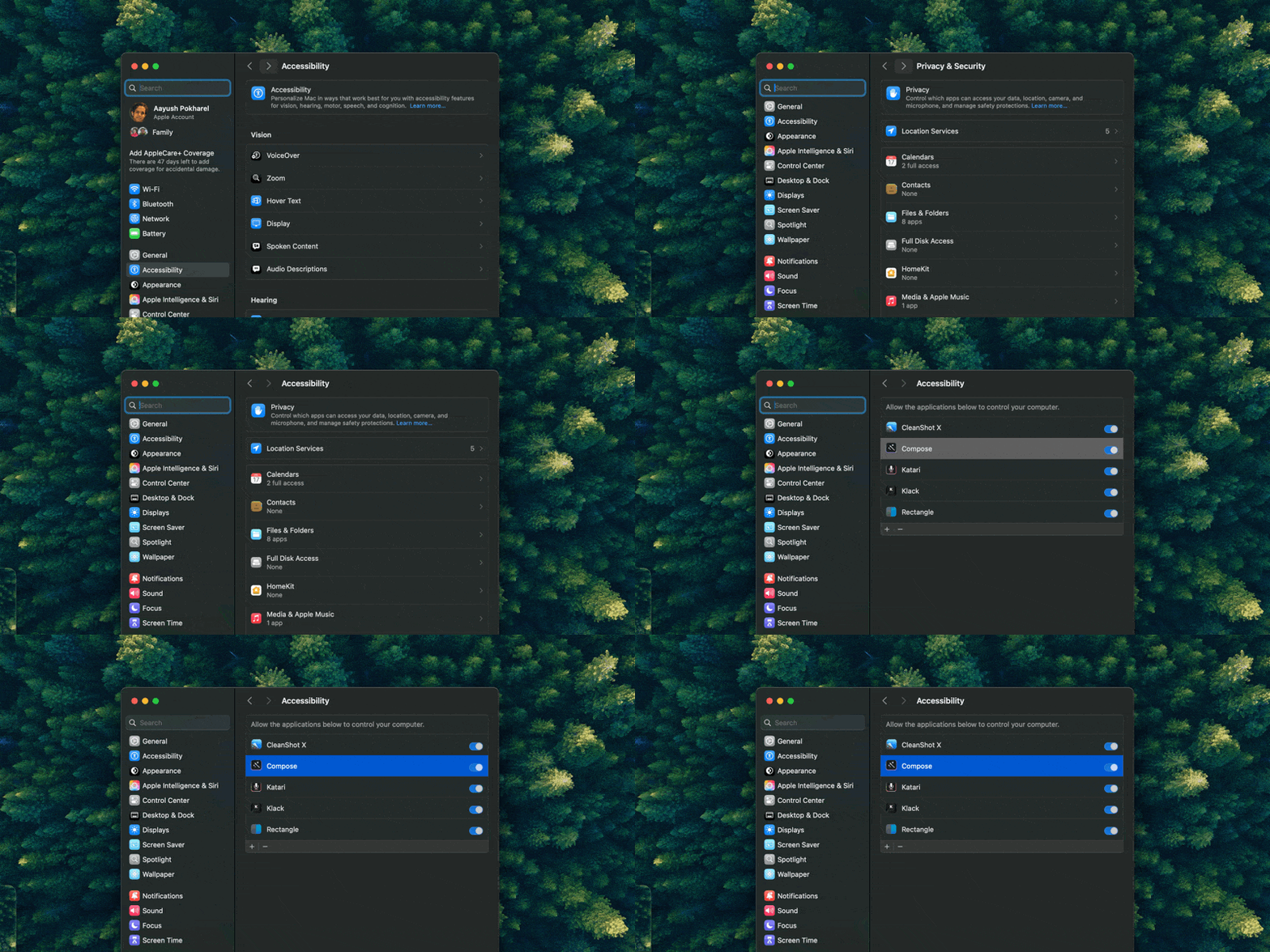
That's the one-time permission prompt for Type Mac, then every app on the Mac has the shortcut.
Pair both, or pick one
Tab through Grammarly suggestions in Google Docs if you're already paying for it, and lean on the wider keyboard shortcuts for Mac power users for everything else. Six shortcuts in one app is still six things to remember. One shortcut in every app is the better deal.
Type Mac: the one shortcut that replaced Grammarly's six.