
Grammarly Not Working in Google Docs on Safari: Fixes
If Grammarly is not working in Google Docs on Safari, first allow the extension on that website. Grammarly for Safari is turned off by default on every website, so you must allow it on docs.google.com, then open the Grammarly sidebar from the button in the lower-right corner of the window.
If that does not help, check that the extension is on in Safari Settings, update it from the App Store, and reinstall it. All the steps below come from Grammarly's support pages and Apple Support.
How to add Grammarly to Google Docs on Safari
Grammarly supports Google Docs in Safari through the Grammarly for Safari extension.
- Install Grammarly for Safari from the Mac App Store. Its listing is named "Grammarly: AI Writing App."
- In Safari, choose Safari → Settings, click Extensions, and select the Grammarly checkbox.
- Open a Google document.
- Click the Grammarly button in the Safari toolbar and allow it on the site. To allow it everywhere, choose Allow on every website.
- Click the Grammarly button in the lower-right corner of the browser window to open the Grammarly sidebar.
Grammarly needs Safari 12.1 or newer.
Fixes for Grammarly not working in Google Docs on Safari
If Grammarly is not showing up in Google Docs on Safari, try these fixes in order.
1. Allow the extension on Google Docs
Grammarly says that Grammarly for Safari "is turned off by default for every website," and that you must click it to enable it. Click the Grammarly button in the Safari toolbar and choose how much access it has. Then reload the Google Docs tab.
2. Turn the extension on in Safari Settings
Choose Safari → Settings → Extensions. Select the checkbox next to Grammarly. If the checkbox is already selected, deselect it, select it again, and reload the document.
3. Open the Grammarly sidebar
Grammarly's steps for Google Docs use a sidebar. Click the Grammarly button in the lower-right corner of the browser window to open it.
4. Update Grammarly for Safari
Grammarly says an outdated version can stop the extension from working.
- Open the App Store and search for Grammarly.
- Click Update next to "Grammarly: AI Writing App."
- Turn on automatic updates in the App Store settings, so this does not happen again.
5. Reinstall the extension
- In Safari, choose Safari → Settings → Extensions, and deselect Grammarly.
- In Finder, open Applications.
- Right-click Grammarly for Safari and move it to the Trash. Enter your password if macOS asks.
- Install Grammarly for Safari again from the App Store, then repeat the setup steps above.
6. Check for an embedded editor
Grammarly says iframes are not supported in Safari. If you write in a Google Docs editor that sits inside another website, open the document on docs.google.com instead.
7. Try Google Docs in another browser
Grammarly also supports Google Docs in Chrome, Firefox, and Edge. If Safari still fails after a reinstall, test the same document in another browser. If Grammarly works there, the problem is in the Safari extension, and Grammarly support can help with that.
Grammarly not working in Google Docs on Mac in general
If Grammarly also fails in Chrome, check your Grammarly account and your network. Grammarly needs *.grammarly.com, *.grammarly.io, and *.grammarly.net on ports 80 and 443, with WebSocket support. A VPN, a proxy, or a firewall can block that.
The Grammarly for Mac desktop app is a separate product from the Safari extension. For problems with the desktop app, read Grammarly Desktop not working on Mac.
Fix text in Google Docs without a browser extension
A browser extension must load in each site and each browser, and you must allow it in each one. Type Mac works on the text you select instead. It works the same in Safari, Chrome, and other browsers, in Google Docs, and in every other Mac app.
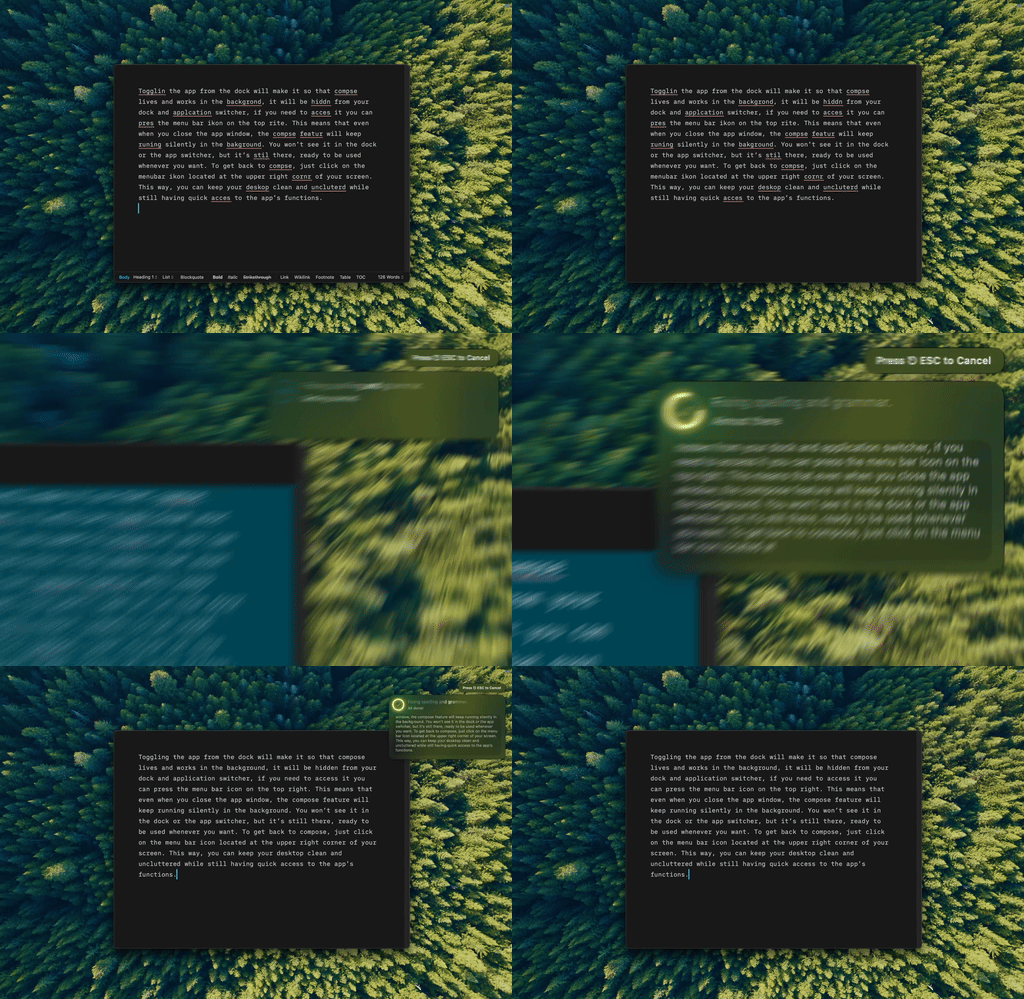
Type Mac: select the text in your document, press Command-Shift-Return, and the fixed text replaces it.
- No extension to allow on each site. If you can select the text, you can fix it.
- One shortcut for every browser. Safari and Chrome work the same way.
- More than grammar. Rewrite, change the tone, make text shorter or longer, or translate.
Type Mac does not underline errors as you type, and it does not add a sidebar to Google Docs. You select the text and press the shortcut. It needs accessibility access in System Settings for that.
Plans cost $4.99 a month, or $49.99 a year with a 7-day free trial. See how Type Mac works when Grammarly does not, or compare Grammarly alternatives for Mac.
FAQ
Does Grammarly work in Google Docs on Safari?
Yes. Grammarly supports Google Docs in Safari, Chrome, Firefox, and Edge through its browser extension. In Safari, you must allow the extension on the site and open the Grammarly sidebar in the document.
Why does Grammarly work on other sites but not in Google Docs?
In Google Docs, Grammarly works through a sidebar. Click the Grammarly button in the lower-right corner of the window. Also check that you allowed the extension on docs.google.com.
Why did the Grammarly Safari extension stop working?
Grammarly says an outdated version can stop it from working. Update Grammarly for Safari in the App Store, or reinstall it.
Do I need the Grammarly desktop app for Google Docs?
No. Google Docs uses the Grammarly browser extension. The desktop app is for other Mac apps.
Sources
- Grammarly for Safari doesn't appear on Google Docs or other websites (Grammarly Support)
- Does Grammarly support Google Docs? (Grammarly Support)
- How to install the Grammarly browser extension (Grammarly Support)
- What do I need to use Grammarly? (Grammarly Support)
- Error: Can't connect to Grammarly or Something went wrong (Grammarly Support)
- Get extensions to customize Safari on Mac (Apple Support)
- Change Extensions settings in Safari on Mac (Apple Support)
Done allowing extensions site by site? Try Type Mac and fix text in any browser with one shortcut.