Best Keyboard-First Productivity Apps for Mac Power Users
Every trip to the mouse breaks flow: hands off the keyboard, eyes tracking a cursor, click, back. Once, that's nothing. A hundred times a day, it adds up. I spent two weeks off the mouse and kept the tools that survived.
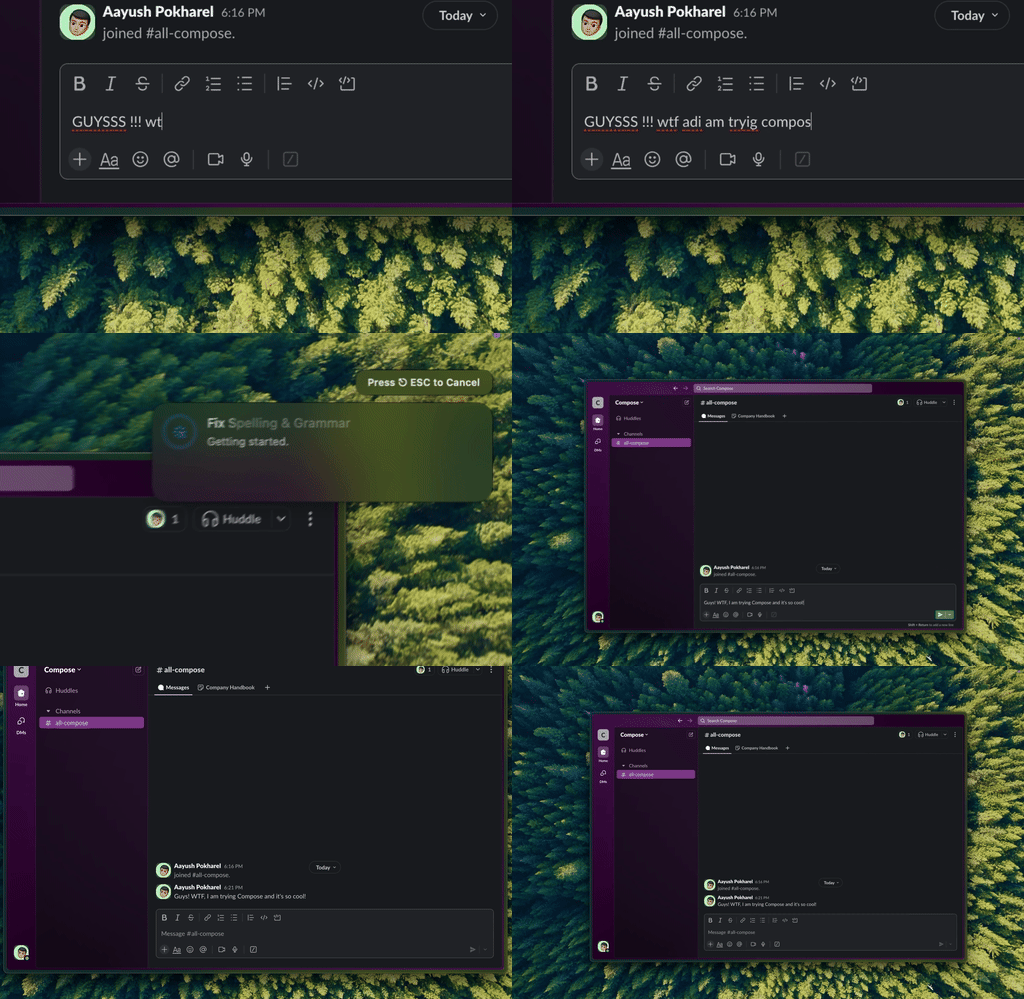
Type Mac triggers AI writing with a keyboard shortcut. I select the clumsy sentence, hit the shortcut, it's fixed, no menu in between.
Start with a launcher: Raycast or Alfred
| Launcher | Price | Strength |
|---|---|---|
| Raycast | Free tier covers most use cases | Lower learning curve, solid extension ecosystem |
| Alfred | One-time Powerpack purchase | Deeper scripting, mature workflow system |
Hit ⌘Space, type a few letters: app launching, calculations, clipboard history, window management, no mouse required. Raycast wins on ease; Alfred wins if you write shell scripts for fun. More on the rest of my menu bar stack in this Mac productivity roundup.
Rectangle beats built-in window snapping
Rectangle snaps windows with shortcuts: ⌃⌥→ for the right half, ⌃⌥← for the left, ⌃⌥Return to maximize. macOS Sequoia added built-in snapping, but Rectangle's shortcuts are still sharper, unless Raycast's window management already covers you.
Text expansion saves the retyping
A few snippets (@@ for your email, sig for your signature) and you'll wonder how you ever typed them out by hand. macOS has basic text replacement built in; Raycast snippets or Espanso add dynamic variables like dates and clipboard content. For fixing what you already typed rather than expanding shorthand, system-wide grammar shortcuts cover the other half.
Vimium removes the mouse from browsing
Press f and every link gets a letter label, type it to click. j and k scroll, / searches. Once it's internalized, a mouse feels slow for browsing Chrome or Firefox.
Key remapping is the advanced layer
Karabiner-Elements turns Caps Lock into a hyper key (⌃⌥⇧⌘ at once), freeing a modifier for custom shortcuts. Keyboard Maestro goes further with multi-step macros. Both are for people who've already built the foundation. Setting up utilities like these on a new machine? These MacBook utility picks are a good starting list.
Build the habit in two weeks
Week one: install Raycast, learn the launcher, set up window management, master ⌘Tab and ⌘` for switching. Week two: add text expansion and writing shortcuts. After that, let your own habits point to what needs a shortcut next.
Going keyboard-first is slower at first, you'll fumble a half-remembered shortcut. Give it two weeks and it lands in muscle memory.
The goal isn't keyboard-only. It's keyboard-first: keys by default, mouse the exception.
The keystroke I use most
Everything above is free, so the mouse-free setup costs nothing to try. The keyboard habit I kept paying for is the writing shortcut:
- Same muscle memory as everything else here: select, press a key, done, no menu to reach for.
- One key for grammar, a different one for a shorter draft, another for a formal tone.
- Works in whatever app has focus, so the habit from week one carries straight over.
The honest limitation: it took most of a week of forgetting the shortcuts existed before reaching for them got automatic, same as everything else on this list.
Keyboard-first workflows need a keyboard-first writing tool. Type Mac adds grammar, rewriting, and translation to the shortcuts you already use.