Best MacBook Customization and Productivity Apps (2026)
I've had fourteen menu bar icons at once and I've had three. Somewhere in between I figured out the difference between an app that fixes something I do every day and an app that just makes the screen look different for a week. Here's what's still installed, sorted by what it actually changes.
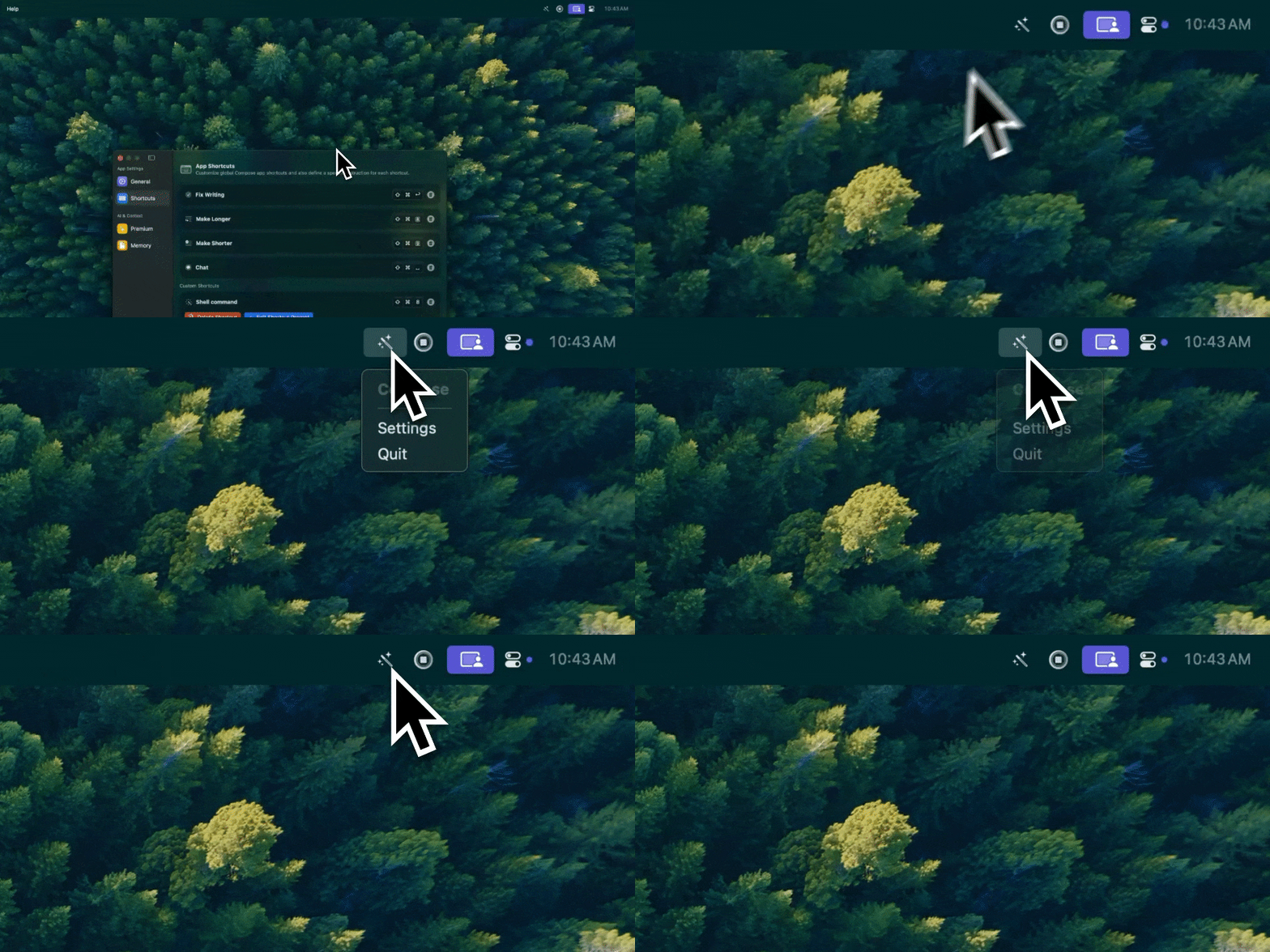
Type Mac — this is the one shortcut I set up once and never had to think about again.
Window management: Rectangle over Moom over built-in tiling
Rectangle is free and does the one thing you need: ⌃⌥← and ⌃⌥→ snap a window to a half, a corner shortcut snaps to quarters. macOS added its own tiling in recent versions, drag a window to the screen edge and it snaps, but the keyboard shortcuts are still slower to configure than Rectangle's. Moom is a one-time purchase and adds saved layouts, useful if you rebuild the same three-window setup every morning, overkill if you don't.
Menu bar: Ice instead of Bartender
Ice is free and open source, and it does what Bartender does: hide icons behind a click, show them on hover. Bartender is more polished and adds automation rules (show this icon only when this app is active), and it's a subscription now instead of the one-time purchase it used to be. Unless you're hiding a genuinely large number of icons with conditional rules, Ice covers it for free.
Launcher: Raycast over Alfred over Spotlight
Spotlight is fine for opening apps. Raycast (free tier covers most of this) and Alfred (one-time Powerpack purchase) both go further: calculations, clipboard history, file search, snippets, quick lookups, all without touching the mouse. Raycast has the lower learning curve; Alfred wins if you're already writing your own workflow scripts.
Keyboard and trackpad: Karabiner-Elements, BetterTouchTool, Hyperkey
Karabiner-Elements is free and remaps any key to anything, including turning Caps Lock into a modifier nothing else uses. Hyperkey is a free, narrower tool that does just that one remap if Karabiner's full interface is more than you need. BetterTouchTool (one-time purchase) goes further into trackpad gestures and window snapping with more granular control than Rectangle. Pick one layer, not all three, or you'll spend more time debugging shortcut conflicts than using them.

Type Mac remembers how I write, so a rewrite still sounds like me instead of a generic AI voice.
Look: wallpapers, icons, Dock, and the ceiling macOS puts on all of it
Custom wallpapers and accent colors are free and built into System Settings. Icon packs need a third-party app to actually apply them, since macOS doesn't support icon theming natively the way Windows does with icon packs or Linux does with full desktop themes. You're replacing icons one at a time, not switching a theme engine. Dock tweaks (auto-hide, size, magnification) are free and built in; apps like Pock add a Touch Bar-style Dock in the menu bar if you want it out of the way entirely. Set expectations here: macOS looks the way Apple designed it to look, and no combination of apps changes that at the system level the way it would on Linux.
Automation: Shortcuts is underrated, Keyboard Maestro goes deeper
Shortcuts is free, built in, and most people never open it after setup. It's worth a second look: file renaming, batch image conversion, one-click routines that used to need a paid app. Keyboard Maestro (one-time purchase) adds conditional logic, triggers on app launch or window focus, and macro chains Shortcuts can't do. Hammerspoon is free and open source, a Lua scripting bridge into macOS for people who want to write their own automation instead of clicking through a UI.
Twelve apps is a cost, not a flex
Every one of these adds a background process, a login item, a menu bar icon competing for space, and one more thing to reinstall and reconfigure when you set up a new Mac. I've watched myself install a customization app on a Friday and delete it within a month more than once. The apps that survive aren't the ones that changed how something looked. They're the ones that removed a step I was repeating by hand, every day, without me noticing how often.
The customization that outlasted the rest
The repeated action nobody customizes away is the rewrite pass. Every email, every Slack message, every doc gets read back over and fixed by hand, in every app, every day, and none of the apps above touch that. Type Mac is the one I still use for it. Three reasons:
- I pick the shortcut and the actions once, and they work the same in Mail, Slack, Notion, and Xcode, no per-app setup the way a browser extension needs.
- It's the one utility on this list I'd call a habit rather than a tool. I don't open a menu to use it.
- BYOK means I picked the model behind it, not a vendor markup on top of an API I could call myself.
The honest limitation: it took about a week of catching myself reaching for copy-paste before the shortcut became automatic. Same learning curve as everything else on this page, just spread over text instead of windows or icons.
If you're also working through the launcher and window-management layer, this rundown of keyboard-first Mac tools goes deeper on Raycast, Karabiner, and building the habit. For the menu bar specifically, here's the fuller list of what's worth hiding behind an icon, and if the keyboard layer is where you want to spend the most time, this covers the keyboard apps worth it on a MacBook Pro.
Type Mac is the customization that outlasted the rest: one shortcut, every app, no menu to open.