
Make an Email Sound Professional: 12 Before-and-Afters
To make an email sound professional, change four things: put the request first, replace vague words with dates and names, cut the apologies, and end with one clear next step. A professional email is not longer or more formal. It is easier for the reader to act on.
Below are 12 rough emails and their professional versions, grouped by the rule that fixes them. Copy the pattern, not the words.
How to make an email sound professional: the 4 rules
| Rule | What it fixes |
|---|---|
| Lead with the ask | The reader knows what you need in the first line |
| Be specific | Dates, names, and numbers replace "soon" and "the thing" |
| Stay calm | No apologies, caps, or passive-aggressive phrases |
| Close with a next step | The reader knows what happens after they reply |
Rule 1: Lead with the ask
1. The buried request
Before: "Hi Sarah, hope you're well. I was looking at the Q3 numbers yesterday and noticed a few things, and I was thinking maybe we could talk about them at some point if you have time?"
After: "Hi Sarah, could we meet for 20 minutes this week to review the Q3 numbers? I found three items in the forecast that need your input."
The request moves to the first sentence. The reason follows in one line.
2. The text-speak reply
Before: "hey, got ur msg. will send the deck asap, np!"
After: "Hi Tom, thanks for your message. I'll send the deck by 3 PM today."
Full words and a real time make the same reply sound professional.
3. The filler opener
Before: "I just wanted to reach out to let you know that I'm going to be out of the office starting tomorrow."
After: "I'll be out of the office from March 4 to March 8. Dana will cover urgent requests."
"I just wanted to reach out to let you know" adds 10 words and no information. The after version also tells the reader who to contact.
Rule 2: Be specific
4. "ASAP"
Before: "Please review this ASAP."
After: "Please review this by Thursday at noon, so we can send it to the client on Friday."
"ASAP" sounds urgent and says nothing. A deadline with a reason gets a faster answer.
5. "The thing"
Before: "Can you fix the thing we talked about?"
After: "Can you fix the login error on the checkout page that we discussed on Tuesday's call?"
The reader does not need to remember the call to act on the email.
6. The vague delay
Before: "Unfortunately we won't be able to make the deadline because of some issues."
After: "We will miss the March 6 deadline. A supplier delay held up the final parts. We can deliver on March 13, and I'll send an update each day until then."
Bad news reads as professional when it has three parts: what happened, why, and what you will do now.
Rule 3: Stay calm
7. The apology
Before: "Sorry to bother you again, I know you're super busy, but I just wanted to check if you maybe had a chance to look at my proposal?"
After: "Hi Priya, I'm following up on the proposal I sent on Monday. Is there anything I can answer to help you decide?"
A follow-up is normal work. You do not need to apologize for it.
8. Caps and exclamation marks
Before: "The deadline is FRIDAY!!! Please don't miss it!!"
After: "A reminder that the deadline is Friday, March 6. Please send your section by then."
Capitals read as shouting. A date in plain text is clear enough.
9. "Per my last email"
Before: "Per my last email, the invoice was due last week."
After: "The invoice from February 2 is now one week overdue. Could you confirm when we can expect payment?"
Readers know what "per my last email" means. Restate the fact and ask a question instead.
10. The blunt demand
Before: "Send me the signed contract today."
After: "Could you send me the signed contract by the end of today? We need it to start the work on Monday."
"Could you" plus a reason turns an order into a request, with the same deadline.
Rule 4: Close with a next step
11. "Let me know your thoughts"
Before: "Let me know your thoughts."
After: "If the plan works for you, reply 'yes' by Wednesday and I'll book the venue."
An open close gets an open answer, or no answer. A yes-or-no close gets a decision.
12. The flat "no"
Before: "No, we can't do that."
After: "We can't add that feature in this release. We can add it to the April release, or set up a workaround now. Which works better for you?"
Say no to the request, not to the person, and offer two options.
How to make this sound professional and friendly
Professional does not mean cold. One warm line at the start or the end keeps the email human. Keep the facts in the middle.
Before: "Received. Will review."
After: "Thanks, Alex, got it. I'll review it today and send notes tomorrow morning."
Friendly lines that work in most offices:
- "Thanks for the quick turnaround."
- "Good to hear from you."
- "Have a good weekend."
Avoid stacked softeners such as "just," "maybe," and "if it's not too much trouble." Each one makes the request weaker, and together they make the email longer. For more on cutting words, read how to make your writing more concise.
Make email sound better in the app where you write it
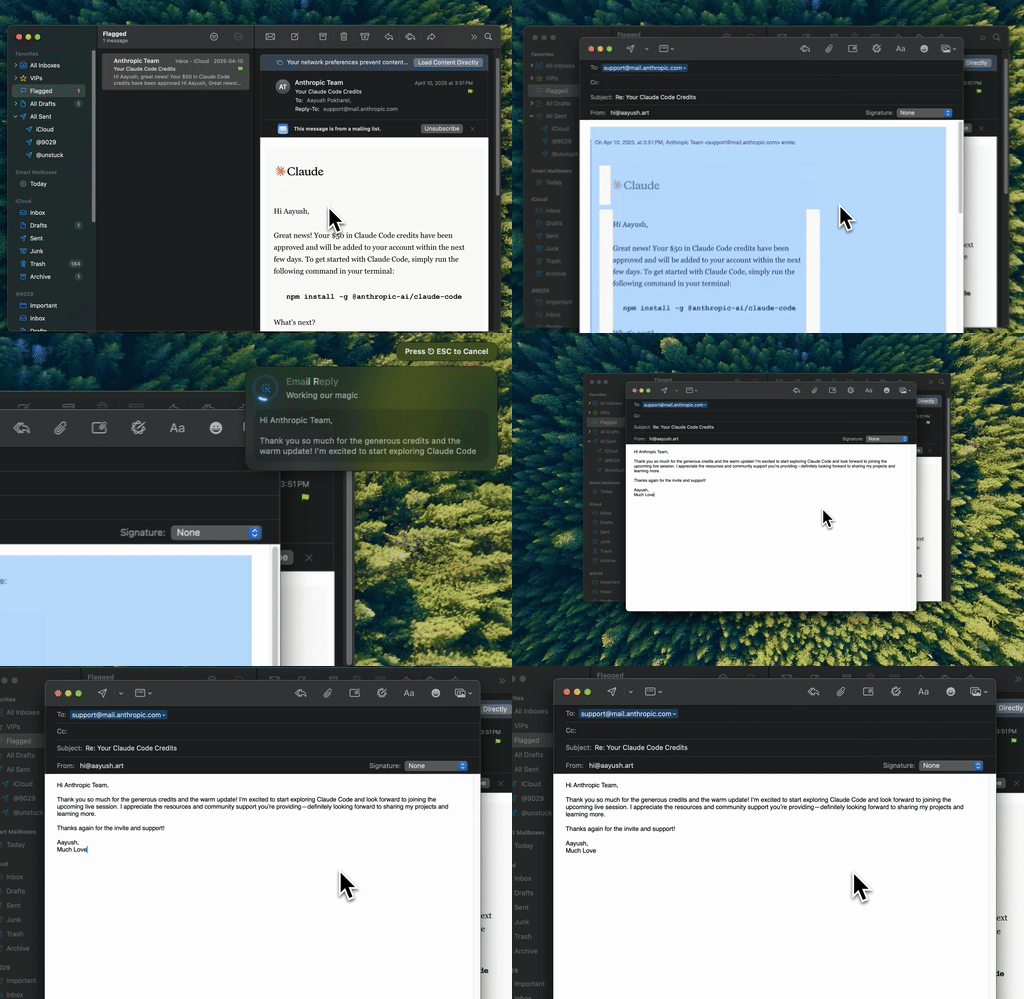
Type Mac: select the rough draft, press one shortcut, and the professional version replaces it in the compose window.
You now know the rules. Applying them to 40 emails a day is the slow part. Type Mac is a Mac menu bar app that does the rewrite where you write: select the draft in Mail, Outlook, or Gmail in the browser, press a shortcut, and the new text replaces your draft. No paste into a web tool, no copy back.
Set it up for professional email in three steps:
- Add a custom shortcut with a prompt such as: "Make this email professional and friendly. Put the request first. Keep all names, dates, and numbers."
- Write the email fast, the way you think it.
- Select it, press the shortcut, read it once, and send.
Two built-in commands help too. Make Shorter (Command-Shift-9) cuts a long email to its key points. Fix Writing (Command-Shift-Return) fixes grammar and typos and keeps your tone. Plans cost $4.99 a month, or $49.99 a year with a 7-day free trial.
For a check of the tone before you send, read the email tone checker guide. For AI workflows such as bullet notes to a full email, read how to write professional emails faster with AI. The email rewriter for Mac page shows the app.
FAQ
How do I make my email sound professional fast?
Move the request to the first line, replace "soon" or "ASAP" with a date, delete apologies, and end with one next step. Those four edits cover most emails.
What should I avoid in a professional email?
Text-speak, all caps, several exclamation marks, "per my last email," and stacked softeners such as "just" and "maybe." Each one makes the email harder to read or sound annoyed.
Can AI make text sound more professional?
Yes. Ask for a professional tone and tell the tool to keep all names, dates, and numbers. Read the result before you send it, because the tool can change a fact.
How long should a professional email be?
Long enough to state the request, the reason, and the next step. For most work emails, that is three to six sentences.
Write it fast, send it professional. Type Mac rewrites your email in Mail, Outlook, or Gmail with one shortcut.