Must-Have Apps for MacBook Pro (M4 and Later)
An M4 Pro is fast enough that almost nothing you install will make it feel faster. Video exports, four-year-old Xcode projects, forty browser tabs — the chip already solved that problem before you opened the App Store. What's left after unboxing isn't speed. It's the repeated stuff: snapping a window in half, digging through a Settings pane you'll open once, retyping the same sentence you already typed an hour ago. I've set up this exact machine for three people this year, and the list below is what earns a spot before the first coffee runs out.
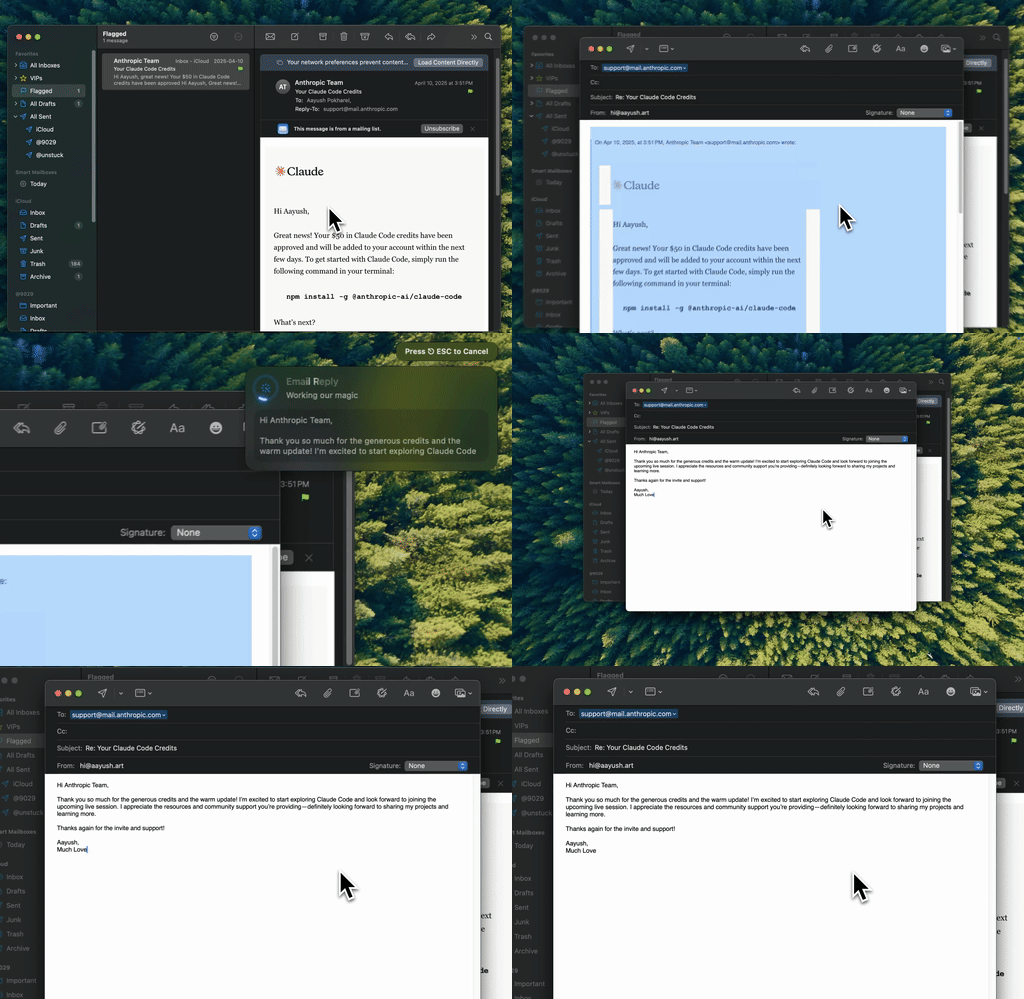
Type Mac rewrote the tone in place. I selected the paragraph, hit a shortcut, and kept typing. No new window, no tab switch.
The first hour
Five small apps, none of them a decision you'll regret.
| App | Price | Replaces |
|---|---|---|
| Rectangle | Free | Manual window dragging and resizing |
| Raycast (or Alfred) | Free tier / one-time Powerpack | Spotlight, app switching, quick math |
| Maccy | Free | "Where did that thing I copied go" |
| Ice | Free | A menu bar packed with icons you never check |
| Safari or Chrome, picked once | Free | Indecision every time you open a new tab |
Rectangle snaps windows to halves and thirds with a keyboard shortcut, which matters more on a 14-inch screen than a 27-inch monitor. Raycast covers app launching and clipboard search from one keystroke. Maccy remembers what you copied ten minutes ago. Ice tucks away the icons you don't check daily so the menu bar stops looking like a control panel.
The first week
Everything in the first hour is obvious. The first week is where the real decisions live, because these apps hold data you'll want to keep.
- Notes: Apple Notes is enough for most people: search, tags, quick capture, synced free across every device you own. Obsidian is the pick if you want plain markdown files with no lock-in. Bear sits in between: prettier than Notes, simpler than Obsidian.
- Battery care: AlDente caps charging at a set percentage so the battery isn't sitting at 100% every night. Free, open source, install once and forget it.
- Screenshots and recording: macOS's built-in Screenshot tool (
⌘⇧5) does capture, recording, and basic annotation for free. CleanShot X adds scrolling capture and cleaner sharing, a one-time purchase with cloud upload sold separately as a subscription. Worth it only if you screenshot for a living. - File sync: iCloud Drive is free and already running. Add Dropbox or Google Drive only if a client or team requires it. Running two sync services on one laptop is how you end up debugging a duplicate-file mess at 11pm.
The app for writing goes first, not last
On a phone, or a desktop with two monitors, switching to a browser tab to fix a sentence costs nothing. On a 14-inch laptop with your email, your terminal, and your notes stacked in the same space, that switch costs you your place in the sentence, and getting back into a paragraph after a tab switch takes longer than the fix itself.
Type Mac was the fix: select text in whatever I'm writing, press a shortcut, get it corrected or rewritten in place. It works in Mail, Slack, Notion, Xcode, Safari, wherever there's a text field. The built-in model needs no setup, or bring your own key from OpenAI, Anthropic, Google, or Groq and the text goes straight to that provider.
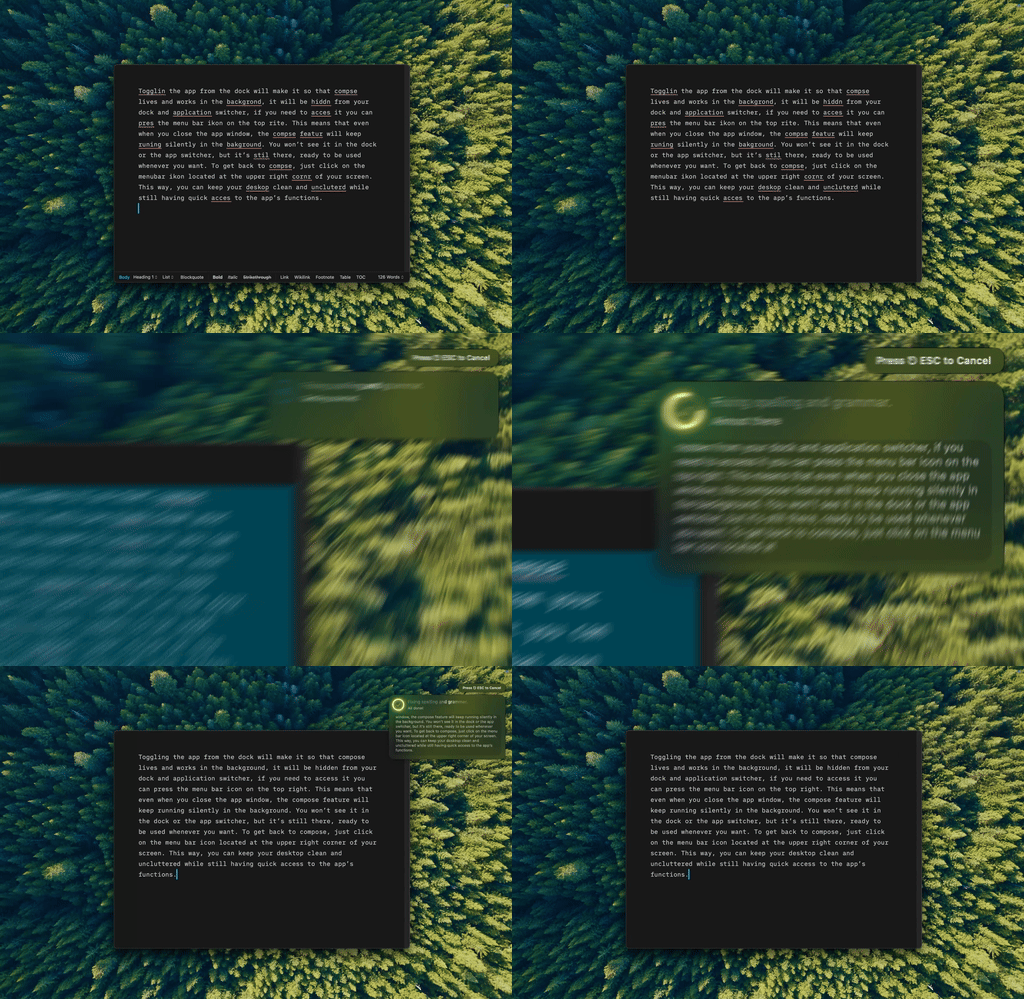
Type Mac fixed the typo where it sat. No copy, no paste, no browser tab.
For the utilities worth adding after week one, see this list of MacBook utility apps, and if the machine feels slower than it should already, this checklist covers what's actually eating your resources.
Apple already installed half this list
Notes, Preview, Shortcuts, Screenshot, Freeform: people buy paid apps that duplicate what shipped on the machine. Preview edits PDFs and does basic image markup. Shortcuts automates repetitive tasks without a subscription. Freeform is a free whiteboard. Check whether the built-in version already does the job before paying for anything, because a lot of App Store listings are selling a nicer coat of paint on software you already have.
Native matters more once you unplug
An Electron app and a native Swift app can look identical and drain the battery at completely different rates. On a desktop, plugged in, the difference is invisible. On a MacBook Pro you're carrying between a desk, a coffee shop, and a flight, background processes you forgot were running show up as a battery percentage dropping faster than it should. This comparison of native Mac apps versus Electron covers what to check before installing anything that lives in your menu bar all day.
For the full stack beyond day one, this rundown of Mac productivity tools picks up where this list stops.
The first thing I install on a new Mac
A month in, most of the first-hour list is still there. Rectangle, Raycast, Maccy, and Ice never got uninstalled, because they never asked anything of me. The one I use without thinking about it now is Type Mac.
- It works in every app I write in, plugin or not.
- One shortcut for a grammar pass, a different one for a shorter version, no menu to click through first.
- BYOK means I chose the model, not the vendor.
The honest limitation: the shortcut only becomes automatic after a week of catching yourself reaching for a menu instead. Give it that week.
Setting up a new MacBook Pro? Type Mac is worth installing in the first hour, not the first week.