Native Mac Apps vs Electron Apps: Why It Matters for Writers
My battery started draining faster than it used to, so I opened Activity Monitor to find out why. Three of my menu bar apps were running their own hidden copy of Chrome. I spent a week quitting them one at a time, swapping in a native alternative wherever one existed, and watching what changed.
Native apps use 50–150MB of RAM; Electron uses 200–500MB
| Native | Electron | |
|---|---|---|
| Built with | Swift, Apple frameworks | Chromium + web tech |
| App size | 10–50MB | 100–300MB |
| RAM in use | 50–150MB | 200–500MB |
| Idle battery drain (1hr) | 0–1% | 2–5% |
| Launch time | Instant | 1–3 seconds |
| Examples | Safari, Mail, Notes, Bear, Things | Slack, Discord, VS Code, Notion |
Each Electron app runs its own hidden Chromium instance. I had three open at once, which meant three hidden browsers, and that's exactly where the RAM and battery numbers above come from.
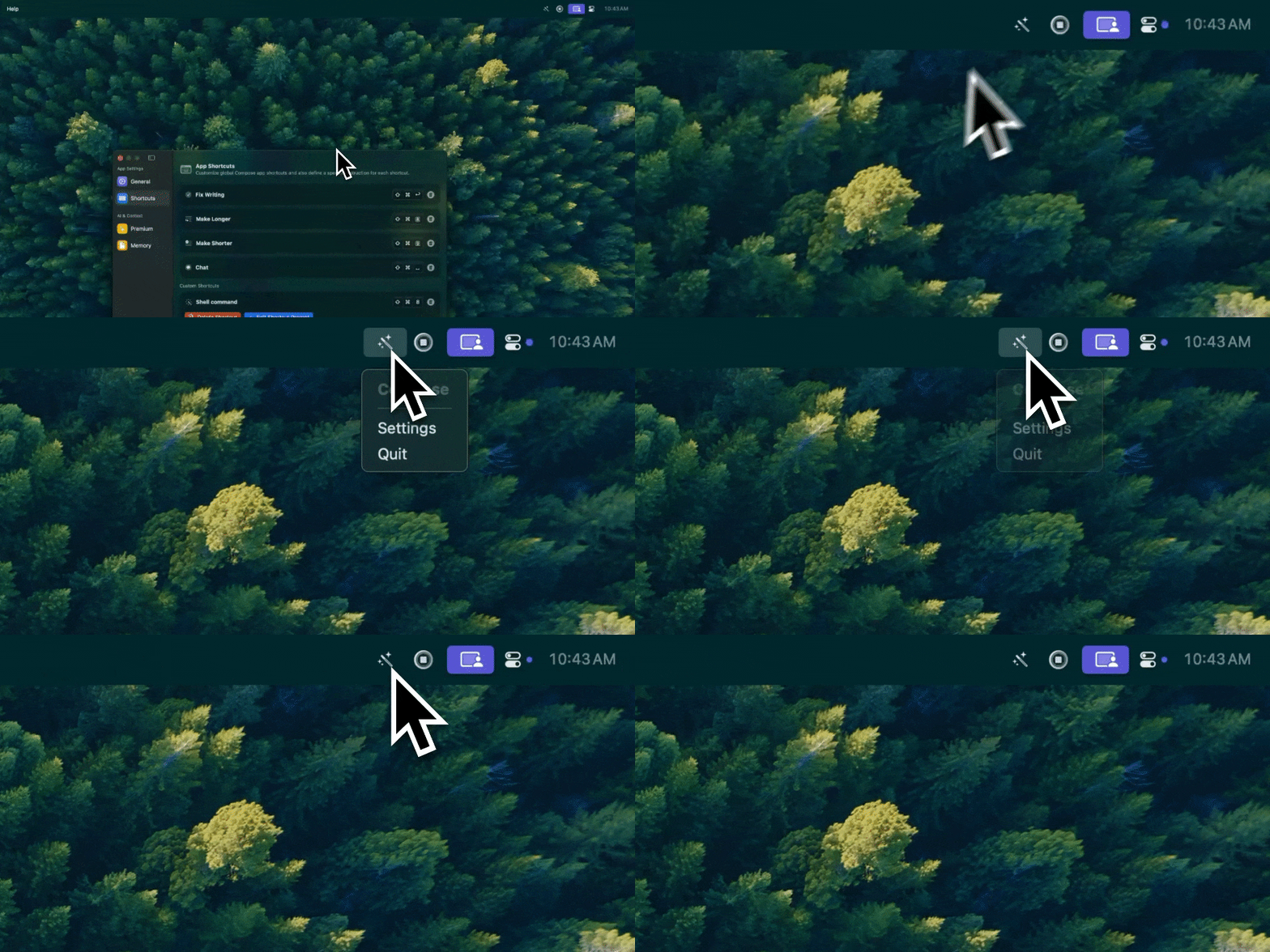
Type Mac lives in my menu bar as a real native app. No hidden browser underneath, no delay before it opens.
Launch speed matters most for apps you open constantly
Native apps open the instant you click them. Electron apps load Chromium first, 1–3 seconds, which barely registers for something you open once a day but is obvious every single time for a menu bar tool or anything meant to catch a thought before it slips.
Native apps integrate with macOS the way you expect
The Services menu, share extensions, drag and drop, and keyboard shortcuts all behave the way the system intends. Electron apps get some of this working, but it's usually a little off: non-standard shortcuts, Services entries that don't fire, accessibility support that works in one window and not the next.
Electron is fine when features matter more than efficiency
VS Code and Slack are both Electron, and both are good software. One team builds for Mac, Windows, and Linux at once with web developers, who are easier to hire than Mac specialists, and the functionality can be worth the overhead. The user pays for that choice in battery and memory.
How to tell which one you're running
Check the app's size in Finder: 100MB or more usually means Electron. Open Activity Monitor and look for several helper processes tied to one app, or right-click it, choose Show Package Contents, and look for "Electron Framework" or "Chromium" inside.
The native app I reach for hardest
Type Mac is what's still in my menu bar. A few reasons:
- It's Swift, so it opens the moment I click it, no Chromium boot delay
- It sits under 150MB of RAM instead of joining the pile of Electron helper processes I was trying to cut down
- It uses the same Services and Accessibility APIs I wrote about for grammar checking, so it reaches text in every app, plugin or not
The honest limitation: it's Mac only. No iPhone version, no Windows version. Worth knowing before you build a habit around it. The same native-first logic decided the rest of my menu bar, covered in my menu bar app roundup.
Grammarly is one of the tools this argument applies to directly: an Electron-adjacent product wrapped around a browser extension, where the native alternatives don't carry the same overhead.
Type Mac is the app I keep because it's built the way this whole post argues apps should be: fast to open, light on memory, and honest about what runs where.