Popular MacBook Menu Bar Apps (And Which Ones Earn the Space)
A 14-inch MacBook Pro menu bar has room for maybe fifteen icons before macOS hides the rest behind an overflow arrow, and the notch cuts into that from the other side. I've installed something like forty menu bar apps over the past two years, watching for the moment each one stopped earning its spot. This is a ranking of the popular ones by whether they clear that bar, not a list of every app that happens to live up there.
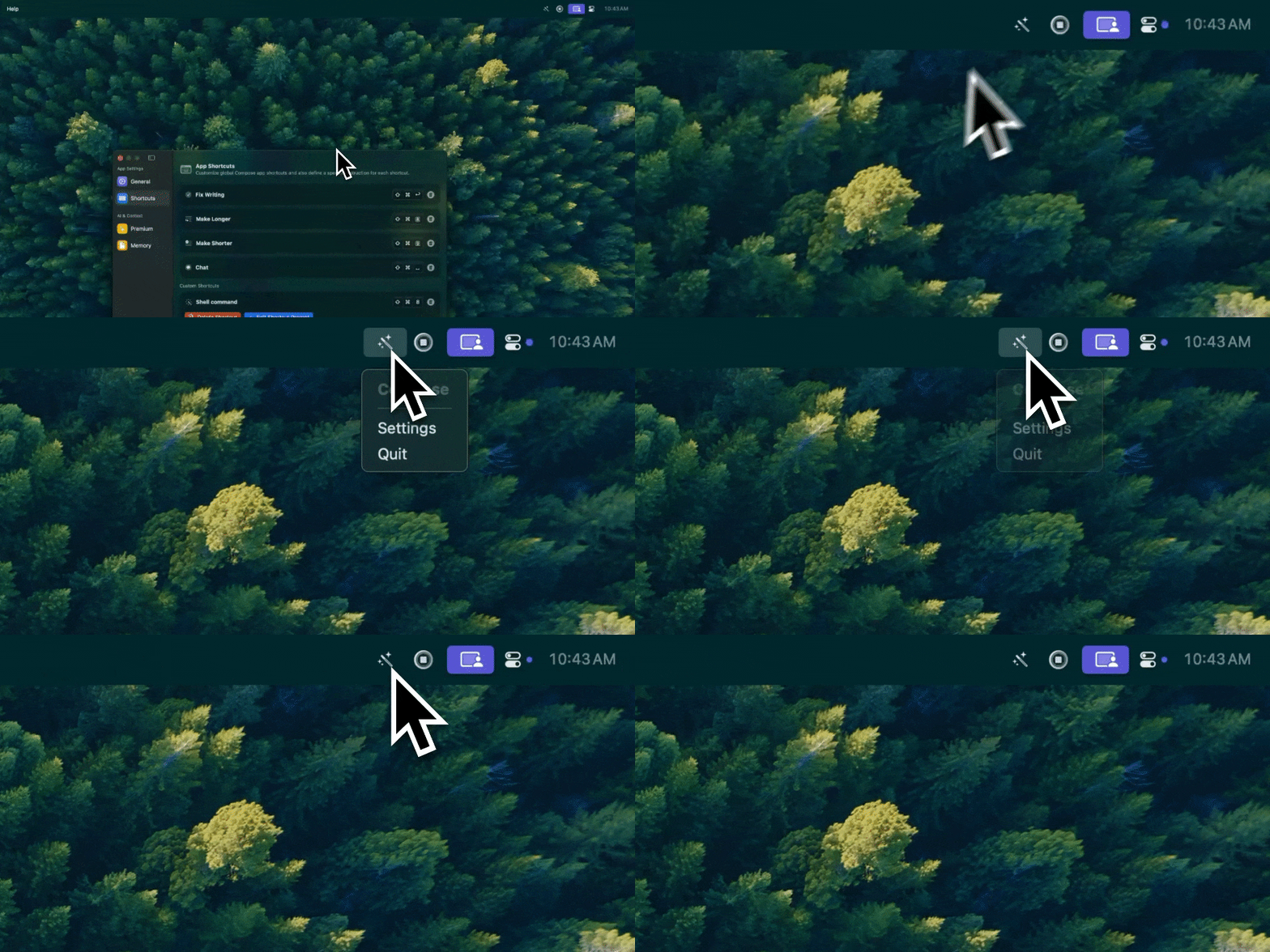
Type Mac — I select the sentence, press the shortcut, and it's rewritten before I've moved my hand off the keyboard.
The notch didn't leave much room
Every icon in that bar is a small tax: one more render, one more thing your eye skips past to find the icon you want. On a 14-inch model the tax is worse, because the notch pushes the usable width in from both sides before you've installed a single third-party app. Add the Wi-Fi, Bluetooth, battery, and Control Center icons macOS already claims, and there's less room left than people expect.
If you write for a living, the menu bar stack built for writers is a narrower list built around that job. This one is the general case: which of the popular apps earn a spot regardless of what you do for work.
Information vs. action
The test I settled on after all that installing and uninstalling: an icon that only tells you something is worth less than an icon that does something in one click. A battery percentage, a CPU graph, a weather reading, all of that is information you could get somewhere else in two extra seconds. An icon that snaps a window, fixes a typo, or hides forty other icons is doing those two seconds for you. Most people's menu bars are stacked with the first kind.
Ranked by whether they earn the space
1. Type Mac
Select text in Mail, Slack, Notion, Xcode, wherever the cursor happens to be, press one shortcut, and the fix lands in place. No new window opens, nothing to switch back to afterward. That's the bar every other icon on this list gets measured against: does something, in one click, instead of reporting a number.
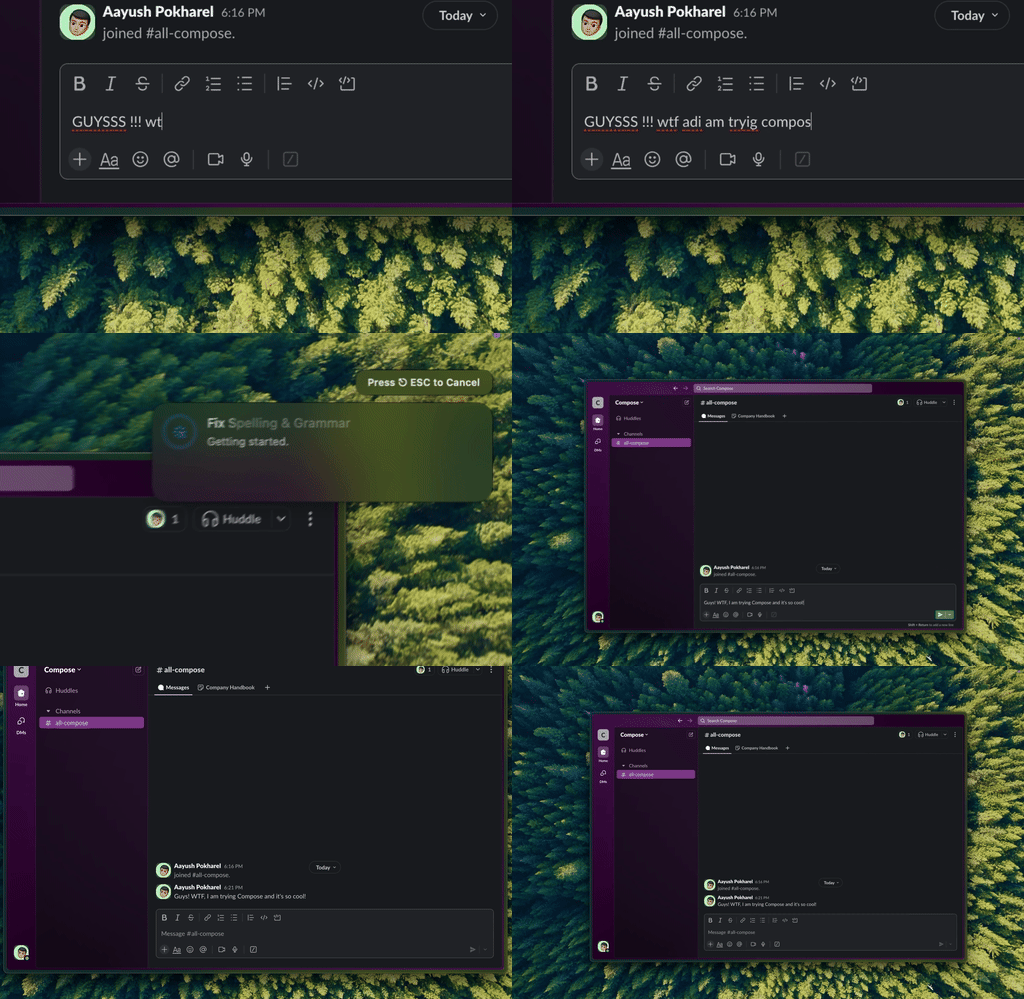
Type Mac cleaning up a message before I send it, without leaving Slack to do it.
2. Ice or Bartender
The meta-apps. Ice is free and open source; Bartender is the paid, more polished pick, and it's subscription-based now rather than the one-time purchase it used to be. Both exist because every other app on this list assumes its icon deserves permanent visibility, so you need one whose whole job is deciding which of the others actually do. If hiding icons is only the start of what you want to change about how the Mac behaves, the customization apps list goes further.
3. Rectangle
Rectangle is free, and it's one of the few icons here that's genuinely fire-and-forget. Set the shortcuts once, snap windows to halves and thirds from the keyboard, and never open the app itself again. It earns its spot from the background, which is rarer than it sounds. More utility apps that work this way, battery, uninstalling, screenshots, are in the wider utility apps roundup.
4. Maccy
Maccy is free clipboard history. You copy a quote, keep writing for ten minutes, and need it again; Maccy still has it. It doesn't do anything you couldn't do with more careful copy-paste. It makes not being careful free.
Five more, in brief
The rest of the popular list, ranked lower only because the case for each is narrower:
| App | Price | Why it earns the spot |
|---|---|---|
| AlDente | Free, Pro version is a one-time purchase | Caps charging at 80% for a MacBook that stays plugged in all day |
| Dropover | Paid | Drag a file onto the icon, it waits in a shelf until you drop it elsewhere |
| Shottr | Free | Screenshot capture with quick markup, no separate editor window |
| Hidden Bar | Free, open source | Folds icons you don't check daily behind an arrow |
| Amphetamine / KeepingYouAwake | Free | Keeps the Mac awake during a screen share or long build, one click either way |
The one everyone tries and stops watching
iStat Menus is paid, a one-time purchase, and probably the app on this list most readers have already tried. It's genuinely good at what it does: CPU, RAM, network, temperature, and battery health, updating live in the bar. The honest problem shows up after the first week. You watch the graphs while setting it up, check them out of novelty for a few more days, then stop looking. The numbers were never wrong. They stopped being something worth checking thirty times a day.
What I removed
A few apps made it onto my Mac and back off again:
- A network speed monitor, useful for one bad week of Wi-Fi and ignored for the other fifty-one
- A weather icon, since the temperature was already on my phone's lock screen. Having it twice didn't save a look, it added one
- A system "cleaner" widget promising to free RAM with one click. macOS already reclaims memory under pressure on its own; the icon was a progress bar with nothing behind it
- A second calendar app in the bar, duplicating events my actual calendar app already showed
The icon that earns its pixels
Type Mac is the one that survived every round of removing apps that stopped earning their keep. A few reasons:
- It does something on the first click, not the twentieth glance, which is the whole test this post is built around
- It replaces a browser tab or a chat window I would have opened instead, so it removes clutter elsewhere on the Mac rather than adding one here
- I get the value without opening its window: select text, run the shortcut, done
The honest limitation: it's a paid app, and it doesn't feel automatic the first week. Reaching for the shortcut instead of a browser tab takes a few days to become habit. Type Mac is the one I'd tell someone to install first.
If your menu bar is already full, that's the actual argument for being selective about the next icon you add. Type Mac is worth the space it takes.