
Best Apps to Speed Up a MacBook in 2026
My MacBook Pro felt slow enough last month that I almost bought a $40 cleaner app to fix it. I opened Activity Monitor instead and found the real problem in ninety seconds: fourteen login items and three Electron apps I never quit. No cleaner app touches either of those.
Find out what's actually slow before you buy anything
Activity Monitor is already on your Mac. Open it, click the Memory tab, and look at the Memory Pressure graph at the bottom. Green means you're fine no matter how full the number looks; yellow or red means apps are competing for RAM, and that's the only signal worth acting on.
Click the CPU tab and sort by Energy Impact, not CPU percentage. A process idling at 2% CPU for eight hours drains more than one that spikes to 80% for ten seconds, and Energy Impact is the number that tracks with the fan noise and the heat.
Then open System Settings → General → Storage and see what's actually eating disk space. A drive that's 90% full slows down file writes and blocks Spotlight from indexing properly, and no menu bar app fixes that for you.
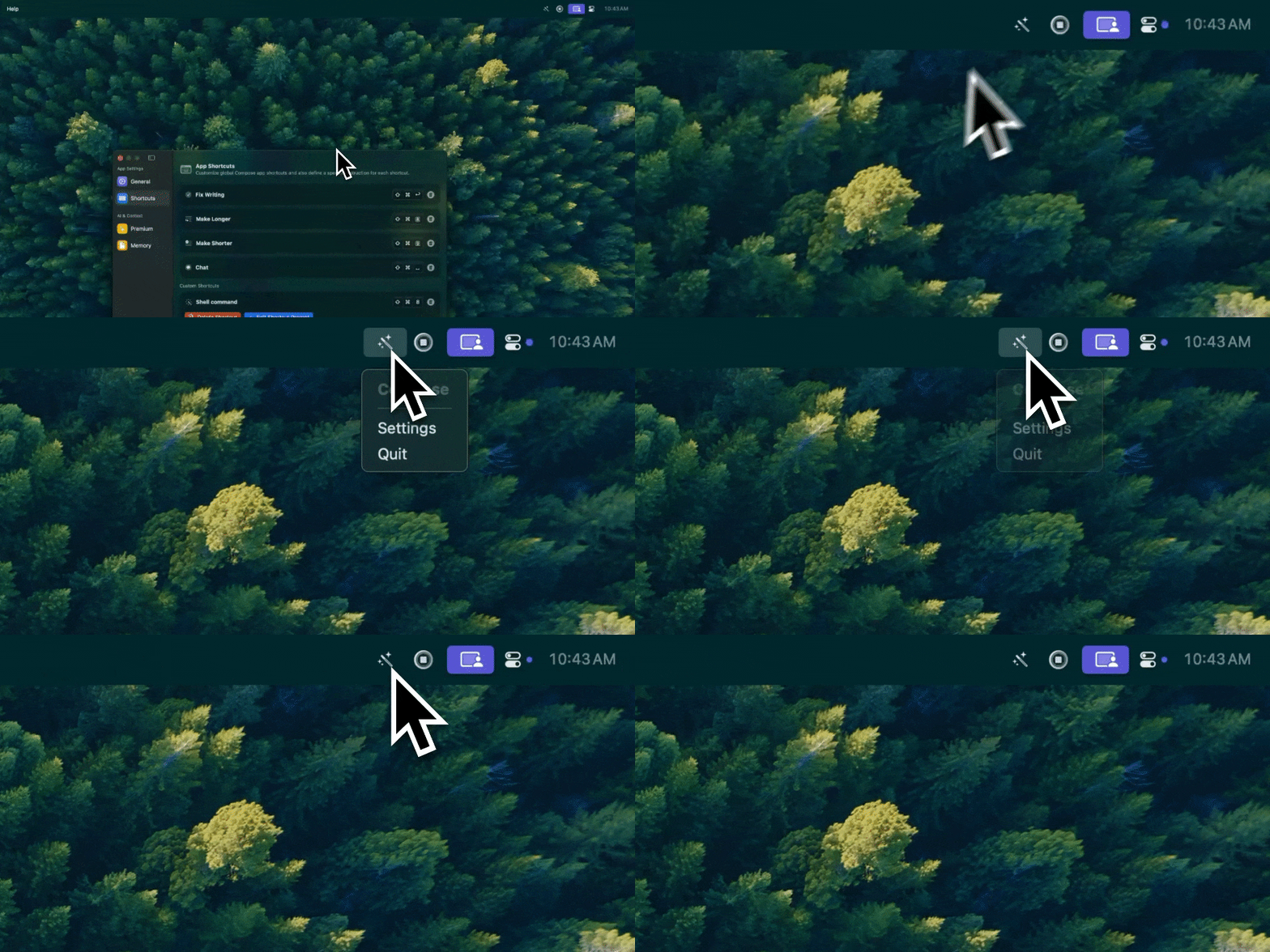
Type Mac sits in that same menu bar. Checking it against Activity Monitor is how I confirmed it wasn't the thing weighing my Mac down.
This costs nothing, takes less time than reading a cleaner app's marketing page, and tells you which fix below actually applies to your machine instead of guessing.
What "cleaner" apps mostly sell you back
On Apple Silicon, macOS already manages caches, purges unused memory under pressure, and reclaims space from apps you haven't opened in a while. A cleaner app that promises to "free up gigabytes of RAM" is mostly deleting files the system would have cleared on its own, then taking credit for a number that was never a real problem. The fair criticism isn't that these apps are dangerous — it's that they're solving a problem macOS already solves, and charging for it.
A scan result claiming your Mac is "cluttered" with generic system caches, or promising gigabytes of RAM will be "freed," is a sales pitch, not a diagnosis.
What actually helps
Trim login items. System Settings → General → Login Items. Every app on that list starts fighting for RAM and CPU before you've clicked anything, and most people have five or six they don't remember installing.
Close Electron apps you're not using. Slack, Discord, Notion, VS Code, and Figma each run their own hidden Chromium instance. Three of them idling in the background can account for more RAM than everything else on your Mac combined, and quitting the ones you're not actively using beats any cleaner scan. I measured the actual RAM gap between native and Electron apps here.
Keep 10–15% of your SSD free. macOS uses free disk space for swap and temporary files. Below that threshold, everything from app launches to Spotlight indexing gets slower; above it, more free space doesn't buy you more speed.
Restart occasionally. Not daily, but weekly if your Mac hasn't slept in a month. Memory leaks in long-running apps and stuck background processes both clear on restart, and nothing else clears them.
Let Spotlight finish indexing after a big file move or a fresh install. It's CPU-heavy for a few hours, then goes quiet. If your fans spin up right after a large transfer, check the CPU tab for mds_stores. It's normal, and it ends on its own.
The utility apps worth actually installing
A handful of app categories earn a permanent spot instead of a scan-and-delete cycle. I cover the full list, with more picks per category, in a separate utility app roundup:
| Category | What it does | Examples |
|---|---|---|
| Window management | Snap windows to halves and thirds with a shortcut instead of dragging | Rectangle (free), Magnet (one-time purchase) |
| Clipboard history | Keeps everything you've copied, searchable | Maccy (free), Pastebot (one-time purchase) |
| Battery care | Caps charging at 80% to slow battery wear on a MacBook that's plugged in all day | AlDente (free) |
| Menu bar management | Hides icons you don't check daily so the bar itself isn't cluttered | Hidden Bar (free), Ice (free) |
| Uninstaller | Removes the leftover preference files and caches a dragged-to-Trash app leaves behind | AppCleaner (free) |
None of these promise to make your Mac faster. They remove friction instead: fewer clicks, fewer stray files, one less thing charging past 80% every night.
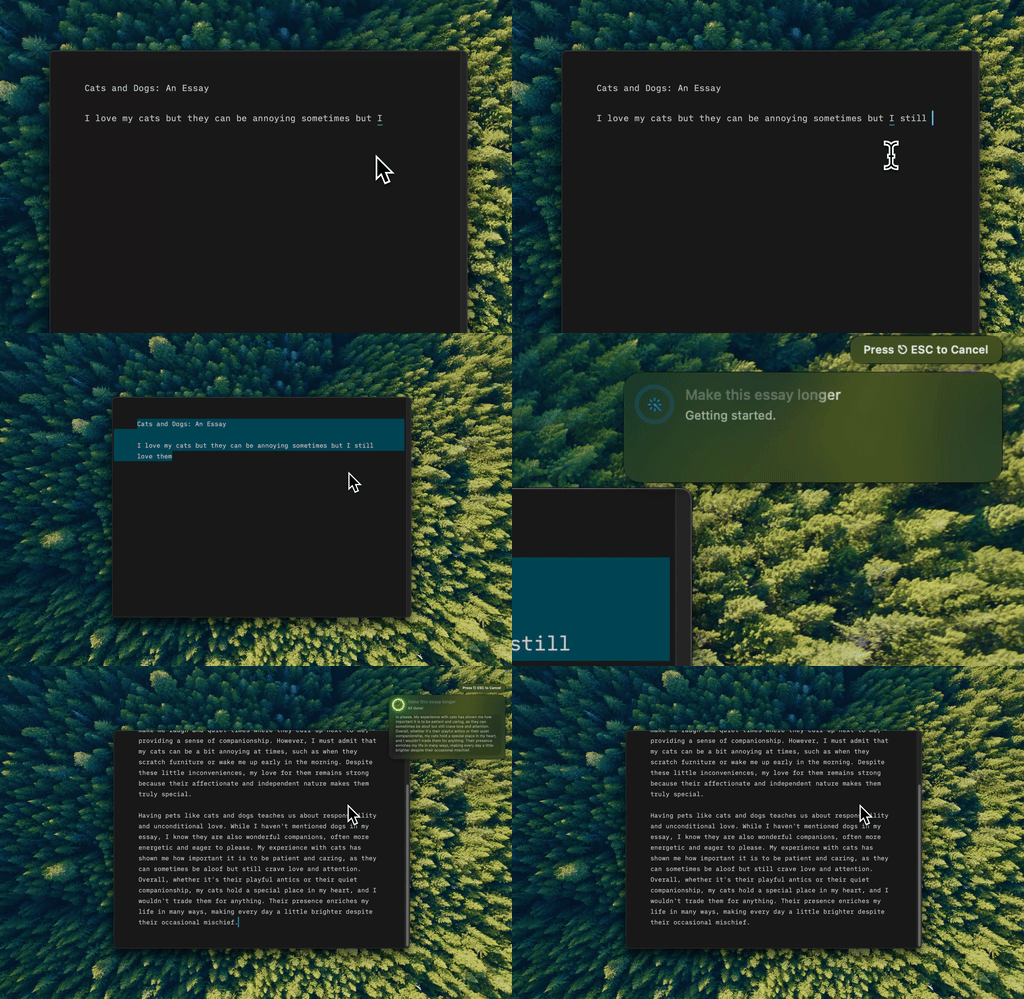
Type Mac expanding a rough note into something I'd actually send, right where I typed it.
Where Type Mac fits, honestly
Type Mac doesn't make your Mac faster. It's not a performance tool, and it doesn't belong on the same list as Activity Monitor or a login items cleanup.
What it replaces is a habit that quietly costs RAM and time: opening a browser tab or a chat app every time you need to fix a typo, rewrite a paragraph, or translate a line. Each one is a window that stays open, gets forgotten, then turns up in Activity Monitor a week later as one more thing eating memory. Selecting text and pressing a shortcut instead, no new window, nothing left running, is the same fix as closing a login item you don't need: one less background process left open by accident.
Setting up a new machine is the easiest place to notice it: a full must-have app list for M4 MacBooks covers the rest of that stack.
What stayed installed
Type Mac is the one I kept installed after going through this whole exercise. A few reasons:
- It's native, not Electron, so it isn't one more hidden Chromium instance sitting in the process list I was trying to shrink
- It replaces the tab-and-chat-app loop directly, which was the real RAM and time cost, not a symptom a scan was ever going to fix
- No separate window to manage or quit later: select text, press the shortcut, done
The honest limitation: it doesn't speed up your Mac. It removes a workflow that was making the slowdown worse, a narrower claim than most of what's marketed in this space.
If your MacBook feels slow, run the Activity Monitor check above first. If it turns out to be a browser tab for every edit, Type Mac is the fix for that specific piece of it.