
Grammarly Desktop Not Working on Mac? 8 Fixes That Work
If Grammarly Desktop is not working on your Mac, check four things first: the macOS permission, the menu bar icon, the Block List, and the app version. Those four cover most cases where the underlines, the Grammarly tab, or the whole app disappear.
The eight fixes below come from Grammarly's support pages and Apple Support. Do them in order, test Grammarly after each one, and stop when the suggestions come back.
Why isn't Grammarly working on Mac?
Grammarly for Mac is the app named Grammarly Desktop in your Applications folder. It works inside other apps through a macOS permission, so it stops when that permission is off, when the app you write in is on its Block List, or when Grammarly is not running. It also needs a connection to Grammarly's servers.
Grammarly for Mac needs macOS 11 (Big Sur) or later. The Safari extension is a separate product, so Grammarly can work in Safari and still fail everywhere else.
8 fixes for Grammarly Desktop not working on Mac
1. Restart your Mac
Grammarly lists a restart as the first step for crashes and for connection errors. Choose Apple menu → Restart, then open Grammarly Desktop from Finder → Applications.
2. Turn on the macOS permission
Grammarly says that without accessibility access, its product "will not be able to provide writing assistance."
- Choose Apple menu → System Settings → Privacy & Security.
- Click Accessibility. On macOS 27, the same setting is named Device Control and Data Access.
- Turn on Grammarly Desktop. If it is not in the list, click the Add button and select it in Applications.
- Quit Grammarly and open it again.
On macOS 27, Grammarly needs both accessibility and event access, and System Settings shows them as one switch. If Grammarly shows suggestions but cannot apply them, allow the prompt that macOS shows, then quit and reopen Grammarly.
3. Bring back the Grammarly icon in the menu bar
If the Grammarly icon is not showing on your Mac, open System Settings → Menu Bar. Scroll to Allow in the Menu Bar and turn on Grammarly Desktop or Superhuman Apps Manager. Grammarly is now part of Superhuman, so your Mac can show either name.
4. Find the Grammarly tab
The Grammarly tab sits on the right edge of the screen. If the widget is not showing:
- Move the pointer to the right edge of the screen.
- Click the Grammarly icon in the menu bar and make sure Turn off Grammarly tab is not selected.
- Turn on generative AI assistance in the Feature customization panel of your Grammarly account. Grammarly shows the tab only when that setting is on.
5. Check the Block List
Click the Grammarly icon in the menu bar, choose Settings, and open the Block List tab. Apps and sites that Grammarly ignores appear under Blocked by you or Blocked by admin. Remove the app you write in. If your company blocked it, ask your IT team.
Also check the menu bar icon for Turn off Grammarly for 1 hour, which pauses Grammarly in the current app.
6. Quit and reopen Grammarly
Click the Grammarly icon in the menu bar and choose Quit. Open Grammarly Desktop again from Finder → Applications. Then restart the app you write in, or refresh the web page.
7. Make Grammarly open at login
If Grammarly is not opening on your Mac after a restart, open Grammarly Settings, click the Customization tab, and turn on Launch at startup. System Settings → General → Login Items & Extensions also lists the apps that open when you log in.
8. Check the network, then reinstall
If you see "Can't connect to Grammarly" or "Something went wrong," Grammarly names network, VPN, proxy, and firewall settings as the main cause. Grammarly needs *.grammarly.com, *.grammarly.io, and *.grammarly.net on ports 80 and 443, with WebSocket support. Turn off the VPN for a test, or ask IT to allow those addresses.
If Grammarly stopped working on your Mac after all that, reinstall it:
- Click the Grammarly icon in the menu bar and choose Quit.
- In Finder → Applications, drag Grammarly Desktop to the Trash.
- Download the installer from grammarly.com/desktop/mac and open it.
- Choose Log in to existing account and sign in.
A new download also brings the latest fixes. Grammarly's release notes list Mac fixes through 2026, for example for Microsoft Outlook on macOS 27 in October 2026.
If Grammarly crashes
Grammarly points to Apple's guide for apps that freeze or quit. Choose Apple menu → Force Quit, select Grammarly Desktop, and click Force Quit. If the crashes continue, open the Console app, find the reports named "Grammarly Desktop" under Crash Reports, and send them to Grammarly support.
A shortcut that does not need a widget
Grammarly depends on a live connection to each app: an icon, a tab, and underlines that must appear in the right place. Type Mac works another way. Select text in any Mac app, press a shortcut, and the corrected text replaces your selection.
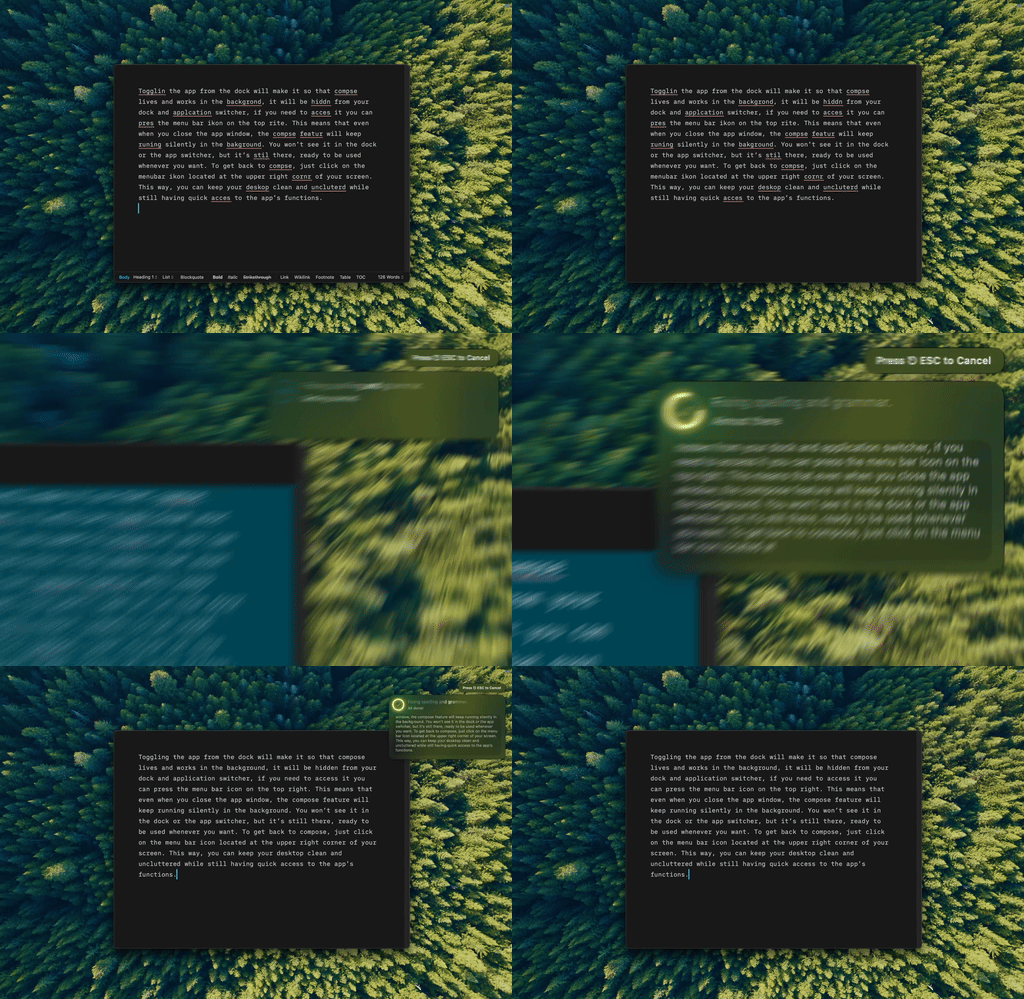
Type Mac: select the sentence, press Command-Shift-Return, and the fixed text lands in place.
- No widget or tab. If you can select the text, you can fix it. There is no per-app integration to break.
- More than grammar. Rewrite, change the tone, make text longer or shorter, or translate, each on its own shortcut.
- Your choice of model. Use the built-in model, or bring your own key from OpenAI, Anthropic, Gemini, Groq, or OpenRouter.
Type Mac also needs accessibility access, because it copies your selection and pastes the result. Fix 2 applies to it too. It does not underline text as you type; it works when you press the shortcut.
Plans cost $4.99 a month, or $49.99 a year with a 7-day free trial. See how Type Mac works when Grammarly does not, or read how to fix grammar in any Mac app.
If the problem is in one app, read the guides for Grammarly in Word on Mac and Grammarly in Apple Mail.
FAQ
Why did Grammarly stop working after a macOS update?
On macOS 27, Apple renamed the Accessibility setting to Device Control and Data Access, and Grammarly needs the event access in that switch to apply suggestions. Turn the switch on for Grammarly Desktop (fix 2), then install the latest Grammarly version (fix 8).
Which macOS version does Grammarly for Mac need?
Grammarly for Mac needs macOS 11 (Big Sur) or later.
Why does Grammarly work in Safari but not in other apps?
Grammarly for Safari is a browser extension, and it works only in Safari. Other apps need Grammarly Desktop, with the macOS permission turned on.
How do I turn Grammarly off in one app?
Click in a text field in that app, click the Grammarly icon in the menu bar, and choose Turn off Grammarly or Turn off Grammarly for 1 hour.
Sources
- Grammarly for Windows or Grammarly for Mac disappeared (Grammarly Support)
- Why does Grammarly need access to accessibility features? (Grammarly Support)
- How to deploy Grammarly for Mac (Grammarly Support, macOS 27 notes)
- Error: Can't connect to Grammarly or Something went wrong (Grammarly Support)
- I can't uninstall Grammarly for Mac (Grammarly Support, Launch at startup)
- How do I reinstall Grammarly for Mac? (Grammarly Support)
- Grammarly for Mac crashes (Grammarly Support)
- What do I need to use Grammarly? (Grammarly Support)
- Grammarly bug resolution updates and release notes (Grammarly Support)
- Allow accessibility apps to access your Mac (Apple Support)
- If an app freezes or quits unexpectedly on Mac (Apple Support)
Done with widgets that disappear? Try Type Mac and fix text in any Mac app with one shortcut.