
Writing Tools Not Working on Mac? 9 Fixes (2026)
When you find Writing Tools not working on Mac, the cause is one of nine things: an Intel Mac, an old macOS version, Apple Intelligence that is off, a language mismatch, a model download that did not finish, a menu that moved, an app that does not offer it, a Screen Time limit, or Siri AI on macOS 27. Work through the fixes below in order.
If the menu item shows up but you get a "Writing Tools Unavailable" message, that is a different problem. Each Writing Tools Unavailable message has its own fix.
Why are Writing Tools not showing up?
Writing Tools is part of Apple Intelligence. When you see Writing Tools not showing on Mac, Apple Intelligence cannot run, or something hides the menu.
| What you see | Most likely cause | Go to |
|---|---|---|
| No Writing Tools anywhere, and no Apple Intelligence in System Settings | Intel Mac or old macOS | Fix 1 or 2 |
| A message in the Siri or Apple Intelligence & Siri pane | Language, region, or download | Fix 3 to 5 |
| No Writing Tools in the Control-click menu | The menu moved on macOS 27 | Fix 6 |
| Writing Tools in Notes, but not in one other app | That app does not offer it | Fix 7 |
| The menu item is gone on a family or work Mac | Screen Time or your IT team | Fix 8 |
| Write with Siri appears instead | Siri AI (Beta) is on | Fix 9 |
9 fixes for Writing Tools not working on Mac
1. Check that your Mac has Apple silicon
Apple Intelligence runs on a Mac with M1 or later, and on MacBook Neo (A18 Pro). Choose Apple menu > About This Mac. If you see Chip, your Mac has Apple silicon. If you see Processor followed by an Intel name, Writing Tools is not available on this Mac, and no setting changes that. Here is what works on an Intel Mac instead.
2. Update macOS
Choose Apple menu > System Settings > General > Software Update, and install the latest version. If Apple Intelligence Writing Tools stops working on your Mac after you use Describe Your Change, Apple's macOS 27 release notes list a fix for that issue.
3. Turn on Apple Intelligence (how to enable Writing Tools on Mac)
- macOS Tahoe 26: Open System Settings > Apple Intelligence & Siri. Click the button next to Apple Intelligence, or click Turn on Apple Intelligence.
- macOS 27: Apple says Apple Intelligence is automatically available on eligible Macs. Open System Settings > Siri and read the status text, which names most problems.
4. Set your Mac and Siri to the same supported language
Apple Intelligence needs the Mac language and the Siri language set to the same supported language. If they differ, the Siri pane shows "Apple Intelligence requires that Mac and Siri are set to the same language."
- Open System Settings > General > Language & Region.
- Drag a supported language to the top of Preferred Languages.
- Open the Siri pane and set the same language under Language.
After a Siri language change, Apple says Apple Intelligence can stay unavailable until the new language finishes its download. See the full list of supported languages.
5. Let the models finish the download
Apple Intelligence needs up to 8 GB of storage on most Macs, and up to 14 GB on Macs with M3 or later and at least 12 GB of unified memory. While the models download, the Siri pane shows "Downloading support for Apple Intelligence. Connect Mac to the internet and power while models are downloading." Keep the Mac on power and online. If storage is low, open System Settings > General > Storage and free up space.
6. Look in the right menu for your macOS version
Select the text first. With no selection, the items in the Writing Tools menu stay dimmed.
- macOS 27: Control-click the selected text, choose Writing Tools, then choose Show Writing Tools.
- macOS Tahoe 26: Control-click the selected text, then choose Show Writing Tools.
- Any app with an Edit menu: Choose Edit > Writing Tools. The submenu lists Proofread, Rewrite, the three tones, and Summarize.
On macOS Tahoe 26, Notes and Mail also show a Writing Tools button when you hold the pointer over the selected text.
7. Test in another app
Apple says Writing Tools works in most places you write, including third-party apps and websites. Open TextEdit, type a sentence, select it, and choose Edit > Writing Tools. If it works in TextEdit but not in your app, that app does not offer Writing Tools in that text field. Update the app, or ask its developer.
8. Check Screen Time and work Mac limits
- macOS 27: Open System Settings > Screen Time > Content & Privacy Restrictions > Siri. Set Writing Assistance to Allowed.
- macOS Tahoe 26: Open System Settings > Screen Time > Content & Privacy > Intelligence & Siri, then turn on Writing Tools.
On a Mac that your company manages, you can see "Certain capabilities are managed by your organization and cannot be changed." Only your IT team can change that setting.
9. Look for Write with Siri on macOS 27
On macOS 27, Apple lists Writing Tools for users without Siri AI writing support. If you turned on Siri AI (Beta), Apple points you to Write with Siri for the same jobs. Select the text, hold the pointer over it or click Write with Siri when it appears, then choose an option or describe the change. To go back to Writing Tools, Apple's guide shows how to switch to Siri Classic in the Siri pane.
When no fix brings Writing Tools back
Some limits are fixed. An Intel Mac cannot run Apple Intelligence, a language that is not on Apple's list gets no Writing Tools, and a blocked work Mac stays blocked.
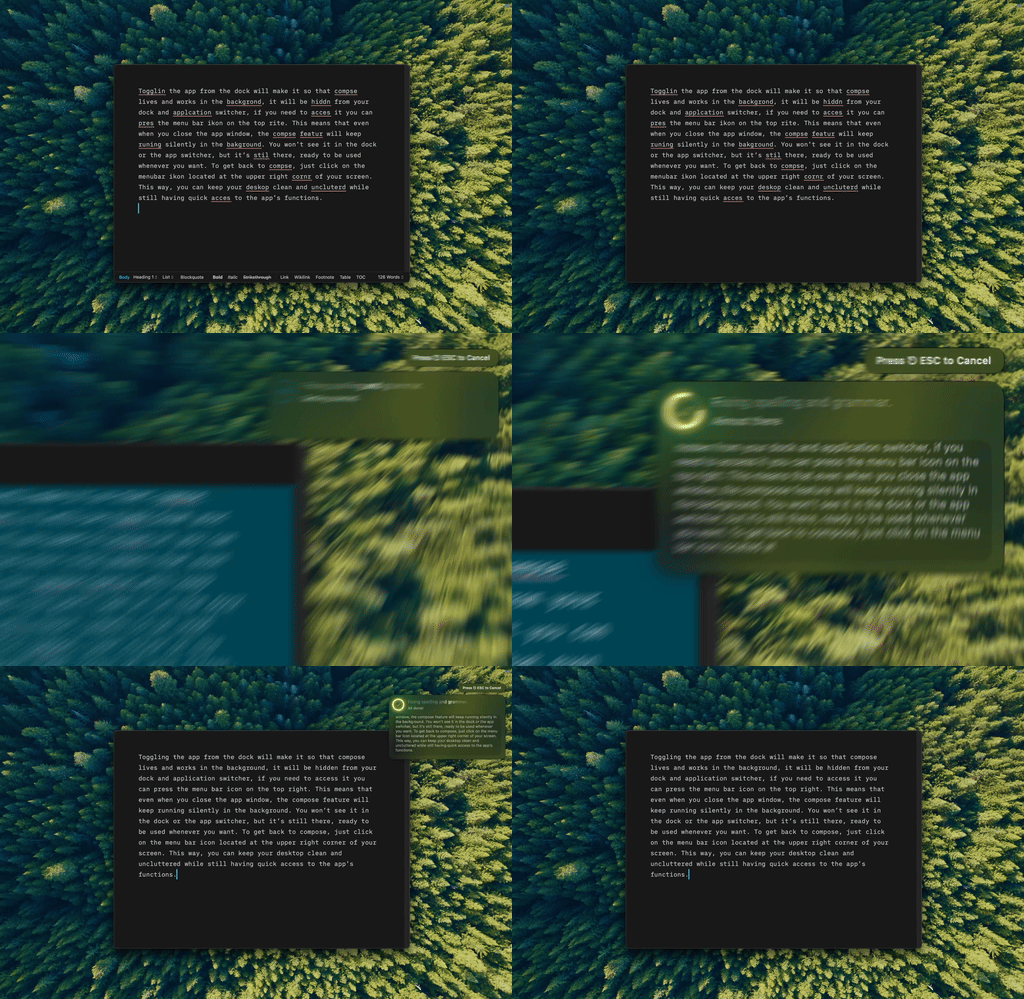
Type Mac fixes the selected text in place with one keyboard shortcut, on Intel and Apple silicon Macs.
Type Mac is a menu bar app that does not depend on Apple Intelligence:
- Any Mac with macOS Sonoma 14.1 or later. The app runs natively on Intel and Apple silicon.
- Any app where you can select text. Mail, Slack, Notes, browsers, and code editors all work the same way.
- Your language. Type Mac keeps the text in the language you wrote it in, unless your shortcut asks for a translation.
- Your shortcuts. Make one for grammar, one for a formal tone, and one for translation, each with your own instruction.
- Your model. Use the built-in model, or add your own key for OpenAI, Anthropic, Gemini, Groq, or OpenRouter.
Type Mac needs Accessibility permission to read and replace the selected text. Plans are $4.99 a month, or $49.99 a year with a 7-day free trial. For a side-by-side look at both tools, read Apple Intelligence Writing Tools vs. Type Mac, or see the Apple Writing Tools alternative.
FAQ
Why are Writing Tools not available on my Mac?
The most frequent causes are an Intel Mac, a language mismatch, an unfinished model download, and a Screen Time or company restriction. The Siri pane in System Settings names most of them.
Do Writing Tools work on an Intel Mac?
No. Apple Intelligence needs a Mac with M1 or later, or MacBook Neo. Apple lists no Intel model.
How do I enable Writing Tools on Mac?
On macOS Tahoe 26, turn on Apple Intelligence in System Settings > Apple Intelligence & Siri. On macOS 27, Apple Intelligence is automatically available on eligible Macs. Then select text and choose Edit > Writing Tools.
Sources
- Get started with the next generation of Apple Intelligence, Apple Support
- Use Writing Tools to write, improve, and summarize content on Mac, Mac User Guide (macOS 27)
- Use Writing Tools with Apple Intelligence on Mac, Mac User Guide (macOS Tahoe 26)
- Siri AI: Write with Siri on Mac, Mac User Guide
- Change Siri Restrictions settings in Screen Time on Mac, Mac User Guide
- Mac computers with Apple silicon, Apple Support
- macOS 27 Golden Gate Release Notes, Apple Developer
Writing Tools out of reach on your Mac? Try Type Mac and fix text in any app with one shortcut.