
Grammarly Not Working in Apple Mail? Try These Fixes
If Grammarly is not working in Apple Mail, check that you use the right product. Grammarly works in Mail only through the Grammarly for Mac desktop app. The Grammarly Safari extension works only in Safari, so it never shows suggestions in Mail.
With the desktop app installed, the usual causes are a macOS permission that is off, Mail on Grammarly's Block List, or an old version of Grammarly. The fixes below come from Grammarly's support pages and Apple Support.
Does Grammarly work in Apple Mail?
Yes. Grammarly lists Apple Mail among the desktop apps that Grammarly for Mac supports, next to Slack and Discord. There is no Grammarly extension for Apple Mail, and nothing to install inside Mail.
| Grammarly product | Works in Apple Mail? |
|---|---|
| Grammarly for Mac (desktop app, named Grammarly Desktop) | Yes |
| Grammarly for Safari (browser extension) | No, Safari only |
How to add Grammarly to Apple Mail
- Download Grammarly for Mac from grammarly.com/desktop/mac. It needs macOS 11 or later.
- Open the installer and sign in.
- Allow the macOS permission when Grammarly asks (fix 1 below).
- Open Mail, click New Message, and start to type. Underlines and the Grammarly tab on the right edge of the screen show that Grammarly is on.
Fixes for Grammarly not working in Apple Mail
1. Turn on the macOS permission
Grammarly needs accessibility access to give suggestions in Mail. Without it, Grammarly says, its product "will not be able to provide writing assistance."
- Choose Apple menu → System Settings → Privacy & Security.
- Click Accessibility. On macOS 27, the setting is named Device Control and Data Access.
- Turn on Grammarly Desktop.
- Quit Grammarly and open it again.
On macOS 27, if Grammarly shows suggestions in Mail but cannot apply them, it is missing the event access in that same switch. Allow the macOS prompt, then reopen Grammarly.
2. Remove Mail from the Block List
If you turned Grammarly off in Mail once, it stays off.
- Click the Grammarly icon in the menu bar and choose Settings.
- Open the Block List tab.
- Remove Mail from Blocked by you. If it is under Blocked by admin, ask your IT team.
3. Bring back the icon and the Grammarly tab
If the Grammarly icon is not in the menu bar, open System Settings → Menu Bar. Under Allow in the Menu Bar, turn on Grammarly Desktop or Superhuman Apps Manager.
If the Grammarly tab is missing, click the menu bar icon and make sure Turn off Grammarly tab is not selected. Grammarly shows the tab only when generative AI assistance is on in the Feature customization panel of your account.
4. Quit and reopen Grammarly and Mail
Click the Grammarly icon in the menu bar and choose Quit. Open Grammarly Desktop from Finder → Applications. Then quit Mail and open it again.
5. Check the network
Grammarly apps talk to Grammarly's servers. If you see "Can't connect to Grammarly," test without your VPN or proxy. Grammarly needs *.grammarly.com, *.grammarly.io, and *.grammarly.net on ports 80 and 443, with WebSocket support.
6. Update or reinstall Grammarly
Quit Grammarly, drag Grammarly Desktop from Finder → Applications to the Trash, and download the latest version from grammarly.com/desktop/mac. Sign in with Log in to existing account.
If Grammarly does not open at all, read the full list in Grammarly Desktop not working on Mac.
Apple's own option in Mail
Mail also has Apple's Writing Tools, which can proofread and rewrite selected text. Writing Tools are part of Apple Intelligence, which is not available in all languages or regions. For a comparison, read Apple Intelligence Writing Tools vs. Type Mac.
Fix a Mail draft with one shortcut
Type Mac works in Apple Mail with no extension and no Mail plugin. Select the text in your draft, press a shortcut, and the new text replaces your selection.
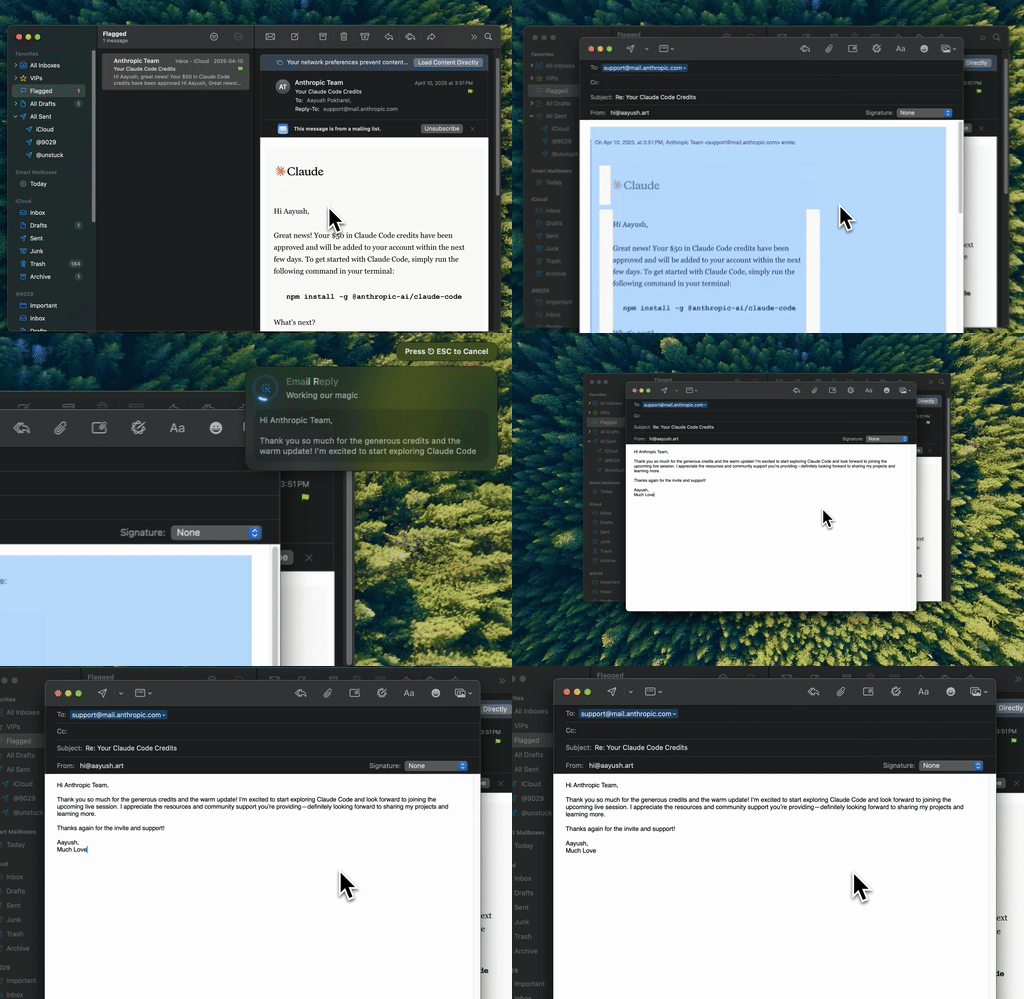
Type Mac in Apple Mail: select the draft, press the shortcut, and the clean version is ready to send.
- Fix grammar with Command-Shift-Return.
- Rewrite, change the tone, or translate with more shortcuts, including your own.
- Choose the model. Use the built-in model, or bring your own key from OpenAI, Anthropic, Gemini, Groq, or OpenRouter.
Type Mac does not underline as you type. It works when you select text and press the shortcut, and it needs accessibility access for that, like Grammarly.
Plans cost $4.99 a month, or $49.99 a year with a 7-day free trial. See how Type Mac rewrites email in your Mac mail app. If you also use Outlook, read Grammarly not working in Outlook for Mac.
FAQ
Is there a Grammarly extension for Apple Mail?
No. Grammarly works in Mail through the Grammarly for Mac desktop app. The Grammarly extension is for Safari and other browsers.
Why does Grammarly work in Safari but not in Mac Mail?
The Safari extension works only in Safari. Mail needs Grammarly Desktop, with the macOS permission turned on.
Why did Grammarly stop working in Mail after a macOS update?
On macOS 27, the Accessibility setting has the name Device Control and Data Access, and Grammarly needs the event access in that switch. Turn the switch on for Grammarly Desktop, then update Grammarly.
How do I turn Grammarly off in Mail only?
Click in a Mail message, click the Grammarly icon in the menu bar, and choose Turn off Grammarly.
Sources
- Grammarly's product offerings (Grammarly Support)
- Grammarly with other apps (Slack, Skype, Apple Mail, Discord, etc.) (Grammarly Support)
- Why does Grammarly need access to accessibility features? (Grammarly Support)
- How to deploy Grammarly for Mac (Grammarly Support, macOS 27 notes)
- Grammarly for Windows or Grammarly for Mac disappeared (Grammarly Support)
- Error: Can't connect to Grammarly or Something went wrong (Grammarly Support)
- How do I reinstall Grammarly for Mac? (Grammarly Support)
- Allow accessibility apps to access your Mac (Apple Support)
- Use Writing Tools to write, improve, and summarize content on Mac (Apple Support)
Want a clean email in one keystroke? Try Type Mac in Apple Mail.