
Grammarly Not Working in Outlook for Mac: 6 Fixes
If Grammarly is not working in Outlook on your Mac, make sure that the Grammarly for Mac desktop app is installed, signed in, and allowed in System Settings. Grammarly works in Outlook for Mac through that app, so most Outlook problems are desktop app problems.
Then update Grammarly, check that Outlook is not on its Block List, and test your network. The six fixes below come from Grammarly's support pages and apply to new Outlook and legacy Outlook.
How Grammarly works in Outlook for Mac
Grammarly lists the Microsoft Office suite, Word and Outlook, among the apps that Grammarly for Mac supports. The desktop app is Grammarly's current method for Outlook on Mac. Grammarly discontinued its Word add-in on Mac and is retiring its Microsoft Office add-in.
Grammarly's support pages give one set of steps for Outlook on Mac. They do not split new Outlook and legacy Outlook. The fixes below work at the level of the app and macOS, so they apply to both.
6 fixes for Grammarly not working in Outlook on Mac
1. Add Grammarly to Outlook on Mac
- Download Grammarly for Mac from grammarly.com/desktop/mac. It needs macOS 11 or later.
- Open the installer and sign in with Log in to existing account.
- Open Outlook and click in a new message.
You do not install anything inside Outlook. When Grammarly is on, you see underlines in the message and the Grammarly tab on the right edge of the screen.
2. Turn on the macOS permission
Grammarly needs accessibility access to work in other apps.
- Choose Apple menu → System Settings → Privacy & Security.
- Click Accessibility. On macOS 27, the setting is named Device Control and Data Access.
- Turn on Grammarly Desktop, then quit and reopen Grammarly.
On macOS 27, Grammarly needs both accessibility and event access in that switch. Without event access, it shows suggestions in Outlook but cannot apply them.
3. Update Grammarly
Grammarly ships Outlook fixes in its Mac updates. Its release notes list a fix in October 2026 for text corruption in Microsoft Outlook on macOS 27. If you see suggestions that break your text when you accept them, install the latest version. To reinstall, quit Grammarly, drag Grammarly Desktop from Applications to the Trash, and download it again from grammarly.com/desktop/mac.
4. Enable Grammarly in Outlook again
If you turned Grammarly off in Outlook once, it stays off. To enable Grammarly in Outlook:
- Click the Grammarly icon in the menu bar and choose Settings.
- Open the Block List tab.
- If Outlook is under Blocked by you, remove it. If it is under Blocked by admin, ask your IT team.
Also check the menu bar icon for a Turn off Grammarly for 1 hour pause.
5. Find the Grammarly tab and test one draft
Move the pointer to the right edge of the screen to show the Grammarly tab. If it does not appear, click the Grammarly icon in the menu bar and make sure Turn off Grammarly tab is not selected.
Grammarly's Office troubleshooting page also says that with two Office documents open, Grammarly for Mac starts in only one. If you have several drafts open, close the extras and test one.
6. Check the VPN, proxy, or firewall
If your Mac uses a work VPN or a proxy, check it next. Grammarly names network, VPN, proxy, and firewall settings as the main cause of its "Can't connect" errors. It needs *.grammarly.com, *.grammarly.io, and *.grammarly.net on ports 80 and 443, and full WebSocket support. Ask IT to allow those addresses, or test with the VPN off.
If none of the six fixes help, restart your Mac, then follow the full list in Grammarly Desktop not working on Mac.
How to remove Grammarly from Outlook on Mac
- Outlook only: click in an Outlook message, click the Grammarly icon in the menu bar, and choose Turn off Grammarly. Grammarly stays on in other apps.
- Every app: quit Grammarly and move Grammarly Desktop to the Trash. The full steps are in how to uninstall Grammarly on Mac.
Fix and change the tone of a reply without an add-in
Support and sales teams write the same kind of reply many times a day, and each one has to sound right. Type Mac gives you that in Outlook without an add-in. Select the draft, press a shortcut, and the new text replaces it in the message.
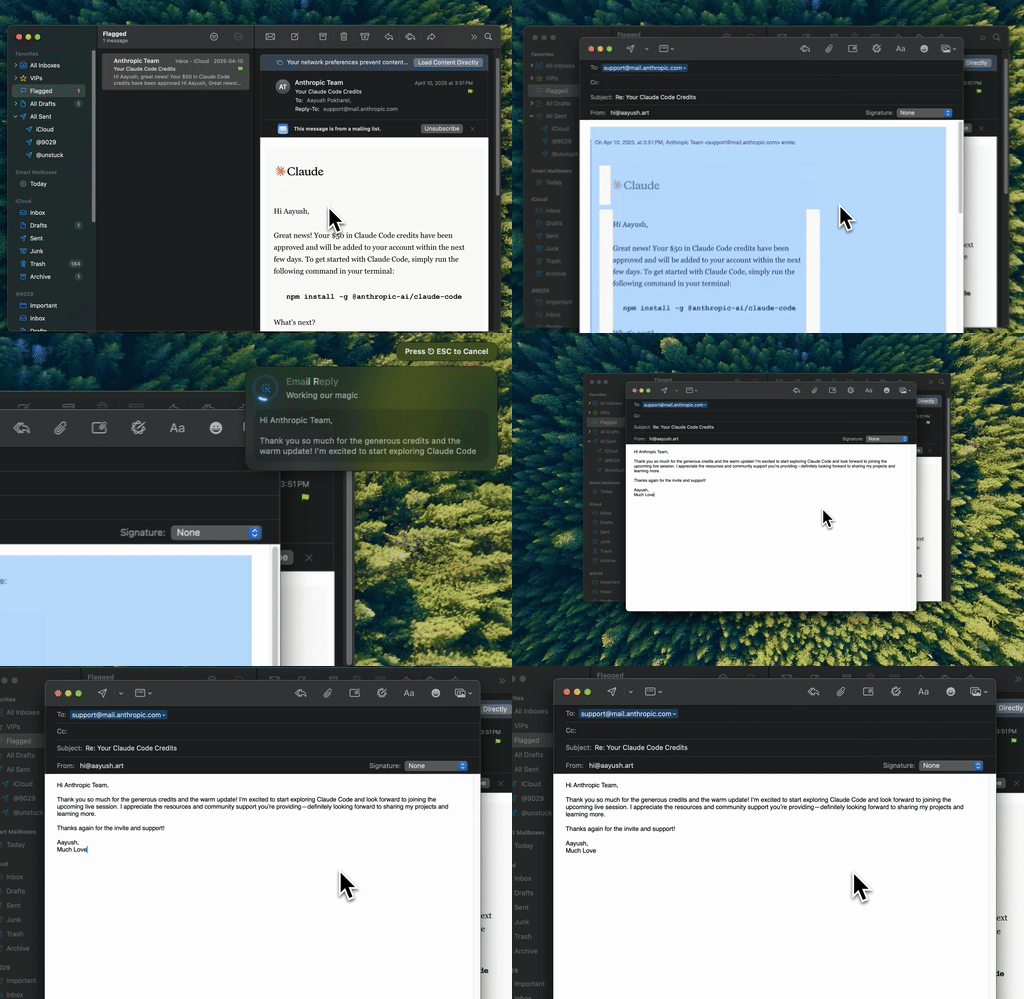
Type Mac: select the reply, press the shortcut, and send a clean version.
- Fix grammar in a reply with Command-Shift-Return.
- Change the tone to more formal, friendlier, or shorter with your own custom shortcuts.
- Translate a reply for a customer who writes in another language.
- Same shortcut in every app. Outlook, Apple Mail, Slack, and the browser work the same way.
Type Mac does not underline text as you type. It works when you select text and press a shortcut, and it needs accessibility access for that.
Plans cost $4.99 a month, or $49.99 a year with a 7-day free trial. See how to rewrite email in your Mac mail app, or read how to write professional emails faster.
FAQ
Is there a Grammarly plugin for Outlook on Mac?
Grammarly's support pages point Mac users to the Grammarly for Mac desktop app, which lists Outlook as a supported app. Grammarly discontinued its Word add-in on Mac and is retiring its Microsoft Office add-in.
Does Grammarly work in new Outlook for Mac?
Grammarly lists Outlook as a supported app for Grammarly for Mac, and its support pages do not exclude new Outlook. If you see text errors when you accept suggestions, update Grammarly.
Why is my Grammarly not working in Outlook but working in other apps?
Check two causes: Outlook is on the Block List (fix 4), or a work VPN blocks Grammarly's servers (fix 6).
How do I enable Grammarly in Outlook again?
Open Grammarly Settings → Block List, and remove Outlook from Blocked by you.
Sources
- Grammarly's product offerings (Grammarly Support)
- Grammarly for Microsoft Word on Mac was discontinued (Grammarly Support)
- Grammarly for Microsoft Office will be discontinued soon (Grammarly Support)
- Grammarly for Windows and Mac doesn't appear in Microsoft Office products (Grammarly Support)
- How to deploy Grammarly for Mac (Grammarly Support, macOS 27 notes)
- Error: Can't connect to Grammarly or Something went wrong (Grammarly Support)
- How to choose where Grammarly for Windows and Mac works (Grammarly Support)
- Grammarly bug resolution updates and release notes (Grammarly Support)
Write a lot of replies in Outlook? Try Type Mac and fix each one with a shortcut.