Autocorrect Not Working on Mac? How to Turn It On
When autocorrect on Mac is not working, the cause is one of two switches: the system setting Correct spelling automatically, or the same option in the app's Edit menu. Turn on both and autocorrect works again in Mail, Notes, Messages, and other Mac apps.
Word, Outlook, and Chrome add their own settings on top. This guide covers all of them, then explains what autocorrect does not fix.
How to turn on autocorrect on Mac
These steps are the same on a MacBook Air, a MacBook Pro, an iMac, and a Mac mini:
- Open System Settings, then click Keyboard in the sidebar. Scroll down if you do not see it.
- Under Text Input, click Edit.
- Turn on Correct spelling automatically.
- Turn on Capitalize words automatically if you want the first word of each sentence and names capitalized.
- Click Done.
Apple describes the option as automatic spelling correction "in any app that supports it." If autocorrect still does nothing in one app, go to fix 1.
Fix 1: Turn on autocorrect in the app
Each app has its own switch, and it can be off when the system setting is on.
- Click in a text field in the app.
- Choose Edit > Spelling and Grammar.
- Make sure Correct Spelling Automatically has a checkmark. If it does not, click it.
Apple uses the same menu item to turn autocorrect off for one app. Check it first when MacBook autocorrect is not working in one app but works in others.
Fix 2: Check the spelling language
Autocorrect corrects against a dictionary. If macOS checks the wrong language, it leaves real typos alone or changes correct words.
- Open System Settings > Keyboard. Under Text Input, click Edit.
- Click the Spelling pop-up menu. Choose Automatic by Language, or choose the language you write in.
- Click Done.
If you write in two languages, read Mac spell check in multiple languages.
How autocorrect behaves on a Mac
Autocorrect on a Mac does not change every word. Apple describes this behavior:
- With one suggestion, keep typing and macOS applies it.
- With two or more suggestions, macOS shows them and you choose one.
- To ignore a suggestion, press Esc, then keep typing.
- To undo a correction, Control-click the word and choose Change Back to your original word.
So if you see a suggestion but the word does not change, macOS waits for your choice.
Mac predictive text not working
Predictive text is a separate switch from autocorrect.
- Open System Settings > Keyboard. Under Text Input, click Edit.
- Turn on Show inline predictive text, then click Done.
Predictions appear in gray as you type. Press the Space bar to accept one, or keep typing to ignore it.
Word for Mac autocorrect not working
Word has its own AutoCorrect setting and its own list of corrections.
- On the Word menu, select Preferences (Settings in newer versions), then AutoCorrect.
- Select Replace text as you type.
The red underline is a different setting: choose Word > Preferences > Spelling & Grammar, then select Check spelling as you type.
Outlook for Mac autocorrect
- Current Outlook for Mac: choose Outlook > Settings > Spelling & Typing, then turn on Correct Spelling Automatically.
- Legacy Outlook for Mac: choose Outlook > Settings > AutoCorrect, then select Replace text as you type.
For other Outlook problems, read Outlook for Mac spell check not working.
Chrome on Mac
Chrome's help page describes one spelling switch: in Chrome, click More > Settings > Languages, then under Spell check turn on Check for spelling errors when you type text on web pages. On a Mac, Google lists macOS as the spell check provider, so the language from fix 2 applies to Chrome too.
How to turn off autocorrect on Mac
To turn it off everywhere, open System Settings > Keyboard > Text Input > Edit and turn off Correct spelling automatically. To turn it off in one app only, choose Edit > Spelling and Grammar in that app and clear Correct Spelling Automatically.
Keep the spell check underline on when you turn autocorrect off. You still see errors, and no word changes without your click.
Why autocorrect misses real mistakes
Autocorrect fixes words that are not in the dictionary. A real word in the wrong place is not a spelling error, so it passes.
| You typed | Autocorrect | Correct |
|---|---|---|
| "Your welcome, happy to help." | No change | "You're welcome, happy to help." |
| "I will send it to you untill Friday." | Changes "untill" to "until" | "I will send it to you by Friday." |
| "The meeting is in Monday." | No change | "The meeting is on Monday." |
| "Can we discuss about the price?" | No change | "Can we discuss the price?" |
In the second line, autocorrect fixes the spelling and keeps the wrong word. Grammar, word choice, and prepositions need a different tool.
Fix what autocorrect leaves behind with Type Mac
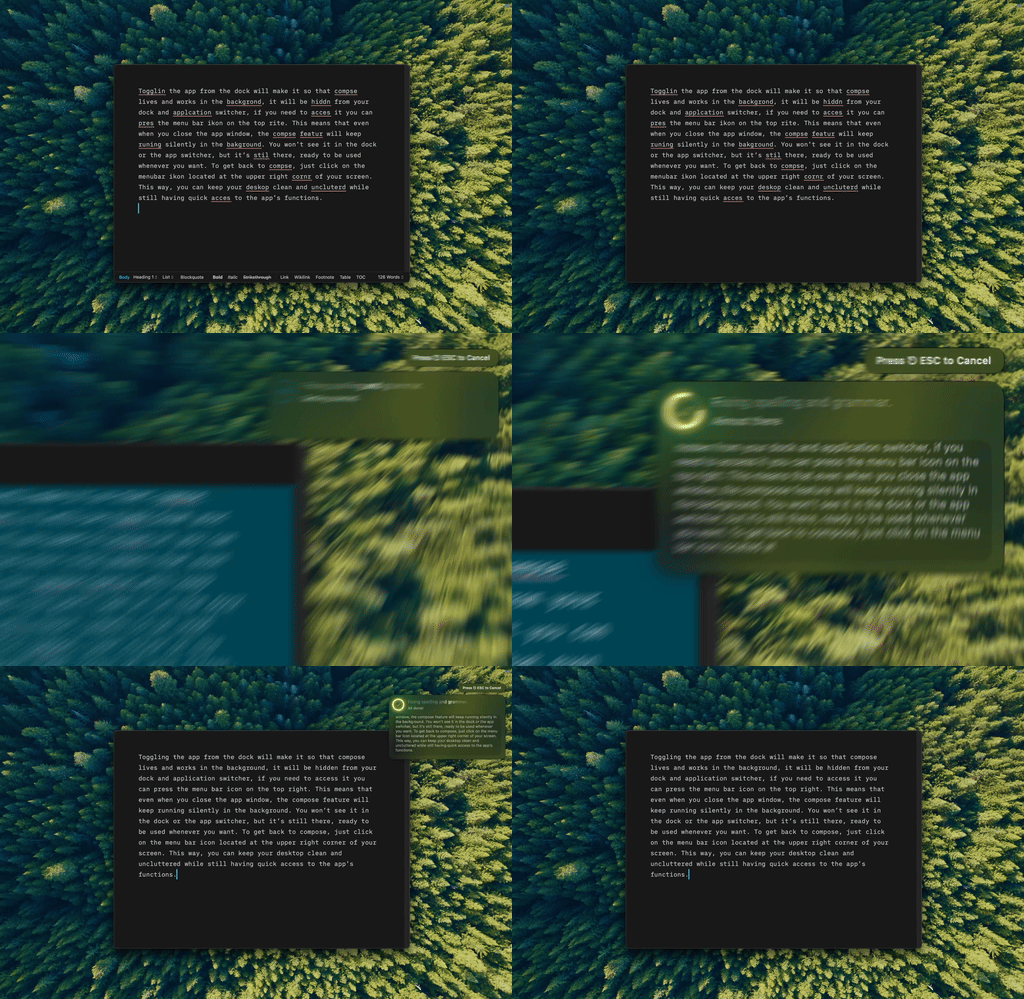
Type Mac: select the sentence, press one shortcut, and the corrected text replaces it.
Type Mac is a Mac menu bar app for the mistakes autocorrect cannot see. Select a sentence or a full message in any app, press Command-Shift-Return, and Fix Writing corrects typos, grammar, punctuation, and word order in place. "The meeting is in Monday" becomes "The meeting is on Monday."
- Autocorrect works while you type. Type Mac works on the full sentence before you send.
- It does not change text until you press the shortcut, so it never "fixes" a name or a term behind your back.
- It works in Mail, Slack, Notes, browsers, and other apps where you can select text.
Add custom shortcuts to shorten, change tone, or translate the same selection. Plans cost $4.99 a month, or $49.99 a year with a 7-day free trial. See how to fix grammar on Mac system-wide and the grammar checker for Mac page.
FAQ
Why is autocorrect not working on my Mac?
Correct spelling automatically is off in System Settings > Keyboard > Text Input > Edit, or the app's own switch in Edit > Spelling and Grammar is off. Check both.
How do I turn on autocorrect on a MacBook Air?
Open System Settings > Keyboard, click Edit under Text Input, and turn on Correct spelling automatically. The steps are the same on every Mac.
Why does autocorrect not fix grammar?
Autocorrect compares single words with a dictionary. A correct word in the wrong place, such as "your" for "you're," passes. Use the grammar check or a tool such as Type Mac for full sentences.
How do I stop autocorrect from changing a word I typed on purpose?
Press Esc before the change, or Control-click the word and choose Change Back to. To stop macOS from flagging the word in any document, Control-click it and choose Learn Spelling.
Sources
- Apple Support: Get typing suggestions and correct mistakes on Mac
- Apple Support: Change Input Sources settings on Mac
- Microsoft Support: Turn AutoCorrect on or off in Word
- Microsoft Support: Turn AutoCorrect on or off in Outlook for Mac
- Google Chrome Help: Turn Chrome spell check on and off
Autocorrect catches the typo. Type Mac catches the wrong word, the missing preposition, and the rest of the sentence.