
Outlook for Mac Spell Check Not Working: 7 Fixes
When Outlook for Mac spell check is not working, check Outlook's own spelling settings first, then the proofing language. Outlook keeps both apart from the macOS settings, and the menus differ between the current Outlook for Mac and legacy Outlook.
The seven fixes below cover both versions, with the menu paths from Microsoft's own support pages. Start at fix 1.
Why is my spell check not working in Outlook for Mac?
By default, Outlook checks spelling as you type. Possible spelling errors get a dashed red underline, and possible grammar errors get a dashed green line. When the lines stop, one of three causes applies:
- Check spelling as you type is off. Outlook keeps this option apart from the macOS spelling settings.
- The proofing language is wrong. Outlook checks English text against another dictionary, or the reverse. Microsoft lists a known issue where automatic language detection does not work as expected while you write.
- The steps are for the other version. New Outlook and legacy Outlook name their settings panes differently. Microsoft ends support for legacy Outlook for Mac in October 2026.
Fix 1: Turn on Check spelling as you type
- Open an email message.
- On the Outlook menu, select Settings.
- Choose Spelling and Grammar. If your Settings window shows Spelling & Typing instead, choose that: Microsoft uses this name for the spelling pane in the current Outlook for Mac.
- Select Check spelling as you type.
- Select Check grammar as you type if you also want grammar checks.
Close the settings and type a misspelled word in a new message to test it.
Fix 2: Run the spell check by hand
A manual pass shows whether the checker works at all. In a message, choose Edit > Spelling and Grammar > Spelling and Grammar. For each error, choose a suggestion, Ignore once, Ignore all, or Add to dictionary. Press Command-Semicolon (;) to move to the next error.
If the manual check finds errors that were not underlined, go back to fix 1. If it finds nothing in text with clear typos, the language is wrong: go to fix 3.
Fix 3: Set the spell check language in Outlook for Mac
Microsoft documents these steps for the current Outlook for Mac (Microsoft 365, Outlook 2024, and Outlook 2021):
- Open System Settings > General > Language & Region. Under Preferred languages, click the plus button and add each language you write in.
- Quit Outlook and open it again.
- In a new message, choose Edit > Spelling and Grammar > Spelling & Typing.
- Select Manage Languages, then add your language with the plus button.
- Select Allow Editor to automatically detect and add new proofing languages based on your writing, then click Save.
Detection works only on full sentences. End each sentence with punctuation so Outlook can detect the language.
Fix 4: Use the workaround for the detection bug
Microsoft's known issue page says that Detect Language Automatically does not work as expected when you compose an email, and the Outlook team is investigating. Until the fix ships, set the language by hand:
- Select the text in the message body.
- Choose Edit > Spelling and Grammar > Language > Language.
- Choose the language of the text.
Fix 5: Fix the language in legacy Outlook for Mac
Legacy Outlook uses a different menu. In a new message, choose Edit > Language > Language, select Detect language automatically, and click OK. Outlook remembers the setting. Misspelled words then get a red line, and you Control-click a word for suggestions.
Microsoft ends legacy Outlook for Mac support in October 2026. If you still use it, plan the move to the current Outlook.
Fix 6: Outlook Mac autocorrect not working
Autocorrect is a separate switch from the underline.
- Current Outlook for Mac: on the Outlook menu, select Settings > Spelling & Typing. Under Automatic Corrections, turn on Correct Spelling Automatically. The same pane has Smart Quotes, Smart Dashes, and Text Replacement.
- Legacy Outlook for Mac: on the Outlook menu, select Settings > AutoCorrect, then select Replace text as you type.
Fix 7: Check macOS, update Outlook, and restart
If Outlook still does not check spelling on your MacBook:
- Open System Settings > Keyboard. Under Text Input, click Edit, and check that Correct spelling automatically is on and the Spelling language is right.
- In Outlook, choose Help > Check for Updates and install any update.
- Quit Outlook with Command-Q, then open it again. If that does not help, restart the Mac.
The macOS settings are covered in full in spell check not working on Mac.
How to turn off grammar check in Outlook for Mac
Open Outlook > Settings, choose the spelling pane from fix 1, and clear Check grammar as you type. The spell check stays on. To turn grammar checks back on when the Outlook grammar check is not working, select the same box again.
Outlook checks words. Type Mac fixes the whole email.
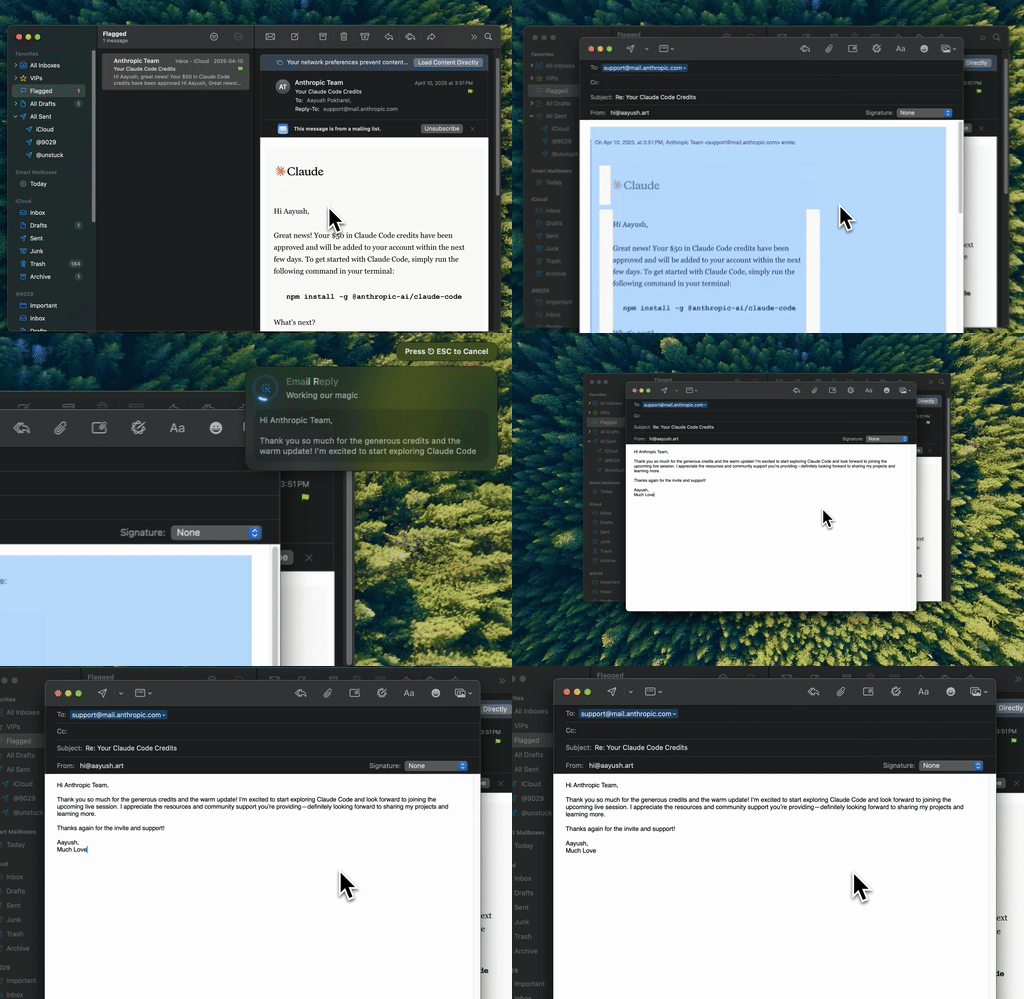
Type Mac: select the draft, press one shortcut, and the fixed email replaces it in the compose window.
A red underline tells you a word is wrong. It does not fix a long sentence, a cold tone, or a reply that runs three paragraphs too long. Type Mac does those in one step, inside Outlook, with no Outlook add-in.
- Fix Writing (Command-Shift-Return) corrects typos, grammar, punctuation, and word order in the selected text.
- Make Shorter (Command-Shift-9) cuts a long reply to the key points.
- A custom shortcut with a prompt such as "Make this professional and friendly" changes the tone of the full email.
Type Mac is a Mac menu bar app, so the same shortcuts work in Apple Mail, Gmail in the browser, Slack, and the help desk tool your team uses. Support and sales teams who answer email all day get the most from it. See how to make an email sound professional, the email tone checker guide, and the email rewriter for Mac page.
FAQ
Why is spell check not working in Outlook on my MacBook?
Check spelling as you type is off, or Outlook checks the wrong language. Turn the option on in Outlook > Settings, then set the language from Edit > Spelling and Grammar.
Why does Outlook for Mac mark correct words as errors?
The proofing language does not match your text. Select the text and choose Edit > Spelling and Grammar > Language > Language to set it by hand.
How do I turn off grammar check in Outlook for Mac?
Open Outlook > Settings, choose the spelling pane, and clear Check grammar as you type.
Is legacy Outlook for Mac still supported?
Microsoft states that support for legacy Outlook for Mac ends in October 2026. The current Outlook for Mac uses the Spelling & Typing pane for spelling and autocorrect.
Sources
- Microsoft Support: Check spelling and grammar in Office
- Microsoft Support: Turn AutoCorrect on or off in Outlook for Mac
- Microsoft Support: Let Outlook for Mac detect and spell check languages
- Microsoft Support: Detect Language Automatically known issue in Outlook for Mac
- Apple Support: Change Input Sources settings on Mac
Spend less time on the red underline and more on the reply. Type Mac fixes grammar, tone, and length in Outlook with one shortcut.