
Spell Check Not Working on Mac? 8 Fixes for Every App
When spell check is not working on Mac, check three places: the app's Check Spelling While Typing switch, the spelling language in System Settings, and any spell checker the app has of its own. Mail, Chrome, Word, and Outlook each add a setting on top of macOS.
The eight fixes below go in that order. Start with fix 1 and stop when the red underline comes back.
Why is spell check not working on Mac?
macOS has one system spell checker, and each app decides how to use it. An app can turn off the underline for its own windows, follow its own settings, or run its own dictionary. That is why spell check works in Notes but stops in Mail, or works in Safari but not in Word.
The first four fixes apply to every app. Fixes 5 to 8 cover the right-click menu, Mail, Chrome, and Microsoft Office.
Fix 1: Turn on Check Spelling While Typing
The red underline is a setting in each app. If spell check stopped working on Mac in one app only, start here.
- Click in a text field or document in that app.
- Choose Edit > Spelling and Grammar.
- Make sure Check Spelling While Typing has a checkmark. If it does not, click it.
Apple lists this item in the standard Spelling and Grammar menu. If an app's Edit menu has no spelling commands, Apple says to look in the app's own settings for a spell checker. Fixes 6 to 8 cover the common ones.
Fix 2: Set the right spelling language
If spell check flags correct words, or misses clear typos, macOS checks the wrong language. This happens after you add a second keyboard or write in two languages.
- Open System Settings, then click Keyboard in the sidebar.
- Under Text Input, click Edit.
- Click the Spelling pop-up menu, then choose Automatic by Language or the one language you write in.
- Click Done.
To control the languages that the automatic mode uses, open the same menu, scroll down, and choose Set Up. Select only the languages you write in. For a bilingual setup, read Mac spell check in multiple languages.
Fix 3: Turn on the grammar check
Spelling and grammar check not working on Mac? Grammar is a separate switch. Choose Edit > Spelling and Grammar > Check Grammar With Spelling. A checkmark shows that it is on.
Grammar issues get a dotted blue underline. Move the pointer over the underline to see the problem. Apple notes that grammar checking is not available in every region, country, or language.
Fix 4: Run a manual check
A manual pass tells you whether the checker works at all.
- Choose Edit > Spelling and Grammar > Check Document Now.
- Press Command-Semicolon (;) to jump to the next error.
- For long text, choose Show Spelling and Grammar to open the full panel.
| Result | Cause | Fix |
|---|---|---|
| The manual check finds errors, but nothing is underlined | The underline is off in this app | Fix 1 |
| The manual check finds nothing in text with clear typos | Wrong spelling language | Fix 2 |
| Typos get underlined, grammar does not | Grammar check is off or not available | Fix 3 |
Fix 5: Right-click spell check not working
Control-click (or right-click) an underlined word to see suggested spellings at the top of the menu. If a misspelled word never gets an underline, check whether you taught macOS that the word is correct.
- Learn Spelling stops a word from being flagged in any document. To reverse it, Control-click the word and choose Unlearn Spelling.
- Ignore Spelling stops a word from being flagged again in the current document only. Other documents still flag it.
Fix 6: Spell check not working in Mac Mail
Mail has its own setting in addition to the Edit menu.
- In Mail, choose Mail > Settings, then click Composing.
- Set Check spelling to check as you type. The other choices check only when you click Send, or never.
- Open a new message, then make sure Edit > Spelling and Grammar > Check Spelling While Typing has a checkmark.
Fix 7: Spell check in Chrome on Mac not working
Chrome has its own switch, and on a Mac it uses the macOS spell checker.
- In Chrome, click More (the three dots), then Settings > Languages.
- Under Spell check, turn on Check for spelling errors when you type text on web pages.
- Choose Basic or Enhanced. Basic uses the checker on your Mac and does not send your text to Google. Enhanced sends the text you type to Google for better suggestions.
Because Chrome on a Mac uses the macOS checker, fix 2 applies to Chrome too.
Fix 8: Word, Outlook, and Pages have their own checkers
- Word for Mac: choose Word > Preferences (Settings in newer versions), then Spelling & Grammar. Select Check spelling as you type.
- Outlook for Mac: choose Outlook > Settings, then Spelling and Grammar. Select Check spelling as you type. The full list of Outlook fixes is in Outlook for Mac spell check not working.
- Pages: autocorrect is in Pages > Settings > Auto-Correction. The underline follows Edit > Spelling and Grammar.
If spell check still does not work after all eight fixes, quit the app, open it again, then restart your Mac.
What spell check does not catch
Spell check compares each word with a dictionary. A real word in the wrong place passes.
| You typed | Spell check | What you meant |
|---|---|---|
| "Lets meet their at 3." | No flag | "Let's meet there at 3." |
| "I look forward to here from you." | No flag | "I look forward to hearing from you." |
| "Please send it form your work account." | No flag | "Please send it from your work account." |
| "We will discuss about the budget." | No flag | "We will discuss the budget." |
The grammar check finds some of these, in some languages. It does not rewrite a sentence that is correct but unclear.
Fix grammar and wording in every app with Type Mac
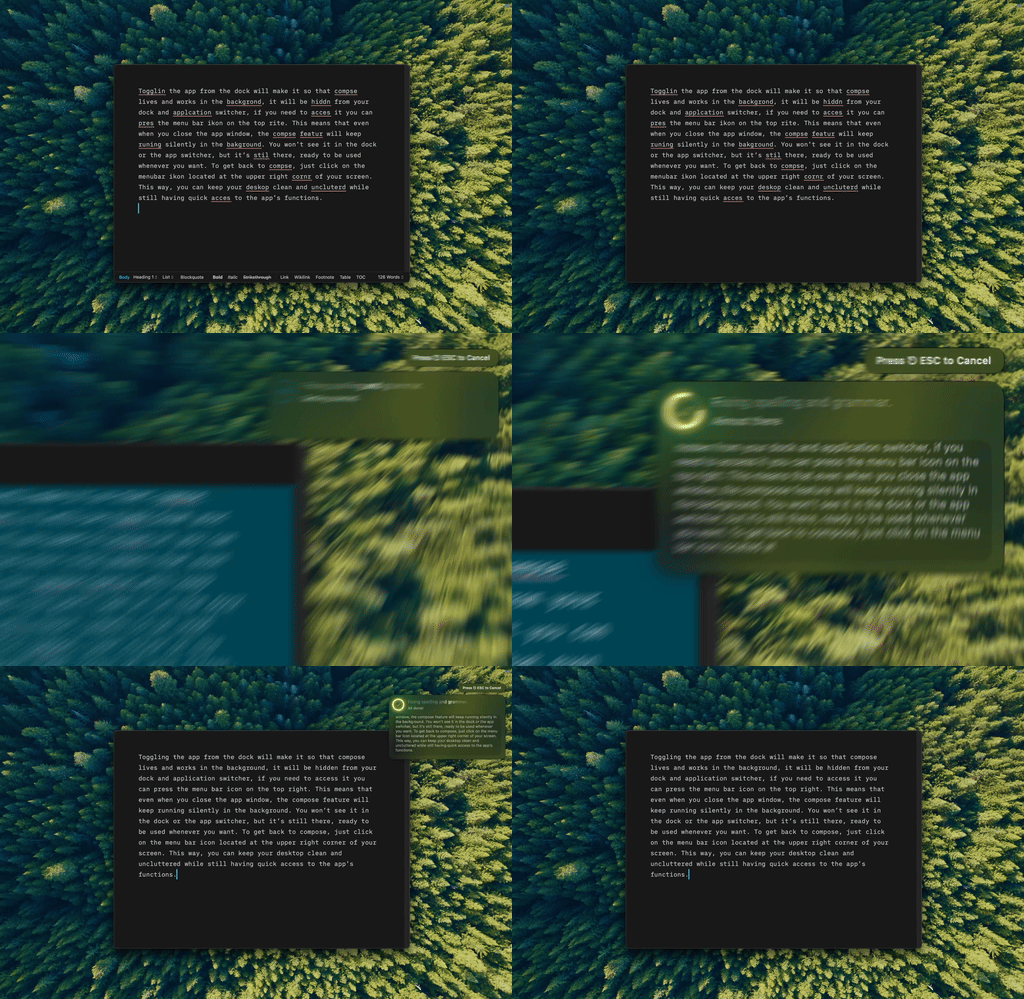
Type Mac: select the sentence, press one shortcut, and the corrected version replaces it in place.
Spell check fixes words. Type Mac fixes the sentence. It is a menu bar app for Mac: select text in any app, press Command-Shift-Return, and Fix Writing corrects typos, grammar, punctuation, and word order. The result replaces your selection, in Mail, Slack, Notes, Chrome, or any app where you can select text. No plugin per app.
- Keep the macOS spell checker on. It is free and catches typos while you type.
- Press the Type Mac shortcut before you send. It catches "their" for "there" and fixes the grammar around it.
- Add your own shortcuts to change tone, shorten, or translate the same selection.
Type Mac costs $4.99 a month, or $49.99 a year with a 7-day free trial. The page for fixing grammar anywhere on your Mac shows how it works, and proofreading shortcuts for Mac lists the built-in keys worth learning.
FAQ
Why does spell check not work on my Mac?
The usual cause is a switch in one app: Edit > Spelling and Grammar > Check Spelling While Typing is off. If every app is affected, open System Settings > Keyboard > Text Input > Edit and check the Spelling language.
How do I turn spell check back on in Mail?
Choose Mail > Settings > Composing and set Check spelling to check as you type. Then make sure Check Spelling While Typing has a checkmark in the Edit menu of a new message.
Does Chrome use the Mac spell checker?
Yes. Google lists macOS as the spell check provider for Chrome on Mac. Turn on spell check in Settings > Languages, and set the language in macOS.
Can a Mac check grammar as well as spelling?
Yes, in apps that support it. Choose Edit > Spelling and Grammar > Check Grammar With Spelling. For full sentence rewrites, use a tool such as Type Mac or a system-wide grammar shortcut.
Sources
- Apple Support: Get typing suggestions and correct mistakes on Mac
- Apple Support: Change Input Sources settings on Mac
- Apple Support: Composing settings in Mail on Mac
- Apple Human Interface Guidelines: The menu bar
- Google Chrome Help: Turn Chrome spell check on and off
- Microsoft Support: Check spelling and grammar in Office
Spell check finds the typo. Type Mac fixes the whole sentence, in every app, with one shortcut.