
How to Translate an Email in Apple Mail on Mac
Yes, you can translate email in Apple Mail. Mail uses the translation built into macOS: select the text of the message, Control-click it, and choose Translate. The same menu has Replace with Translation, which translates a reply you write before you send it.
This guide covers both halves: reading an email in another language, and writing the reply. The reply is the harder half, because a translation also needs the right tone.
How to translate an email in Apple Mail
- Open the message in Mail.
- Select the text you want to translate. To select the full message, click in the message body and press Command-A.
- Control-click the selection, then choose Translate.
- In the language pop-up menus, choose the language of the email and the language you want, such as English.
- Click Copy Translation to keep the text, or click the play button to hear it.
Apple's guide names emails, documents, messages, and webpages as places where this works, and the steps are the same in each.
Translate Apple Mail to English offline
macOS can translate on your Mac with no internet connection, after you download the languages:
- Open System Settings, click General, then click Language & Region.
- Click Translation Languages.
- Click Download next to each language you need.
To process all translations on your Mac, even when you are online, select On-Device Mode in the same place. Apple notes that offline translations can be less accurate than translations processed on Apple servers.
How to reply to an email in another language
Write the reply in your own language first. It is faster, and you say what you mean.
- Click Reply and write your answer.
- Select the text of your reply.
- Control-click the selection, then choose Translate.
- Choose the target language, then click Replace with Translation.
The translated text replaces your draft in the compose window. Read it once before you send.
Translation is not the same as tone
The Translate panel gives you a choice of languages, not a choice of tone. Many languages force that choice. German and French have a formal and an informal "you." Japanese has levels of politeness. A translation tool picks one for you.
Here is the same English reply in two German registers:
| Register | Text |
|---|---|
| English draft | "Thanks for the quick reply. Friday works for me. I'll send the contract by noon." |
| Formal German, for a client | "Vielen Dank für Ihre schnelle Antwort. Freitag passt mir gut. Ich schicke Ihnen den Vertrag bis 12 Uhr." |
| Informal German, for a colleague you know | "Danke für die schnelle Antwort! Freitag passt. Ich schicke dir den Vertrag bis 12." |
Both are correct. Send the casual one to a new client and it reads as too familiar. Send the formal one to a teammate and it reads as cold.
Four habits give you a better translated email from any tool:
- Write short sentences. One idea per sentence translates cleanly.
- Drop idioms. "Let's touch base" has no direct match in most languages. Write "Let's talk."
- Keep numbers and dates explicit. Write "Friday, March 6" instead of "end of the week."
- Keep names and product terms as they are. Check that the translation did not translate them.
Outlook: translate email on Mac
If you use Outlook for Mac instead of Mail, Microsoft documents the Translator for Outlook add-in:
- On the Tools menu, select Get Add-ins.
- Search for Translator, select Translator for Outlook, and click Add.
- Select the message, then select Translator on the Home tab.
- Choose the language. The translated message appears in the Translator window.
Microsoft lists Outlook for Microsoft 365 for Mac and Outlook 2024 for Mac for this add-in. It translates the email you receive. For your reply, use the macOS Translate menu or the method below.
Translate your reply with the right tone: Type Mac
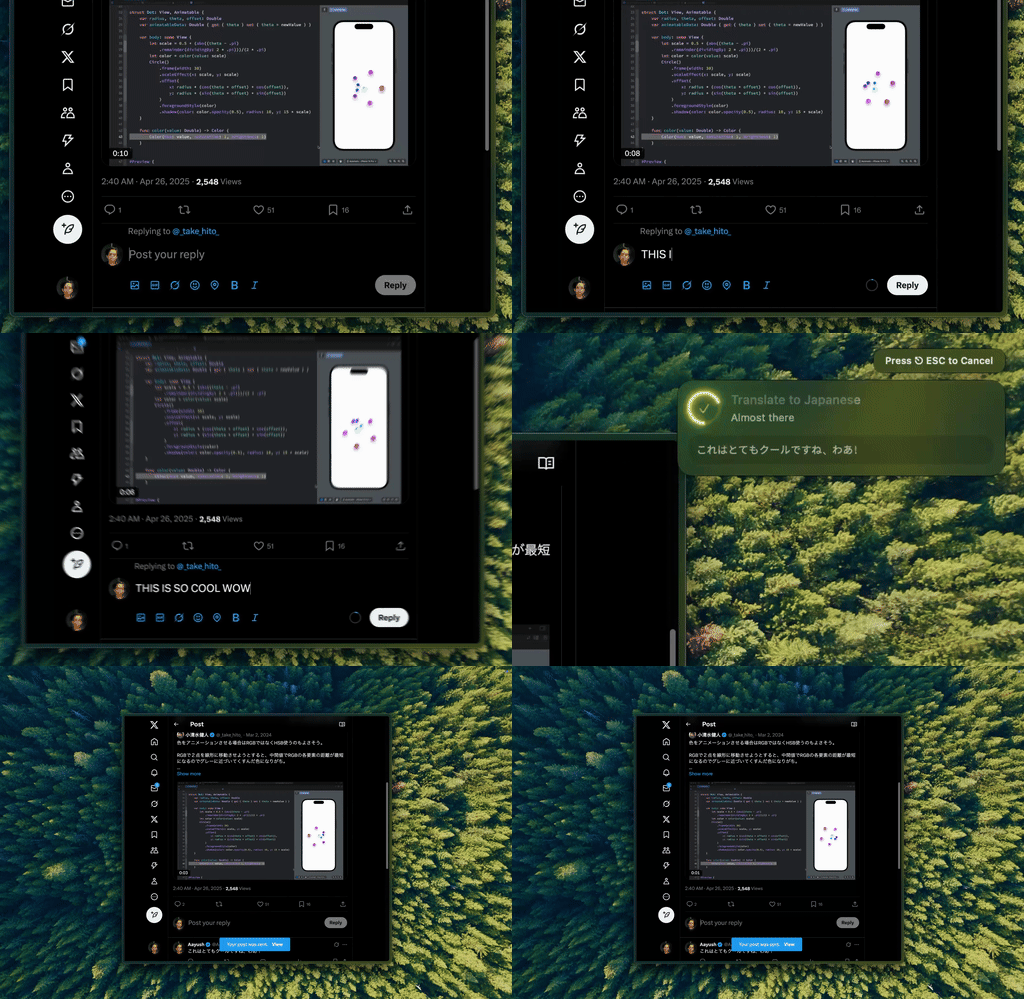
Type Mac: select your reply, press your translation shortcut, and the translated text replaces it in place.
Type Mac is a Mac menu bar app that works on the text you select. Make a custom shortcut with a prompt that includes the tone, for example: "Translate to German. Use the formal Sie and a polite business tone." Then:
- Write the reply in your language in Mail.
- Select it and press your shortcut.
- The German version, in the tone you set, replaces your draft.
One step does the translation and the register, so you do not fix the tone after. Make one shortcut per language and tone you use, such as "Translate to Spanish, friendly" or "Translate to English, professional."
- It works in Apple Mail, Outlook, Gmail in the browser, and other apps where you can select text.
- Before you translate, press Command-Shift-Return to fix typos in your draft. A clean source gives a clean translation.
- Pick the AI model: the built-in model, or your own key from OpenAI, Anthropic, Gemini, Groq, or OpenRouter.
Plans cost $4.99 a month, or $49.99 a year with a 7-day free trial. The translate selected text on Mac page shows more. For other tools, see the best translation app for MacBook, and for team chat, read how to translate messages in Slack.
FAQ
Can you translate emails in Apple Mail?
Yes. Select the text in the message, Control-click it, and choose Translate. The feature is part of macOS, so you need no extra app.
Does Apple Mail translate emails automatically?
Apple's guide describes translation of text you select. It does not describe an option that translates every incoming email on its own.
How do I translate an email to English on Mac without internet?
Download the languages in System Settings > General > Language & Region > Translation Languages. After the download, translations work offline.
Can I translate my own reply in Mail?
Yes. Select your draft, Control-click it, choose Translate, and click Replace with Translation. For control of the tone, use a tool that takes instructions, such as Type Mac.
Sources
Read it with macOS. Reply in the right tone with Type Mac, in Mail or any other app on your Mac.