
VS Code Grammar Check: Extensions vs a Mac-Wide Tool
For a VS Code grammar check, install an extension. LTeX+ checks grammar and spelling with LanguageTool in Markdown, LaTeX, and other markup files, offline. Harper checks English grammar in Markdown, code comments, and Git commit messages on your device. Code Spell Checker finds spelling errors in source code.
Extensions underline errors inside VS Code. They do not reach the pull request box in your browser, Xcode, or Slack. To fix the text itself in all of those places with one shortcut, select it and press a Type Mac shortcut. The setup for each option is below.
Best VS Code grammar check extensions
| Extension | Checks | File types | Languages | Where your text goes |
|---|---|---|---|---|
| LTeX+ | Grammar, spelling, style | LaTeX, Markdown, BibTeX, Org, reStructuredText, and more | 20+ | Stays on your Mac, or an external LanguageTool server that you set |
| Harper | Grammar, spelling | Markdown, code comments, Git commit messages, and more | English | Stays on your Mac |
| Code Spell Checker | Spelling only | Source code and text | English, plus add-on language packs | Stays on your Mac |
LTeX+
LTeX+ (ltex-plus.vscode-ltex-plus) is the successor to the LTeX extension. It comes with LanguageTool built in, so you do not install Java or LanguageTool. It catches grammar and style errors such as "This is an mistake" and "We look forward to welcome you," not only spelling. It supports more than 20 languages and mixed-language documents through babel commands or magic comments.
Harper
Harper (elijah-potter.harper) is a free, open-source grammar checker for developers. It parses the comments of most programming languages and all Markdown files, and it has a Git commit mode. You can set the English dialect: American, British, Australian, Canadian, or Indian.
Code Spell Checker
Code Spell Checker (streetsidesoftware.code-spell-checker) has more than 18 million installs on the Visual Studio Marketplace. It splits camelCase words before it checks them, so variable names do not fill your editor with false errors. For other languages, install an add-on, such as the Spanish or Brazilian Portuguese packs.
How to install an extension
- Press Command-Shift-X to open the Extensions view.
- Search for the extension name and click Install.
You can also install from the terminal, for example code --install-extension elijah-potter.harper.
VS Code Markdown grammar check
For README files and docs in Markdown, use LTeX+ or Harper. Both parse Markdown, so they check your sentences and skip the syntax. Pick LTeX+ if you write in more than one language. Pick Harper for English and speed.
VS Code grammar check for LaTeX
Use LTeX+. A classic use case is a scientific paper in LaTeX: it understands LaTeX commands and BibTeX files and checks only the prose. For a paper in two languages, use babel commands or magic comments to set the language per section.
Does Grammarly work in VS Code?
Grammarly does not publish a VS Code extension. The most installed extension named "Grammarly" on the Marketplace comes from an independent developer, and its last update was in November 2023. Grammarly for Mac, the desktop app, says it works in hundreds of desktop apps. Test it in VS Code before you rely on it.
VS Code spell check for English
If you only want spelling, Code Spell Checker is enough. If you also want grammar in English, use Harper. It checks spelling and grammar together, on your Mac.
One shortcut for VS Code, Xcode, and pull requests
Extensions point at errors. They do not rewrite the sentence that reads wrong. Many developers write English as a second language, and the hard part is not one typo. It is a commit message or a PR description that does not sound natural.
Type Mac is a menu bar app that works on selected text in any Mac app: VS Code, Xcode, and the GitHub pull request box in your browser.
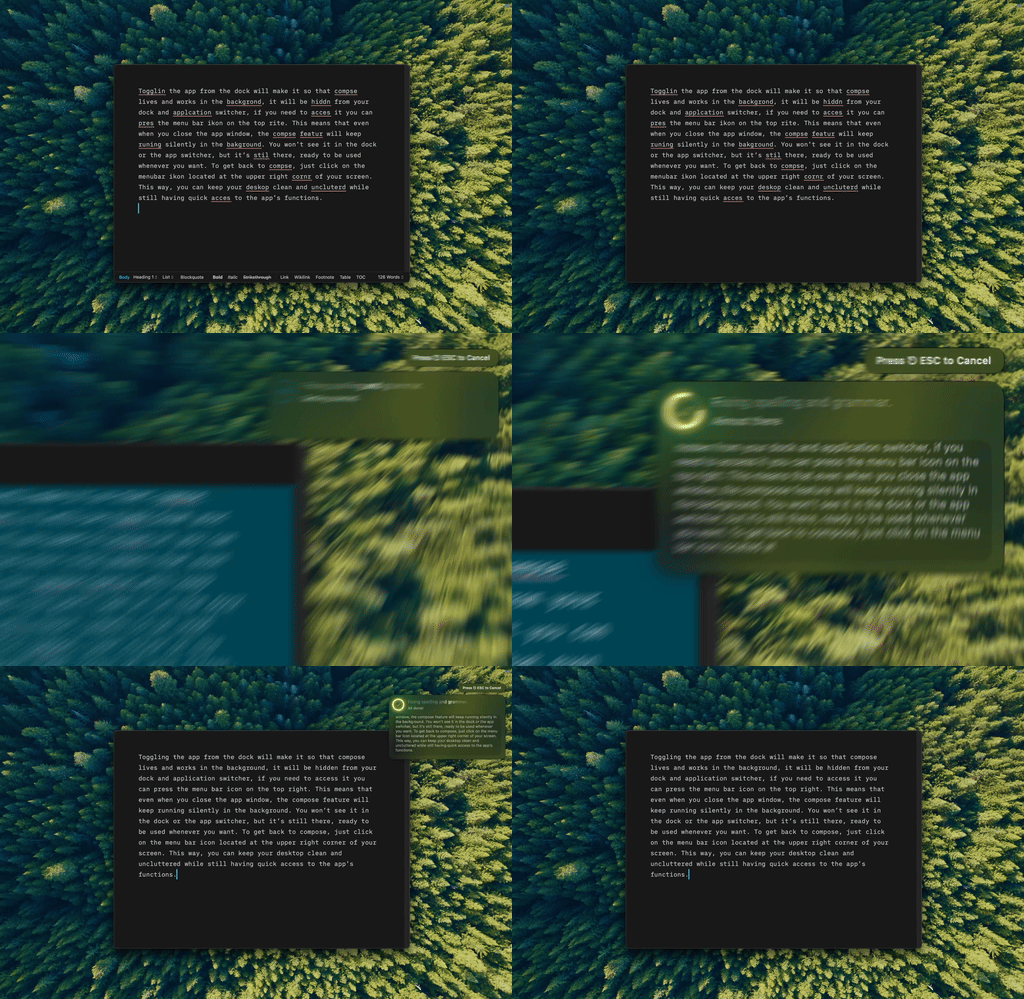
Type Mac: select the comment or the paragraph, press the shortcut, and keep coding.
- Select the prose, not the code: a comment, a README paragraph, or a PR description.
- Press Command-Shift-Return to fix grammar and spelling.
- For your team's style, make a custom shortcut. Example prompt: "Rewrite as a commit message in the imperative mood. Keep the subject under 72 characters."
- Read the change before you commit.
To write commit messages in VS Code, set it as your Git editor with git config --global core.editor "code --wait". The message opens in a VS Code tab, where you can select it and press the shortcut. If the code command is missing, open the Command Palette and run Shell Command: Install 'code' and optionally 'copilot' commands in PATH.
What you get:
- Code stays. Type Mac leaves code, links, and @mentions as they are.
- Your choice of model. Use the built-in model, or add your own API key from OpenAI, Anthropic, Gemini, Groq, or OpenRouter.
- One habit everywhere. The same shortcut works in your editor, your browser, Slack, and Mail.
Know the limit: Type Mac does not underline errors as you type. Keep Code Spell Checker for that, and use Type Mac to rewrite.
Type Mac costs $4.99 a month, or $49.99 a year with a 7-day free trial. See write better English on Mac. For more on docs and commits, read the best AI tools for developers who write documentation and AI tools for non-native English speakers. If your notes live in Markdown outside VS Code, see Obsidian grammar check.
FAQ
What is the best VS Code grammar check extension?
Use LTeX+ for LaTeX and for more than one language. Use Harper for English in Markdown, comments, and commit messages. Use Code Spell Checker for spelling in code.
Do these extensions send my text to a server?
LTeX+ checks offline unless you connect it to an external LanguageTool server. Harper runs on your device. Code Spell Checker checks on your Mac.
Can VS Code check the grammar of commit messages?
Yes. Harper has a Git commit mode. You can also open commit messages in VS Code with git config --global core.editor "code --wait" and fix them there.
Does Grammarly work in VS Code?
Grammarly does not publish a VS Code extension. Grammarly for Mac, the desktop app, works in many desktop apps, so test it in VS Code.
Sources
- LTeX+ documentation and LTeX+ on the Visual Studio Marketplace
- Harper for Visual Studio Code and harper-ls settings and supported languages (Harper docs)
- Code Spell Checker on the Visual Studio Marketplace
- Command-line interface: the --wait option and Visual Studio Code on macOS (VS Code docs)
- Grammarly's product offerings (Grammarly Support)
Fix the comment, the commit, and the PR with one shortcut. Try Type Mac.