
How to Use Grammarly in Pages on Mac (and When It Fails)
Learn how to use Grammarly in Pages in three steps: install the Grammarly for Mac desktop app on macOS 11 or later, allow its macOS permission, and open your document. Grammarly then underlines suggestions as you type in Pages. The Grammarly browser extension does not work in Pages, and the Grammarly Editor website cannot open a .pages file.
If you cannot install the desktop app, export your document to Word and upload it to the Grammarly Editor. Both methods are below, with the fixes for when Grammarly does not show up in Pages.
Does Grammarly work in Pages?
Yes, through one product. Grammarly's support page says you can use Grammarly in Pages by installing Grammarly for Mac, on macOS 11 or newer.
| Method | Works with Pages? | What you get |
|---|---|---|
| Grammarly for Mac (desktop app) | Yes, inside Pages | Underlines and suggestions as you type |
| Grammarly Editor (website) | After you export to Word | Suggestions on a copy of the document |
| Grammarly browser extension | No | It works only in the browser |
How to use Grammarly in Pages on Mac
- Download Grammarly for Mac from grammarly.com/desktop/mac and open the installer.
- Sign in to your Grammarly account.
- Choose Apple menu → System Settings → Privacy & Security → Accessibility, and turn on Grammarly Desktop. On macOS 27, the setting is named Device Control and Data Access.
- Open your document in Pages and click in the text.
- Accept or dismiss each underline, or open the Grammarly tab on the right edge of the screen.
Use the Grammarly Editor with a Pages document
The Grammarly Editor accepts Word (.doc, .docx), OpenOffice (.odt), .txt, and .rtf files. It does not accept .pages files.
- In Pages, choose File → Export To → Word.
- Click Advanced Options and choose
.docx. - Save the file, then upload it to the Grammarly Editor.
The Editor checks a copy. After you edit, you copy the changes back into Pages, or keep working in the Word file.
Why isn't Grammarly working in Pages?
If Grammarly is not showing up in Pages, try these fixes in order.
1. Update Grammarly for Mac
A Pages update can break the integration until Grammarly ships a fix. Grammarly's release notes list a February 2026 fix for "Grammarly for Mac does not integrate with Apple Pages 15.1." Install the latest Grammarly from grammarly.com/desktop/mac: quit Grammarly, move Grammarly Desktop to the Trash, and install the new download.
2. Check the macOS permission
Open System Settings → Privacy & Security → Accessibility (Device Control and Data Access on macOS 27). Make sure Grammarly Desktop is on, then quit and reopen Grammarly. On macOS 27, if Grammarly shows suggestions but cannot apply them in Pages, allow the macOS prompt for event access.
3. Remove Pages from the Block List
Click the Grammarly icon in the menu bar, choose Settings, and open the Block List tab. If Pages is under Blocked by you, remove it. Also check the menu bar icon for a Turn off Grammarly for 1 hour pause.
4. Find the Grammarly tab
Move the pointer to the right edge of the screen. If the tab is missing, click the Grammarly icon in the menu bar and make sure Turn off Grammarly tab is not selected.
5. Restart Grammarly and Pages
Click the Grammarly icon in the menu bar and choose Quit. Open Grammarly Desktop from Finder → Applications, then quit and reopen Pages.
For problems in every app, not only Pages, read Grammarly Desktop not working on Mac.
Pages has its own checker too
Pages checks spelling and grammar without Grammarly:
- Grammar: choose Edit → Spelling and Grammar → Check Grammar With Spelling.
- Full check: choose Edit → Spelling and Grammar → Check Document Now.
- Spelling as you type: choose Pages → Settings, click Auto-Correction, and select Correct spelling automatically.
The built-in checker catches typos and basic grammar. It does not rewrite a clumsy sentence or change the tone. Apple's Writing Tools can do more if your Mac supports Apple Intelligence; see Apple Intelligence Writing Tools vs. Type Mac.
Fix a paragraph in Pages with one shortcut
Many students write essays in Pages and need one paragraph to read better before the deadline. Type Mac works there with no setup for Pages. Select the paragraph, press a shortcut, and the corrected text replaces it in your document.
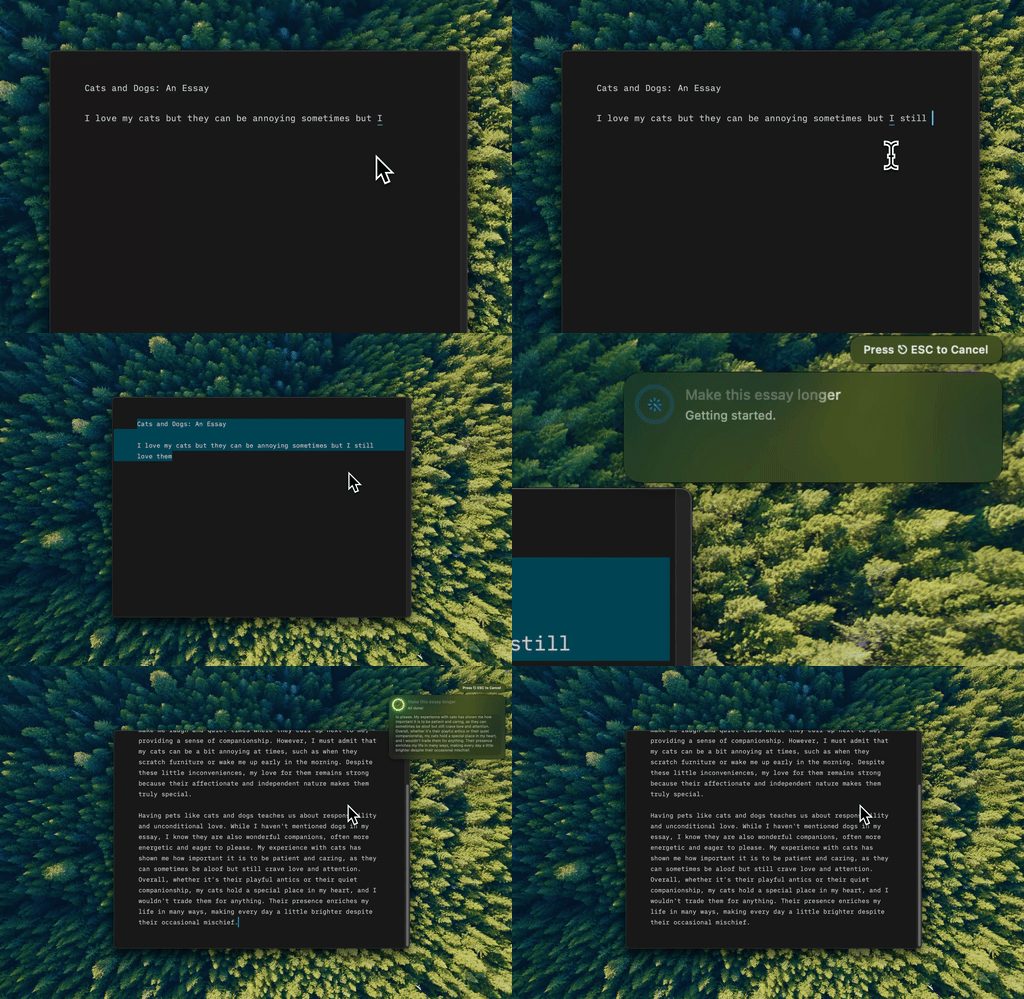
Type Mac: select your text in Pages, press the shortcut, and the new version lands in place.
- Fix grammar in the selected text with Command-Shift-Return.
- Make a paragraph shorter for a word limit, or longer where your point needs more support, with Command-Shift-9 and Command-Shift-8.
- Keep your formatting work in Pages. There is no export and no upload.
Type Mac edits the text you wrote; it does not underline errors as you type or scan the full document. If your school has rules about AI tools, follow them.
Plans cost $4.99 a month, or $49.99 a year with a 7-day free trial. See the grammar checker that works in every Mac app, or read how to fix grammar in any Mac app.
FAQ
Can I upload a Pages file to Grammarly?
No. The Grammarly Editor accepts .doc, .docx, .odt, .txt, and .rtf. In Pages, choose File → Export To → Word first.
Which macOS version do I need for Grammarly in Pages?
Grammarly for Mac needs macOS 11 or later. On an older Mac, export to Word and use the Grammarly Editor.
Why did Grammarly stop working in Pages after an update?
A new Pages version can break the integration until Grammarly updates its app. In February 2026, Grammarly fixed this for Pages 15.1. Install the latest Grammarly for Mac.
Does the Grammarly Safari extension work in Pages?
No. The extension works only in the browser. Pages needs the Grammarly for Mac desktop app.
Sources
- Does Grammarly work in Pages? (Grammarly Support)
- Grammarly bug resolution updates and release notes (Grammarly Support)
- Grammarly for Windows or Grammarly for Mac disappeared (Grammarly Support)
- How to deploy Grammarly for Mac (Grammarly Support, macOS 27 notes)
- How to choose where Grammarly for Windows and Mac works (Grammarly Support)
- Check spelling in Pages on Mac (Apple Support)
- Allow accessibility apps to access your Mac (Apple Support)
Need one paragraph to read better before you submit? Try Type Mac in Pages.