
Is Grammarly Slowing Down Your Mac? How to Check and Fix
If you think Grammarly is slowing down your Mac, measure it before you change anything. Open Activity Monitor, search for "Grammarly," and compare its memory, CPU, and energy use while you type and while you do not. If the numbers are high and your Mac feels faster after you quit Grammarly, Grammarly is the cause.
Grammarly runs in the background all day, like any menu bar app, so it uses some memory and CPU. Whether that slows your Mac depends on your Mac, your apps, and how much you write, so a number from someone else's Mac tells you little. This post shows what Grammarly runs on a Mac, how to measure it, and the fix for each result.
Does Grammarly slow down a Mac?
Grammarly for Mac is more than one process. Grammarly's support page lists these:
| Process | What it does |
|---|---|
| Grammarly Desktop | The main app, which gives suggestions in the apps you write in. |
| Grammarly Desktop Helper | Restarts the main app after a crash or a hang, and works with browsers on some websites. |
| Grammarly Desktop Update Service | Checks for updates in case the main update method fails. |
| Grammarly Desktop Uninstaller | Starts when files in Applications change, checks if you deleted Grammarly, and stops. |
The Grammarly for Safari extension is separate and runs inside Safari. Grammarly says its software "doesn't check text if it's not actively being used," so measure it while you write, not only when your Mac is idle.
How to check Grammarly's memory and CPU use
- Open Activity Monitor from Finder → Applications → Utilities.
- Type "Grammarly" in the search field at the top of the window.
- Click Memory. Write down the memory value for each Grammarly process.
- Look at the Memory Pressure graph at the bottom of the window.
- Click CPU. Note the % CPU of each Grammarly process with no typing, then while you type in Word or Mail.
- Click Energy. Note the Energy Impact of Grammarly. Apple defines it as a relative measure of energy use, where lower is better.
- Quit Grammarly from the menu bar, work for a few minutes, and check the Memory Pressure graph again.
Record your own results in a table like this:
| What to record | With Grammarly on | With Grammarly quit |
|---|---|---|
| Grammarly memory (all processes) | n/a | |
| Grammarly % CPU, not typing | n/a | |
| Grammarly % CPU, typing in Word | n/a | |
| Grammarly Energy Impact | n/a | |
| Memory Pressure color | ||
| Does typing feel slow? |
How to read the Memory Pressure graph
Apple gives three states:
- Green: "Your computer is using all of its RAM efficiently."
- Yellow: "Your computer might eventually need more RAM."
- Red: "Your computer needs more RAM."
A high memory number for Grammarly alone is not a problem while the graph stays green. If the graph is yellow or red and Grammarly is near the top of the Memory list, Grammarly's RAM use matters on your Mac.
Why is Grammarly so slow? Read your results
- High CPU when you do not type: Grammarly is stuck. Quit and reopen it (fix 1).
- Yellow or red memory pressure with Grammarly near the top: turn Grammarly off in apps where you do not need it (fix 3).
- Lag only in Word: use the Word steps (fix 4).
- Lag only in Safari: test the extension (fix 5).
- No change after you quit Grammarly: Grammarly is not the cause. Read how to speed up a MacBook for other causes.
How to fix Grammarly slowing down your Mac
1. Quit and reopen Grammarly
Click the Grammarly icon in the menu bar and choose Quit. Open Grammarly Desktop again from Finder → Applications. If it does not quit, choose Apple menu → Force Quit.
2. Update Grammarly
Grammarly's 2026 release notes list many Mac versions with "Bug fixes and performance optimization." Quit Grammarly, move Grammarly Desktop to the Trash, and install the latest version from grammarly.com/desktop/mac.
3. Turn Grammarly off where you do not need it
Click in a text field in an app, click the Grammarly icon in the menu bar, and choose Turn off Grammarly. The app goes on the Block List, and Grammarly stops work there. Use Turn off Grammarly for 1 hour to test if an app gets faster without it.
4. If Grammarly is slowing down Word
- Keep one document open. With two Office documents open, Grammarly for Mac starts in only one of them.
- In long documents, Grammarly can show a list of suggestions for the next 10 pages from your cursor. Move the cursor to the part you edit.
- Turn Grammarly off in Word for 1 hour and compare how Word types.
5. If Safari feels slow
Apple notes that Safari can show a warning when an extension slows browsing. To test, choose Safari → Settings → Extensions, deselect Grammarly, and reload the slow page.
6. Stop Grammarly from opening at login
If you use Grammarly only sometimes, open Grammarly Settings → Customization and turn off Launch at startup. Open it when you need it.
7. Uninstall it
If you do not use Grammarly enough to keep it running, remove it fully with how to uninstall Grammarly on Mac.
A writing tool that waits for your shortcut
Type Mac is a native Swift app in the menu bar. It does no work on your text until you select it and press a shortcut. Then it sends the selection to the AI model, puts the result in place, and goes quiet again.
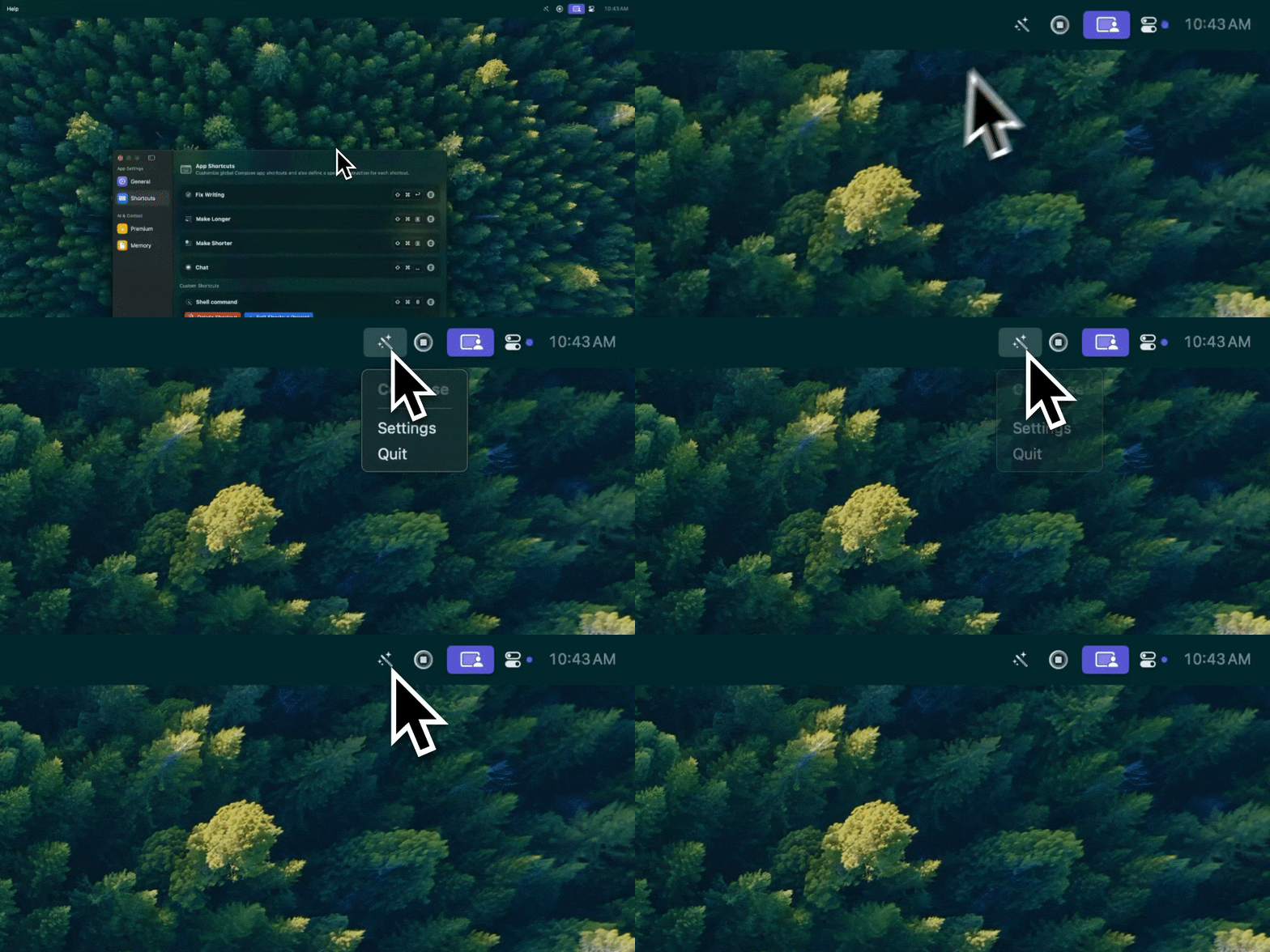
Type Mac: one icon in the menu bar, and work only when you ask for it.
- No checks while you type. Nothing runs on your text in Word, Mail, or Safari until you press the shortcut.
- No browser extension. It works on selected text in Safari, Chrome, and every other Mac app.
- Check it yourself. Run the same Activity Monitor steps on Type Mac and compare.
The trade-off: Type Mac does not underline errors as you type. You choose the text to fix. To see how app frameworks differ on a Mac, read native Mac apps vs Electron apps.
Plans cost $4.99 a month, or $49.99 a year with a 7-day free trial. See the native Grammarly alternative for Mac.
FAQ
Does Grammarly slow down your computer?
It can, and it depends on your Mac and your apps. Measure Grammarly in Activity Monitor, quit it, and compare. If memory pressure turns green and typing feels faster after you quit, Grammarly is part of the cause.
How much RAM does Grammarly use?
Check it in Activity Monitor → Memory and add up all Grammarly processes. The value changes with the apps you use and how much you type, so measure on your own Mac.
Why is Grammarly slow in Word?
Grammarly gives two Word notes: with two Office documents open, it starts in only one, and in long documents it can list suggestions for the next 10 pages from your cursor. Keep one document open, update Grammarly, and turn it off in Word for 1 hour to compare.
Is it safe to quit Grammarly's background processes?
Quit Grammarly from its menu bar icon. That is the method Grammarly gives. The Helper restarts the main app after a crash, so use the menu bar Quit command, not a single helper process.
Sources
- Grammarly for Mac's background processes overview (Grammarly Support)
- How We Protect Your Privacy (Grammarly)
- Grammarly bug resolution updates and release notes (Grammarly Support)
- How to choose where Grammarly for Windows and Mac works (Grammarly Support)
- Grammarly for Windows and Mac doesn't appear in Microsoft Word (Grammarly Support)
- Grammarly for Windows and Grammarly for Mac user guide (Grammarly Support)
- I can't uninstall Grammarly for Mac (Grammarly Support, Launch at startup)
- View memory usage in Activity Monitor on Mac (Apple Support)
- Check if your Mac needs more RAM (Apple Support)
- View energy usage in Activity Monitor on Mac (Apple Support)
- View CPU activity in Activity Monitor on Mac (Apple Support)
- Get extensions to customize Safari on Mac (Apple Support)
Want a writing tool that waits for you? Try Type Mac and check it in Activity Monitor yourself.