
Mac Spell Check in Multiple Languages: Setup Guide
Mac spell check works in multiple languages without extra software. The default mode, Automatic by Language, checks each piece of text against the language it detects, and you choose which languages it can pick from. The setup takes one minute in System Settings.
Two things need more work: Word and Outlook keep language settings of their own, and automatic detection fails on text that mixes two languages. This guide covers all three.
How to set up Mac spell check for multiple languages
- Open System Settings, then click Keyboard in the sidebar.
- Under Text Input, click Edit.
- Click the Spelling pop-up menu, then choose Automatic by Language.
- Open the menu again, scroll down, and choose Set Up.
- Select each language you write in. Clear the ones you do not use.
- Click Done, then click Done again.
Apple describes the automatic mode as useful "if you type in different languages." The short list from step 5 matters: the fewer languages macOS can choose from, the fewer wrong guesses it makes.
How to change the spell check language on a Mac
To force one language, click the Spelling pop-up menu in the same panel and choose that language. macOS then checks all text against it. Use this for a long session in one language, then switch back to Automatic by Language.
Pages also lets you change the dictionary while you check: choose Edit > Spelling and Grammar > Show Spelling and Grammar, then pick a language from the pop-up menu at the bottom of the window.
Why is my spell check in a different language?
Four causes cover most cases:
- Detection guessed wrong. Short messages, names, and sentences that mix two languages give macOS little text to judge.
- An extra language is selected in Set Up. macOS can choose a language you never write in.
- A single language is forced. Someone chose one language in the Spelling menu instead of the automatic mode.
- The app has its own setting. Word and Outlook mark text with a proofing language. The sections below fix both.
Mac autocorrect in the wrong language
Autocorrect and the spell check share the Spelling setting in the same panel. When macOS picks the wrong language, autocorrect "fixes" a correct word into a word from the other language.
- To undo a change, Control-click the word and choose Change Back to your original word.
- To stop a correction before it happens, press Esc, then keep typing.
- To prevent it, clear the languages you do not write in from Set Up.
- If you write mixed text all day, turn off Correct spelling automatically and keep the underline on. You still see errors, and nothing changes without your click.
How to add another language to autocorrect
Open System Settings > Keyboard > Text Input > Edit, click the Spelling pop-up menu, and choose Set Up. Select the new language and click Done. With Automatic by Language on, autocorrect and the spell check use it when macOS detects that language.
Word for Mac spell check language
Word marks each piece of text with a proofing language of its own, separate from the macOS setting.
- Select the text. To fix the whole document, press Command-A.
- On the top menu bar, choose Tools > Language.
- Select your language. To use it for new documents, select Default.
- Click OK.
To let Word detect the language, go to the Review tab, then Language, and select Detect language automatically. Microsoft notes that the change applies to the current document only.
Outlook for Mac: change the spell check language
In the current Outlook for Mac, Microsoft documents these steps:
- Add your languages to macOS: System Settings > General > Language & Region, then click the plus button under Preferred languages.
- Quit Outlook and open it again.
- In a new message, choose Edit > Spelling and Grammar > Spelling & Typing.
- Select Manage Languages and add a language with the plus button.
- Select Allow Editor to automatically detect and add new proofing languages based on your writing, then click Save.
Detection works only on full sentences, so end each sentence with punctuation. Microsoft also lists a known issue, with the status "investigating," where automatic detection does not work as expected while you write. The workaround: select the text, choose Edit > Spelling and Grammar > Language > Language, and pick the language.
In legacy Outlook for Mac, choose Edit > Language > Language, select Detect language automatically, and click OK. Microsoft ends support for legacy Outlook for Mac in October 2026. For other Outlook problems, read Outlook for Mac spell check not working.
Where automatic detection fails
Language detection needs enough text to judge. These cases defeat it:
| Text | What happens |
|---|---|
| "Merci pour le cafe, see you Monday!" | Detected as English, so the missing accent in "café" passes |
| "Ok, nos vemos." | Too short to detect with confidence |
| "Please send the Rechnung before Friday." | The German word gets flagged in an English sentence |
| A message full of names and product terms | Unknown names get flagged in every language |
The spell checker works one word at a time and one language at a time. A sentence that switches language in the middle is outside what it can check.
Type Mac corrects each selection in its own language
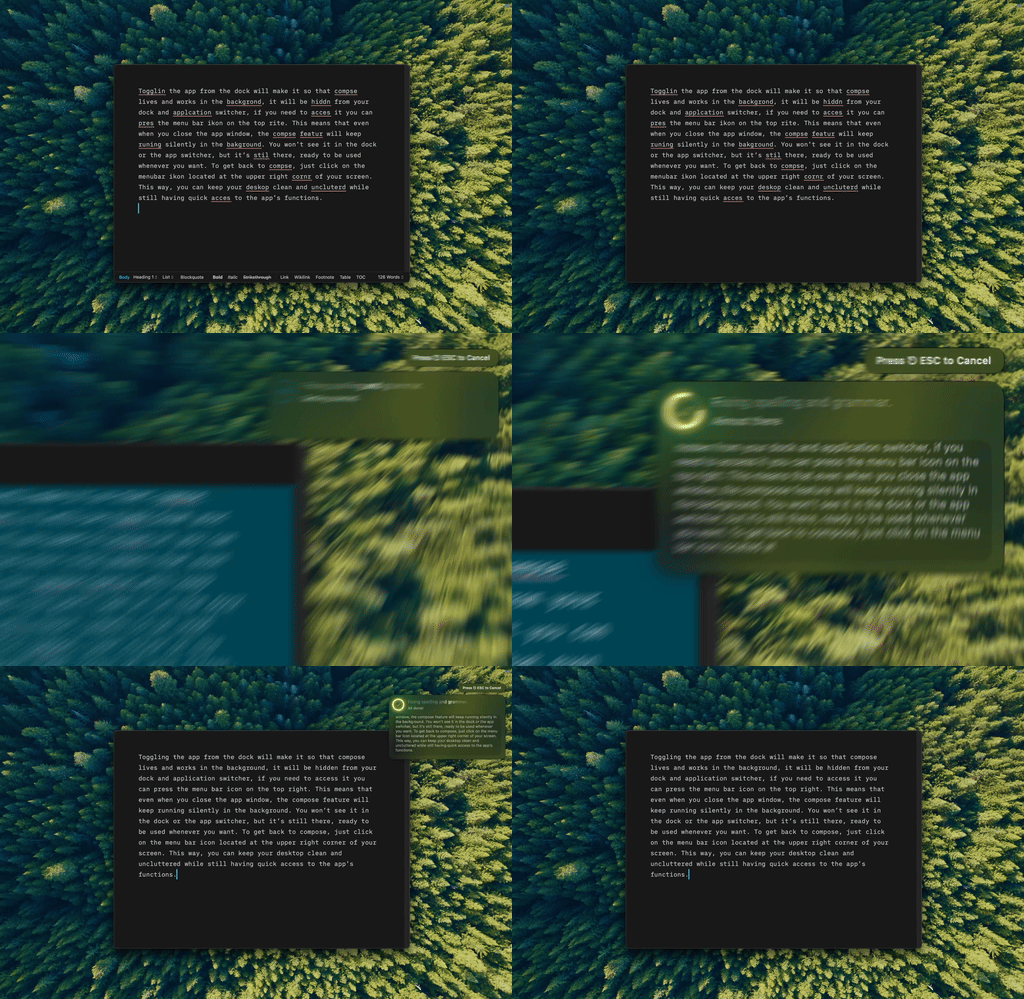
Type Mac: select a paragraph in any language, press one shortcut, and the corrected text replaces it.
Type Mac is a Mac menu bar app that fixes selected text in place. Its Fix Writing shortcut, Command-Shift-Return, corrects typos, missing accents, grammar, punctuation, and word order. It keeps the language of the text you select, so a French reply stays French and an English report stays English. You do not switch a dictionary first.
This is the best setup for writers who use English as a second language:
- Write in English, select the paragraph, and press Command-Shift-Return to fix grammar, not only spelling.
- Add a custom shortcut with the prompt "Rewrite this in natural English" for wording that is correct but stiff.
- Add a custom shortcut such as "Translate to Spanish" for a reply in your other language.
It works in Mail, Slack, Notes, browsers, and other apps where you can select text. Read how to correct an English sentence on Mac for the most common errors, and AI tools for non-native English speakers for a wider view. The write better English on Mac page shows the app.
FAQ
Can a Mac spell check two languages at once?
Yes. Choose Automatic by Language in System Settings > Keyboard > Text Input > Edit, then select both languages in Set Up. macOS detects the language of the text and checks it against that dictionary.
Why does my Mac change correct words into another language?
Autocorrect follows the detected language. When detection is wrong, it replaces a correct word. Clear unused languages in Set Up, or turn off Correct spelling automatically for mixed text.
Does Word for Mac use the macOS spelling language?
Word uses its own proofing language for each piece of text. Set it in Tools > Language, or turn on Detect language automatically from the Review tab.
How do I change the spell check language in Outlook for Mac?
In a new message, choose Edit > Spelling and Grammar > Spelling & Typing, then Manage Languages. If detection fails, select the text and choose Edit > Spelling and Grammar > Language > Language.
Sources
- Apple Support: Change Input Sources settings on Mac
- Apple Support: Get typing suggestions and correct mistakes on Mac
- Apple Support: Check spelling in Pages on Mac
- Microsoft Support: Change the language Office uses in its menus and proofing tools
- Microsoft Support: Let Outlook for Mac detect and spell check languages
- Microsoft Support: Detect Language Automatically known issue in Outlook for Mac
Write in two languages without two dictionaries. Type Mac corrects each selection in the language you wrote it in.