
How to Translate Messages in Slack on Mac (3 Methods)
You can translate messages in Slack in three ways. On a Business+ or Enterprise+ plan, Slack's own Translate message action translates any message into your language. On any plan, a translation app from the Slack Marketplace adds a translate shortcut, a /translate command, and automatic translation for a channel. And on a Mac, a writing shortcut translates the messages you write before you send them.
Each method solves a different half of the problem. Reading a message is one job. Writing a reply that sounds natural in your teammate's language is another.
Method 1: Translate in Slack with Slack AI
Slack includes translations in its AI features. The pricing page lists "AI language translations" as included in the Business+ and Enterprise+ plans. Free and Pro do not include it.
First, set your language:
- Click your profile picture in the sidebar, then click Preferences.
- Select Language & region.
- Below Translation language, choose the language you want messages translated into.
Then translate a message:
- Hover over the message.
- Click the three dots icon in the top-right corner of the message.
- Select Translate message.
Slack shows the translated message, with a See original link below it to bring back the original text. Translations are visible only to you. Other people always see the original message.
Limits: Slack's guide describes translation of messages you read, one message at a time. It does not describe a way to translate the messages you write, or a setting that translates a full channel.
Method 2: A Slack translate app from the Marketplace
The Slack Marketplace has translation apps that work on any plan. One example is Translate, by Mark Carey Consulting Inc. Its listing describes three features:
- Translate this message, an action in the shortcuts menu on any message.
- /translate, a command: type a language code and your text to get a translation. Example:
/translate es Can we move the call to 3 PM? - Automatic Translation for a channel or direct message, so messages get translated without a command or a button.
The listing states that Translate has free and paid plans, with all features free for 30 days.
Auto translate in Slack
Automatic channel translation is the main reason to choose an app over Slack AI. A bot in the channel translates each message for the team, so nobody has to click. This fits a shared channel between two offices that write in different languages.
Who installs the app
By default, Slack lets members install apps without approval from a Workspace Owner. If your admins turned on app approval, you can install only pre-approved apps right away. For other apps, you send a request, and the owners or app managers review it. A translation bot also reads the messages in the channels it joins, so check your company's policy first.
Method 3: Translate what you write with Type Mac
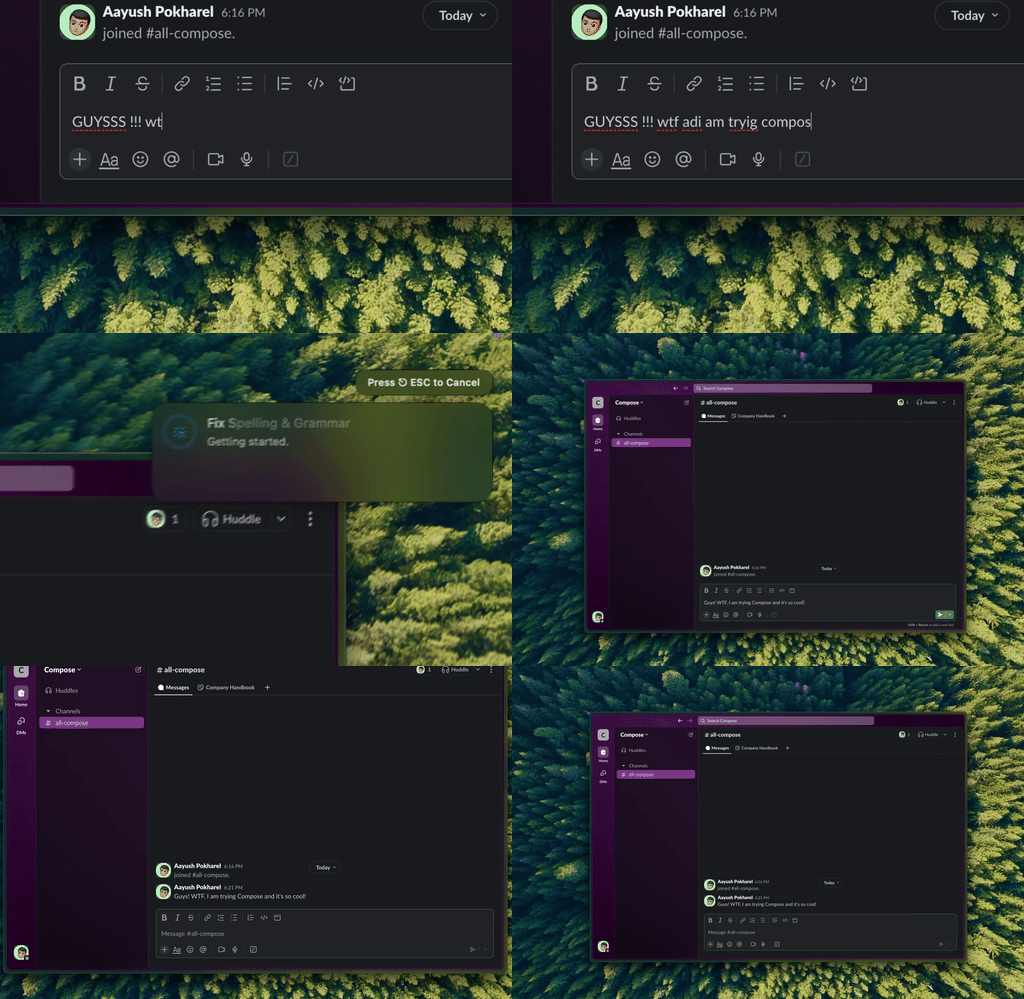
Type Mac: write the message, select it, press one shortcut, and the new text replaces your draft before you send.
Methods 1 and 2 help you read. To write, you need the other direction: your message, in your teammate's language, in a tone that fits a chat. Type Mac is a Mac menu bar app that does this on the text you select.
- In Slack, write your message in the language you think in.
- Select the text.
- Press your translation shortcut. The translated text replaces your draft.
- Press Return to send.
You make the shortcut in Type Mac with a prompt, for example: "Translate to English. Keep it short and casual, like a Slack message." A second shortcut, such as "Translate to Japanese, polite," covers a different teammate. Type Mac needs no workspace admin and no app in your Slack workspace, because it runs on your Mac.
If you write your messages in English as a second language, use the built-in Fix Writing shortcut, Command-Shift-Return, instead. It fixes grammar and typos and keeps the message in English.
The same shortcuts work outside Slack: in Mail, Notes, Gmail in the browser, and other apps where you can select text. Read how to fix Slack and Discord messages before you send, or see the Slack message rewriter for Mac page.
Translate messages in Slack: the 3 methods compared
| Slack AI | Marketplace app (Translate) | Type Mac | |
|---|---|---|---|
| Translates messages you read | Yes, one at a time | Yes, with a shortcut | No |
| Translates messages you write | Not described by Slack | With the /translate command | Yes, in place |
| Automatic channel translation | Not described by Slack | Yes | No |
| Tone control | Not described by Slack | Not described in the listing | Yes, from your prompt |
| Needs | Business+ or Enterprise+ plan | Install in the workspace | Mac app on your computer |
| Works outside Slack | No | No | Yes |
What is the best Slack translation app?
It depends on the job:
- You read messages in a language you do not know, on Business+ or Enterprise+: use Slack AI. It is already in your plan.
- Your team shares channels across languages: use a Marketplace app with automatic channel translation.
- You write to teammates in their language, or in English as a second language: use Type Mac, and keep Slack AI or an app for reading.
A multilingual team needs a tool for each direction: one to read, one to write. For Slack AI and chat tools in general, read how to use ChatGPT in Slack. For email, read how to translate an email in Apple Mail.
FAQ
Can Slack translate messages automatically?
Slack's own guide describes translation one message at a time, with Translate message. For automatic translation of a full channel, use a Marketplace app that offers it.
Which Slack plans include translation?
Slack's pricing page lists AI language translations as included in Business+ and Enterprise+. Free and Pro do not include it.
Do other people see my Slack AI translations?
No. Slack states that translations are visible only to you. Other people always see the original message.
Can I translate a Slack message before I send it?
Slack's guide does not describe this. Use the /translate command of a Marketplace app, or select your draft and press a Type Mac translation shortcut.
Sources
- Slack Help Center: Guide to AI features in Slack
- Slack: Pricing
- Slack Marketplace: Translate
- Slack Help Center: Manage app approval for your workspace
Read with Slack, write with Type Mac: your message, in your teammate's language, with one shortcut.